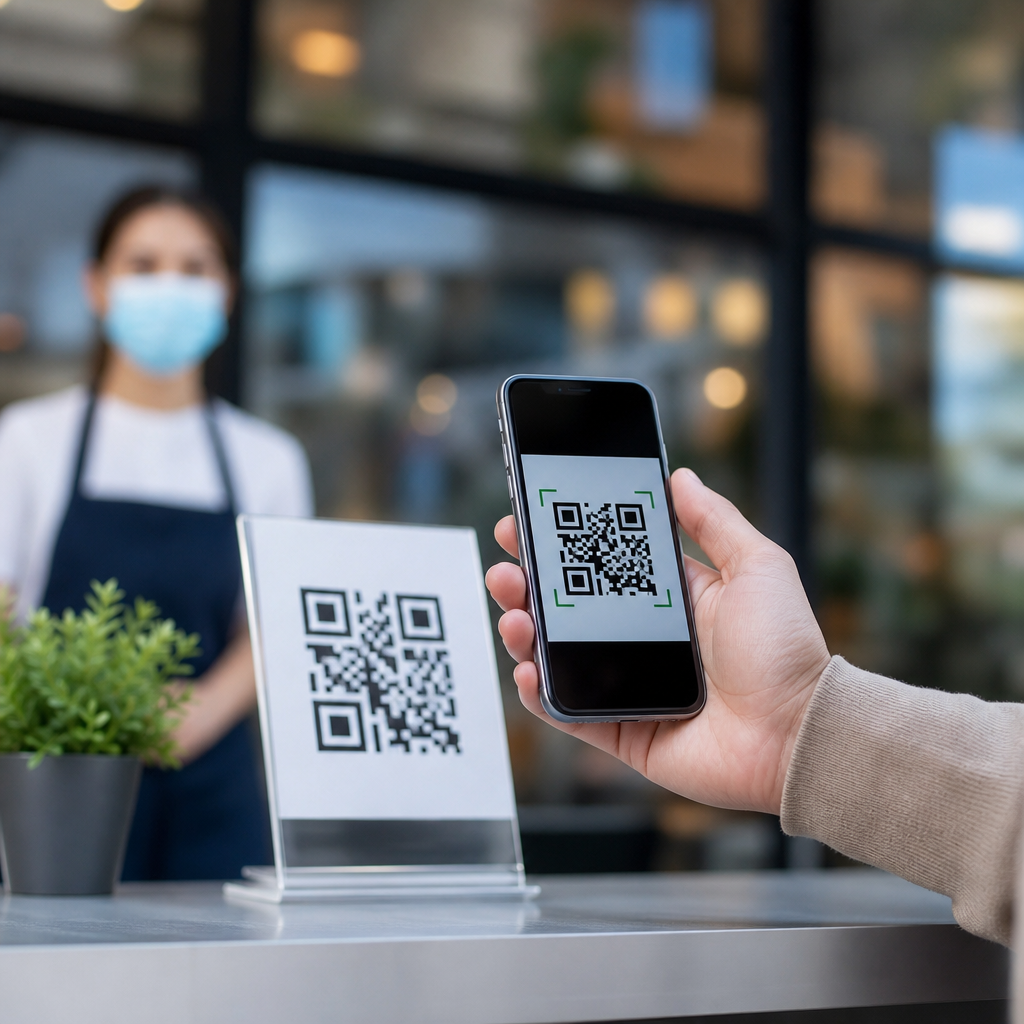
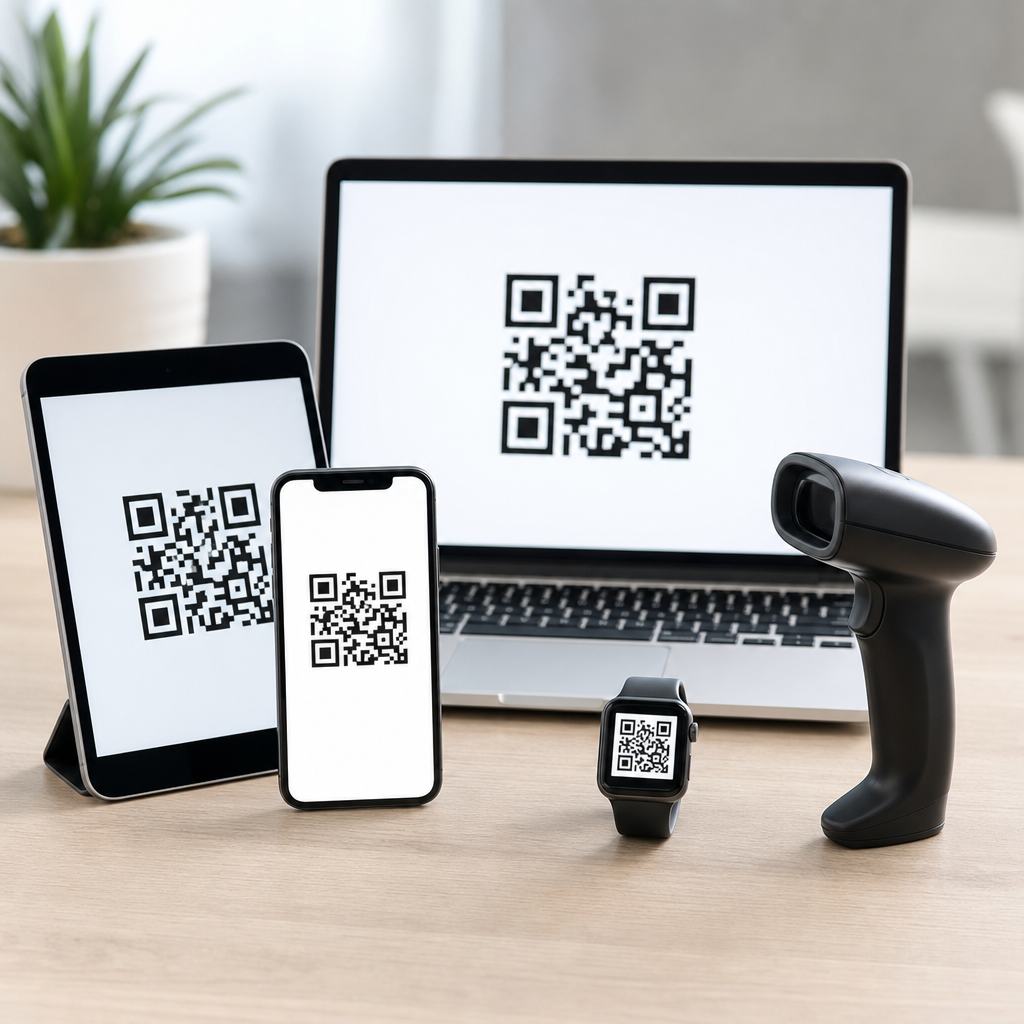
QR codes are square, machine-readable symbols that store data in a pattern of black modules and white space, and nearly every modern person interacts with them through a device they already own. In practical terms, when people ask what devices can scan QR codes, they are also asking a broader question: what are QR codes, how do they work, and which tools can read them reliably in everyday settings? That makes this topic a natural hub within QR Code Basics & Education, because understanding scanners starts with understanding the code itself.
A QR code, short for Quick Response code, was developed by Denso Wave in 1994 for high-speed tracking in manufacturing. Unlike a traditional one-dimensional barcode, a QR code stores data in two dimensions, allowing it to hold much more information in a compact square. A code can contain a website URL, contact card, Wi-Fi credentials, payment request, app deep link, event ticket, serial number, or plain text. Its three large finder patterns in the corners help imaging devices detect orientation instantly, while error correction enables a damaged code to remain readable. In my work testing printed signage, product labels, restaurant menus, and mobile onboarding flows, that built-in resilience is the difference between a scan that works at arm’s length and one that fails in real conditions.
Knowing which devices can scan QR codes matters for usability, accessibility, marketing performance, support planning, and security. A campaign aimed at consumers can assume most recent smartphones will scan natively, but a warehouse workflow may still depend on rugged handheld terminals, fixed-mount scanners, or tablets in kiosk mode. Healthcare, retail, logistics, education, hospitality, and payments all use QR technology differently, so the right scanning device depends on camera quality, operating system support, software permissions, ambient lighting, screen glare, and the format of the encoded content. If you understand the device landscape, you can create QR experiences that are easier to scan, safer to trust, and more effective across the environments where people actually use them.
What Are QR Codes and Why Are They So Widely Used?
QR codes are a type of matrix barcode designed for fast decoding from multiple angles. Their popularity comes from a simple technical advantage: they bridge physical and digital touchpoints with almost no friction. A person points a camera, the device identifies the symbol, decodes the payload, and offers an action such as opening a webpage or joining a wireless network. That is faster than typing a URL, searching manually, or entering a long password.
The structure of a QR code explains why so many devices can read it. Finder patterns anchor the symbol, alignment patterns help with distortion, timing patterns define the grid, and format information tells the scanner which error-correction level and masking pattern are in use. Most consumer codes use Reed-Solomon error correction, which allows partial recovery if a portion of the code is obscured or printed poorly. This is why codes on shipping boxes, posters behind glass, and coffee cups can still scan despite wear and environmental imperfections.
Businesses use QR codes because they are cheap to generate, easy to print, and flexible in purpose. A static code contains fixed information, while a dynamic code points to a short URL that can be redirected later for analytics or content updates. Museums use them for exhibit context, airlines for boarding passes, utility companies for bill payment, and manufacturers for product authentication or service manuals. The code itself is not the experience; it is the delivery mechanism. The scanning device determines whether that delivery feels instant or frustrating.
Smartphones: the Primary Devices That Scan QR Codes
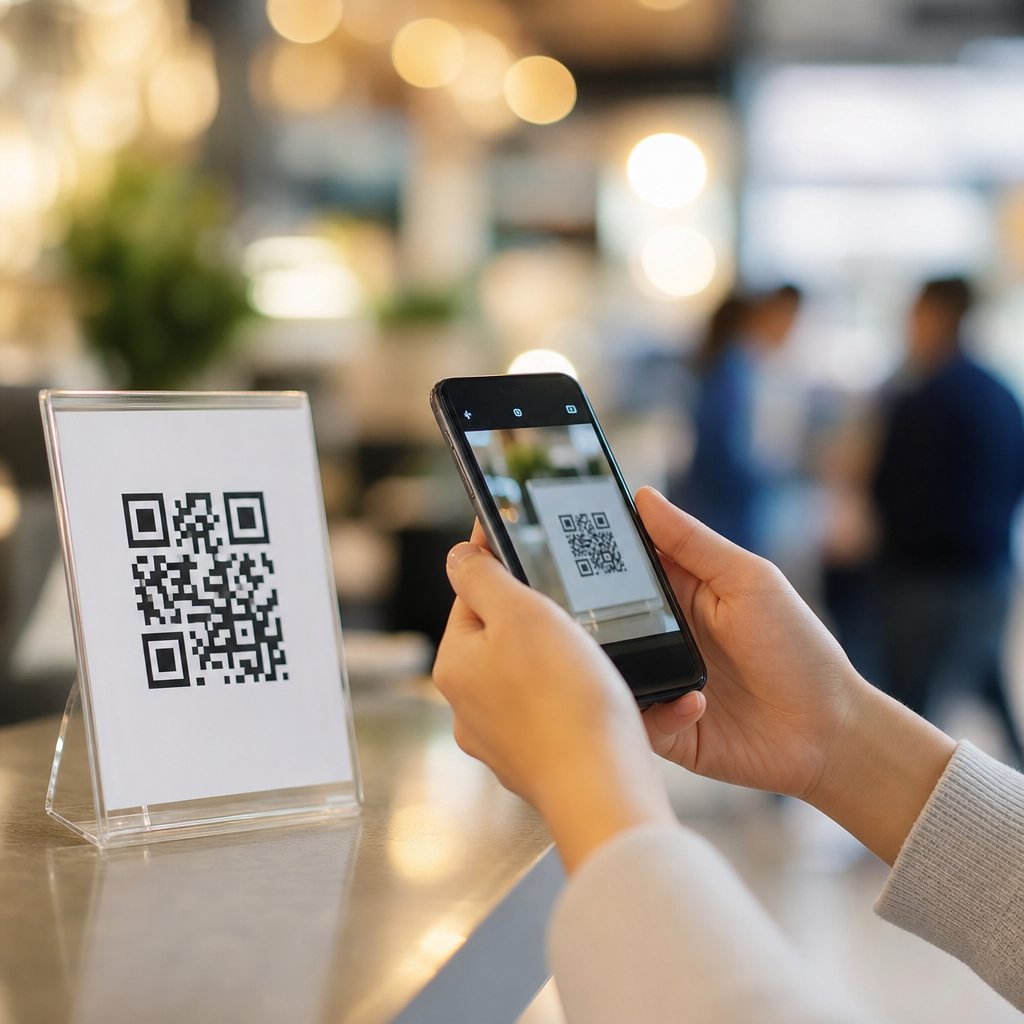
Smartphones are by far the most common QR scanning devices because they combine a camera, an operating system with image recognition, and a browser or app capable of handling the decoded result. On current iPhones, the native Camera app detects QR codes automatically, and Apple has supported this at the system level since iOS 11. On Android, native support is widespread through Google Lens integration, manufacturer camera apps, and quick settings shortcuts, though behavior varies by brand and Android version.
In real deployments, smartphone compatibility is usually best when the QR code resolves to a mobile-friendly HTTPS page. If a code launches a proprietary app, support becomes less universal because users may not have that app installed or may block permissions. I have repeatedly seen organizations assume “phone equals scanner,” only to discover that captive portals, app-only check-ins, or unsupported deep links reduce completion rates. The safest baseline is a clean, responsive web destination with clear fallback behavior.
Older smartphones can still scan QR codes using third-party apps such as QRbot, Kaspersky QR Scanner, or built-in social and payment apps that include scanning features. However, dedicated apps add user friction, and security quality varies. Native camera scanning is now standard enough that public-facing QR deployments should be tested first on stock iPhone and Android camera workflows, then on older devices where a dedicated app may still be required.
Tablets, Laptops, and Desktop Computers
Tablets scan QR codes much like smartphones do, especially iPads and Android tablets with rear cameras and updated operating systems. In classrooms, clinics, and retail counters, tablets often act as shared devices for check-in, product lookup, or guided onboarding. Their larger screens help users review decoded information before proceeding, but they can be harder to position over a small printed code because of size and weight. Camera autofocus quality also varies more widely on tablets than on flagship phones.
Laptops and desktop computers can scan QR codes too, though usually in a less convenient way. Devices with webcams can use browser-based scanners built on WebRTC and JavaScript libraries such as ZXing or html5-qrcode. These tools access the camera through the browser, detect the QR pattern in the live feed, and decode it locally or server-side depending on implementation. This is useful for account linking, web login handoff, and internal business tools where users are already seated at a computer.
Desktop scanning is common in customer support and operations contexts. For example, a support agent may scan a QR code from a product label using a USB webcam to pull up the correct service record. Another common workflow is scanning a code shown on a phone screen into a desktop browser to authenticate a session. The main limitation is ergonomics: webcams are fixed, focus ranges are narrow, and screen-rendered QR codes can flicker or reflect light, making them slower to capture than with a handheld phone.
Dedicated Barcode Scanners and Industrial Devices
Not all barcode scanners read QR codes. Older laser scanners generally read only one-dimensional barcodes such as UPC or Code 128 because they sweep a single beam across the symbol. To scan QR codes, organizations typically need an area-imaging scanner, which captures a two-dimensional image and decodes it in software. This distinction matters in retail, warehousing, manufacturing, and healthcare, where procurement teams may assume any scanner handles any code format. It does not.
Area imagers from Zebra Technologies, Honeywell, Datalogic, and Cognex are widely used for QR decoding in professional environments. Handheld models scan printed labels quickly, while fixed-mount readers handle conveyor lines, kiosks, and self-service stations. Rugged mobile computers used in logistics often run Android and combine a scanning engine with specialized software for inventory control and proof of delivery. In hospitals, clinicians may use barcode administration devices that read QR codes on wristbands, medication packaging, or specimen labels, provided the system is configured for that symbology.
The advantage of dedicated scanning devices is consistency. They tolerate motion better, decode from awkward angles, and often outperform consumer cameras in dim settings or on reflective packaging. The tradeoff is cost and specialization. A warehouse scanner is excellent for repetitive scans but poor for consumer marketing use, where users need a browser, wallet, or payment app after the scan. Choosing the right device means matching the scanner to the operational context, not just the symbol format.
Wearables, Payment Terminals, and Other Less Obvious QR Scanners
Smartwatches, smart glasses, point-of-sale systems, kiosks, and payment terminals can all scan QR codes in specific scenarios. Consumer wearables are limited because most watch cameras are nonexistent or basic, but companion workflows still matter. A phone may scan a code and pass the result to a watch for ticket access or authentication approval. Smart glasses used in field service or warehousing can scan codes hands-free, which improves efficiency when workers need both hands available.
Payment terminals increasingly scan merchant-presented or customer-presented QR codes, especially in regions where account-to-account payments and digital wallets are common. Restaurants, transit systems, and pop-up retailers often use tablet POS systems with integrated camera accessories or scanner sleds to read loyalty, coupon, and payment codes. Self-service kiosks in airports and cinemas do the same for boarding passes and e-tickets. The scanning hardware may be hidden, but it is still reading a QR symbol through an image sensor and decoding engine.
| Device type | Can scan QR codes? | Typical use case | Main limitation |
|---|---|---|---|
| Smartphone | Yes, usually natively | Links, payments, menus, login | Varies by camera quality and OS version |
| Tablet | Yes | Check-in, education, retail counters | Bulkier positioning and weaker cameras on some models |
| Laptop/Desktop | Yes, with webcam and software | Authentication, support, internal tools | Less ergonomic and slower to align |
| 2D barcode scanner | Yes | Inventory, healthcare, manufacturing | Higher cost and narrower function |
| Laser barcode scanner | Usually no | Legacy retail UPC scanning | Cannot read matrix codes |
| POS terminal or kiosk | Often yes | Tickets, loyalty, QR payments | Depends on integrated imaging hardware |
What Makes a QR Code Scannable on Different Devices?
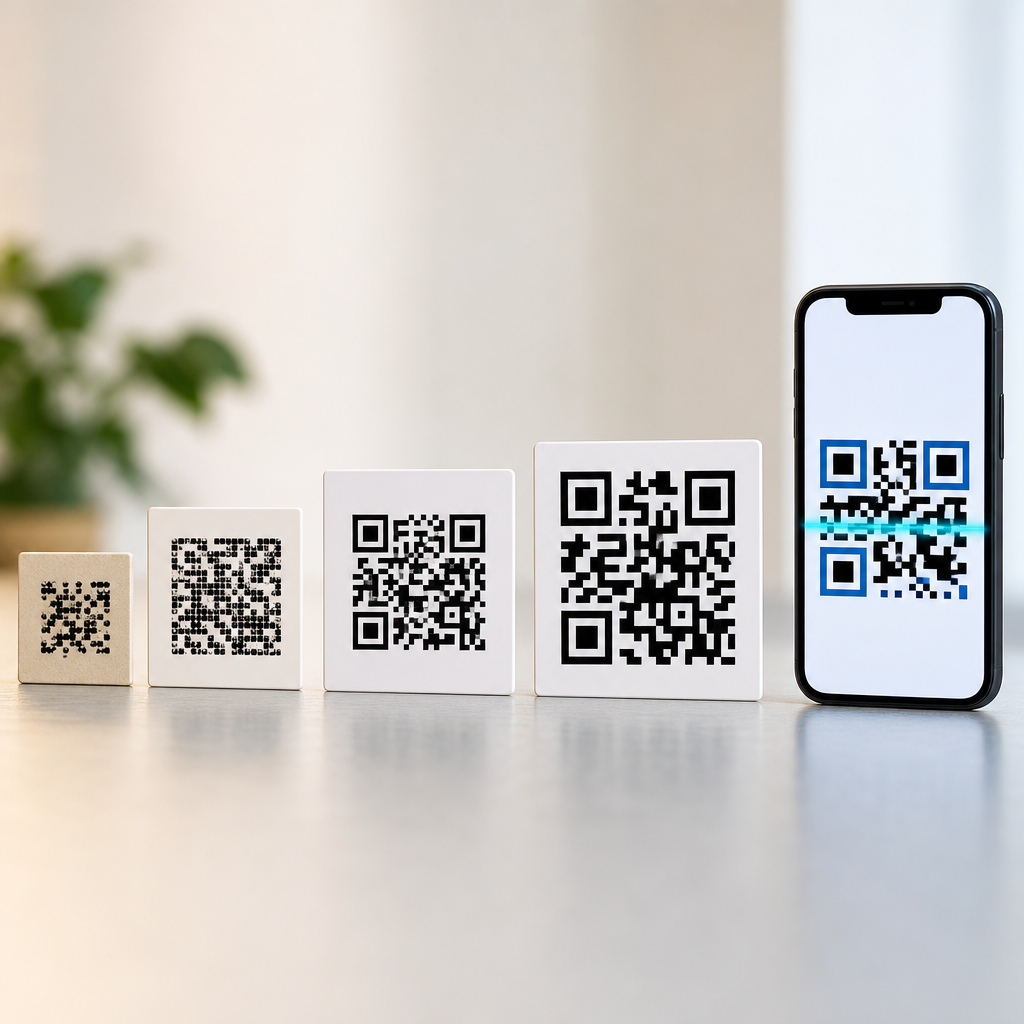
A device can only scan a QR code if the code is presented well enough for the camera or imaging engine to detect it. Size, contrast, quiet zone, lighting, print quality, and surface material all affect readability. As a working rule, the scanning distance should be roughly ten times the width of the code, though high-resolution cameras can stretch that range. If a code is meant to be scanned from two meters away on a poster, it must be much larger than a code on a business card.
Contrast is critical. Black on white remains the most reliable combination. Low-contrast palettes, inverted colors, patterned backgrounds, glossy laminates, and transparent overlays reduce scan success across all devices, especially lower-end phone cameras. The quiet zone, the blank margin around the code, should remain clear; when designers place text or graphics too close to the edges, scanners may fail to isolate the symbol. Logos in the center are possible, but only if the code uses sufficient error correction and the logo does not obstruct too much data.
Screen-based scanning has its own variables. A QR code displayed on OLED screens with low brightness may scan poorly in daylight, while cracked protectors or privacy filters can distort the image. In testing, I have found that many “device issues” are actually code design issues. Before blaming the scanner, confirm that the code follows ISO/IEC 18004 principles, resolves quickly over HTTPS, and is large enough for the intended distance and context.
Security, Privacy, and Best Practices for Users and Businesses
Any device that can scan a QR code can also be exposed to malicious destinations. The code itself is not dangerous, but it can encode a phishing URL, a fraudulent payment request, or a prompt that tricks users into connecting to an unsafe network. Devices with preview behavior are safer because they show the destination before opening it. iPhones and many Android implementations do this well, but some third-party scanner apps take more liberties with redirects or in-app browsers.
Businesses should use HTTPS links, branded domains, and clear context around the code so users know what they are scanning. A code on a parking meter should say “Pay city parking” with the official domain visible nearby; otherwise, it is easy to replace with a fraudulent sticker. For internal workflows, mobile device management policies can restrict which apps handle scans, whether external links open, and what data gets logged. In regulated settings, such as healthcare or finance, this operational control matters as much as the scanner hardware.
For users, the best practice is simple: scan with the native camera when possible, inspect the destination, and avoid entering credentials after following an unfamiliar code. For businesses, the best practice is equally clear: test codes on common devices, monitor destination uptime, and design for legibility before aesthetics. A QR program succeeds when scanning is fast, predictable, and trustworthy across the devices your audience actually uses.
The short answer to what devices can scan QR codes is broad: smartphones, tablets, laptops with webcams, desktop systems with cameras, 2D barcode scanners, rugged industrial terminals, many kiosks, and some payment devices can all read them. The more useful answer is that successful scanning depends on the combination of device capability, software support, and QR code quality. A modern phone may be the default scanner for consumers, but enterprise environments often rely on purpose-built imagers because speed, durability, and consistency matter more than convenience alone.
As a hub topic within QR Code Basics & Education, this page also answers the foundational question what are QR codes. They are two-dimensional symbols designed to encode data quickly and reliably, making them one of the simplest ways to connect physical objects and digital actions. Their widespread adoption comes from practical strengths: high data capacity, orientation-independent scanning, strong error correction, and compatibility with devices people already carry or businesses already deploy.
If you are creating, printing, or managing QR codes, start by matching the code to the real scanning device and environment. Test on current iPhone and Android models, confirm support on any tablets or kiosks in use, and verify whether professional operations need 2D imagers rather than legacy laser scanners. Then focus on size, contrast, destination quality, and security cues. Get those fundamentals right, and your QR codes will be easier to scan, easier to trust, and far more effective in the places they are meant to work.
Frequently Asked Questions
What devices can scan QR codes?
Most modern smartphones are the primary devices used to scan QR codes. Both iPhones and Android phones typically include built-in QR code scanning through the native camera app, which means users often do not need to download anything extra. In addition to smartphones, tablets with cameras can also scan QR codes, either through their default camera application or a compatible scanning app. Laptops and desktop computers can scan QR codes as well if they have a webcam and software or a browser-based tool capable of reading the code from the camera feed or an uploaded image.
Beyond personal electronics, many specialized devices can read QR codes reliably in business and retail environments. These include handheld barcode scanners, point-of-sale systems, warehouse scanning devices, kiosks, and industrial mobile computers. Some smart glasses, payment terminals, and ticketing machines are also equipped to interpret QR codes. In everyday life, however, the most common answer is simple: the device people already carry most often—their phone—is usually all they need to scan a QR code quickly and accurately.
Can all smartphones scan QR codes without an app?
Nearly all newer smartphones can scan QR codes without requiring a separate app, but the exact experience depends on the device model and operating system version. On recent iPhones, QR code scanning is built directly into the Camera app, so users can simply open the camera, point it at the code, and tap the notification that appears. Most modern Android phones work in a similar way, with native camera support or built-in tools such as Google Lens handling the scan automatically.
That said, not every phone behaves the same way. Older smartphones may not recognize QR codes through the default camera, and some lower-cost or heavily customized Android devices may require users to enable scanning in camera settings or use a separate app. If a camera does not respond to a QR code, users can often install a reputable scanning app or use a digital assistant and image-recognition feature already available on the device. So while the short answer is yes for most modern phones, compatibility is best understood as common rather than universal.
How do QR codes work, and why can so many devices read them?
QR codes work by storing information in a two-dimensional grid of black squares and white spaces. Unlike traditional one-dimensional barcodes, which store data in a single horizontal line, QR codes hold information both vertically and horizontally. This design allows them to contain more data, such as website URLs, contact details, Wi-Fi credentials, app download links, menu information, product IDs, and payment instructions. When a camera or scanner views the code, software identifies the code’s position markers, analyzes the pattern, and converts the visual layout into usable digital information.
So many devices can read QR codes because scanning them is largely a software problem, not just a hardware one. Any device with a camera or image sensor and the right decoding software can potentially scan a QR code. The technology is also standardized, which means manufacturers and software developers can build support for it across phones, tablets, computers, scanners, and payment systems. QR codes are further designed with error correction, allowing them to remain readable even if part of the symbol is smudged, scratched, or partially obstructed. That combination of standardization, camera availability, and forgiving design is what makes QR codes so widely accessible.
Can a laptop, desktop computer, or webcam scan a QR code?
Yes, a laptop or desktop computer can scan a QR code if it has access to the right input method and software. If the computer includes a built-in webcam or an external camera, users can scan a QR code in real time using a compatible app, website, or browser tool. In many cases, a user can simply allow camera access in the browser and hold the QR code in front of the webcam. The software then detects the code and extracts the embedded data, much like a smartphone camera would.
Computers can also read QR codes from saved image files, screenshots, PDFs, or digital documents without using a webcam at all. For example, if someone receives a QR code in an email or downloads it from a website, desktop software or online decoding tools can analyze the image directly. This is especially useful in office settings, customer support, development work, and content testing. While computers are not usually the most convenient device for casual scanning on the go, they are absolutely capable tools for reading QR codes when equipped with either a camera or an image-based decoder.
What should you do if your device is not scanning a QR code properly?
If a device is having trouble scanning a QR code, the first step is to check basic conditions such as lighting, focus, distance, and screen clarity. QR codes need enough contrast to be recognized, so poor lighting, glare, blurry camera focus, or a damaged code can all interfere with scanning. Users should try holding the device steady, moving slightly closer or farther away, and making sure the entire code is visible in the frame. If the QR code is displayed on another screen, increasing that screen’s brightness or reducing reflections can also improve results.
If the code still will not scan, the issue may be software-related. Users should confirm that their camera app supports QR recognition, check whether the feature is enabled in settings, and update the device’s operating system or scanning application if needed. Cleaning the camera lens can help more than many people expect. It is also worth testing the code with another device to determine whether the problem lies with the scanner or the QR code itself. In some cases, a code may be printed too small, distorted, expired, or linked to content that no longer works. Reliable scanning depends on both a readable code and a capable device, so troubleshooting should consider both sides of the interaction.