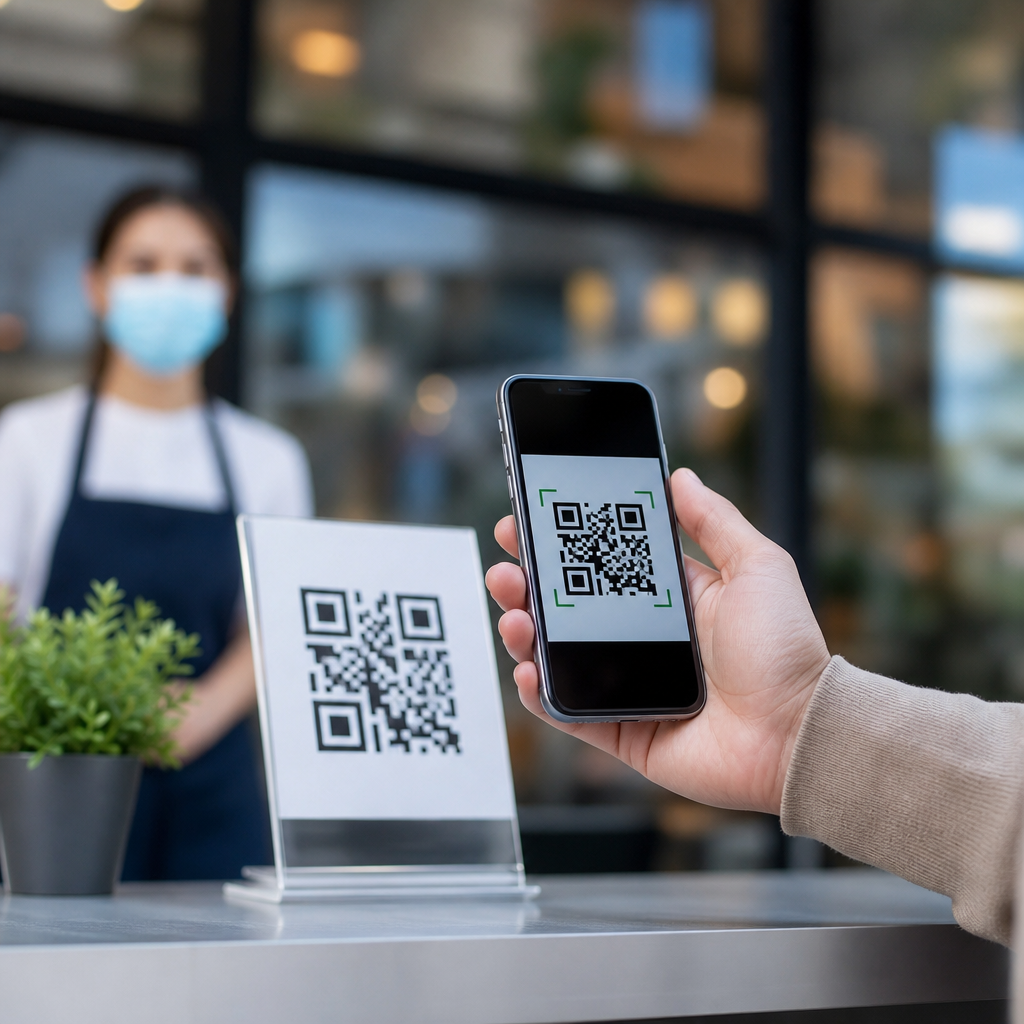
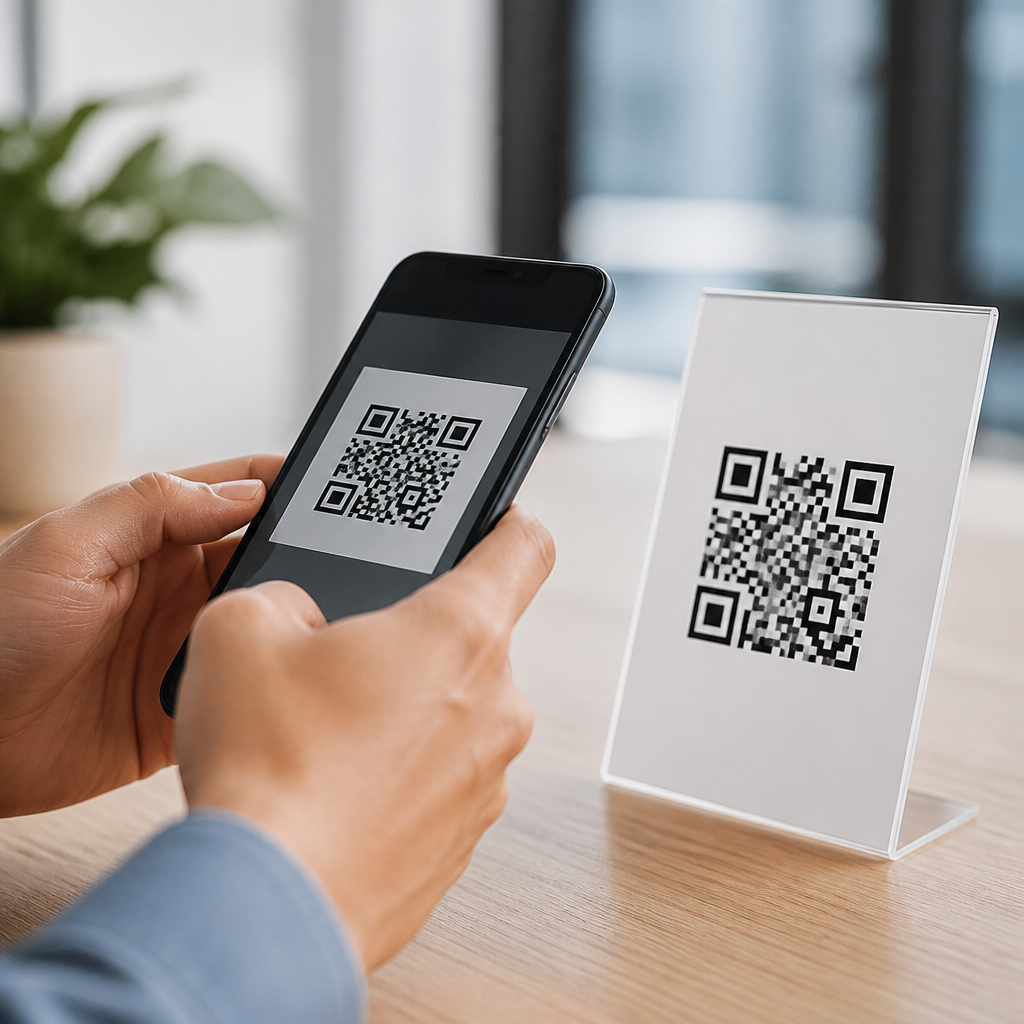
QR codes are now so common on restaurant tables, parking meters, product packaging, event posters, and payment terminals that many people stop asking a basic question: do you need an app to scan QR codes? The short answer is usually no. Most modern smartphones can scan QR codes directly through the built-in camera or native utilities, which means downloading a separate QR code scanner is often unnecessary. That practical answer opens a bigger topic, though, because understanding whether you need an app starts with understanding what QR codes are, how they work, what they can do, and when dedicated tools still make sense.
A QR code, short for Quick Response code, is a two-dimensional barcode designed to store information in a square grid of black and white modules. Unlike a traditional one-dimensional barcode that holds a limited product number, a QR code can encode much more data, including website URLs, contact details, Wi-Fi credentials, calendar events, app links, payment requests, and plain text. In my own work with retail signage, restaurant menus, onboarding documents, and printed direct mail, I have seen QR codes move from a novelty to a standard bridge between physical materials and digital actions. That shift matters because users expect instant access, businesses want low-friction conversion paths, and security risks rise when people scan without understanding what they are opening.
This guide serves as a hub for QR code basics and education. It explains what QR codes are, how scanning works on iPhone and Android, when a separate scanner app may still be useful, what static and dynamic QR codes mean, where QR codes are used in the real world, and what safety checks people should follow before tapping a link. If you want the clearest answer upfront, here it is: you probably do not need an app to scan QR codes, but you do need to know how your phone handles them and how to spot a malicious or badly configured code. That knowledge saves time, reduces unnecessary downloads, and helps you use QR codes with confidence.
What Are QR Codes and How Do They Work?
QR codes were invented in 1994 by Denso Wave, a Japanese company that developed them for tracking automotive components more efficiently than conventional barcodes allowed. The design solved several limitations at once. Because the code stores data both horizontally and vertically, it can hold significantly more information than linear barcodes. The three large squares in the corners are position markers that help a camera detect orientation quickly, even if the code is angled. Timing patterns and alignment markers improve readability, while error correction allows the code to remain scannable even when partially damaged, dirty, or printed on curved surfaces.
That error correction is one reason QR codes became practical for everyday use. The standard supports multiple levels, commonly referred to as L, M, Q, and H, with higher levels allowing more damage recovery at the expense of data capacity. In plain terms, a QR code on a takeout box can still work even if part of it gets smudged, and a branded code with a small logo in the center can still scan if it has been generated correctly. A smartphone camera captures the image, the operating system or scanning app detects the code pattern, decodes the data, and then offers an action such as opening a website or saving a contact.
QR codes can be static or dynamic. A static QR code contains fixed information embedded directly in the code, so once printed, the destination cannot be changed. A dynamic QR code usually points to a short redirect URL controlled through a QR code platform, which means the final destination can be updated later without reprinting the code. Dynamic systems also enable scan analytics such as time, device type, and approximate location. That distinction matters for marketing campaigns, digital menus, product documentation, and asset tracking, because the right code type depends on whether you need flexibility and reporting or simply a permanent destination.
Do You Need an App to Scan QR Codes on iPhone or Android?
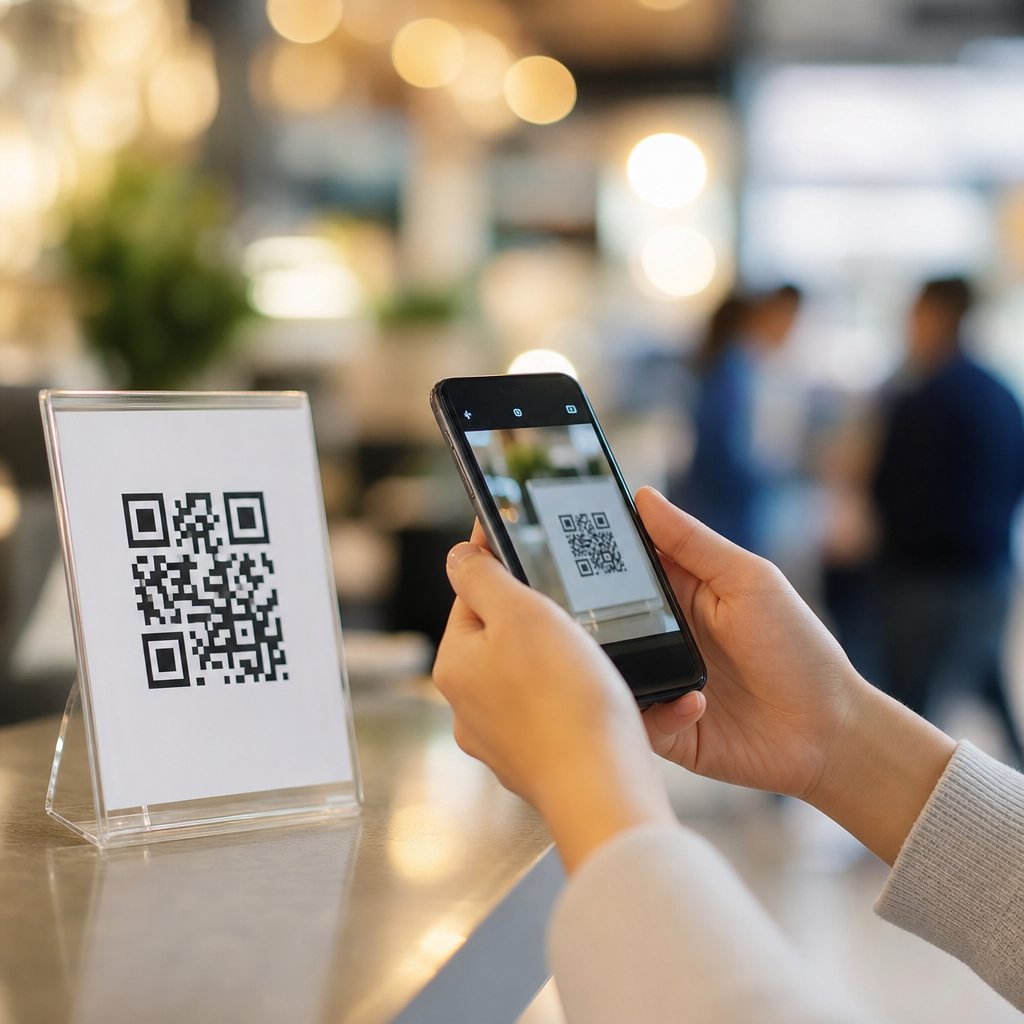
For most users, no separate app is required. Apple added native QR code recognition to the Camera app in iOS 11, and current iPhones scan codes by simply opening the camera and pointing it at the code. A notification banner appears, and tapping it opens the encoded content. On Android, support varies slightly by manufacturer and software version, but most current devices include QR scanning in the camera app, Google Lens, or the quick settings menu. Samsung Galaxy phones, Google Pixel devices, and many other major models recognize QR codes out of the box. If the camera does not detect a code automatically, Google Lens usually does.
In practice, I tell users to try the default camera first, then check for Lens integration, then look in the phone’s quick settings or control center. On iPhone, there is also a built-in Code Scanner that can be added to Control Center for faster access. On Android, some camera apps require enabling scan suggestions in settings, while others expose scanning as a dedicated mode. If your device is several years old or running outdated software, built-in support may be limited, which is one of the few situations where a separate app becomes relevant.
Dedicated QR code scanner apps still have niche value. They may provide scan history, batch scanning, support for unusual formats, export tools, inventory workflows, or enterprise device controls. Warehouse teams, field technicians, and event operators often need those features. The average consumer usually does not. In fact, downloading a random scanner app can create unnecessary privacy and security risks, because some low-quality apps request excessive permissions, show intrusive ads, or route links through tracking systems. If your phone already scans QR codes natively, the safer and simpler option is to use the built-in capability.
Common Uses for QR Codes in Everyday Life
The reason QR codes matter is simple: they reduce friction between an offline prompt and an online task. A restaurant can replace printed menus with a code on the table. A parcel locker can use a code for pickup authentication. A museum can place codes next to exhibits to deliver multilingual context without crowding wall labels. A manufacturer can print a code on equipment that opens setup videos, warranty details, and spare-part documentation. In each case, the code shortens the path from intent to action.
I have seen the strongest results where QR codes remove a real step rather than add novelty. On packaging, a QR code can open instructions, recycling guidance, authenticity verification, or product registration. In payments, systems such as Alipay, WeChat Pay, UPI, and many banking apps normalize scanning for money transfer and merchant checkout. In healthcare, clinics use codes for patient forms, appointment confirmations, and medication information. In education, teachers use them to distribute assignments, attendance check-ins, and lab resources. During the pandemic, QR menus and contactless check-ins accelerated mainstream adoption, and consumer behavior never fully went back.
| Use Case | What the QR Code Does | Why It Helps |
|---|---|---|
| Restaurant menu | Opens a digital menu page | Reduces printing updates and supports contactless access |
| Product packaging | Links to instructions or warranty registration | Saves label space and improves post-purchase support |
| Event ticketing | Stores ticket or attendee identifier | Speeds entry and reduces manual verification |
| Wi-Fi sharing | Encodes network name and password | Makes guest access faster and avoids typing errors |
| Mobile payments | Connects to payment details or merchant account | Enables quick checkout with fewer hardware needs |
| Business cards | Adds contact details to a phone | Improves lead capture and reduces data entry mistakes |
When a QR code underperforms, the issue is usually not the technology itself. It is poor implementation: a tiny code, weak contrast, a bad mobile landing page, no internet connection, or no explanation of what users will get. A code that says “Scan here for installation guide” consistently beats one that simply says “Scan me.” Clear intent raises scan rates because users understand the value before they point the camera.
When a Separate QR Code App Still Makes Sense
There are still cases where a dedicated app is justified. If you are managing stock, assets, maintenance logs, or attendance at scale, you may need more than basic scanning. Specialized apps can log scans to a database, authenticate users, validate codes against internal records, capture timestamps, operate in kiosk mode, or integrate with systems such as Shopify, Square, Zapier, Microsoft Power Apps, ServiceNow, or custom APIs. Native camera tools do not offer that operational layer.
Another valid reason is advanced creation and management. Some apps and platforms bundle scanning with code generation, dynamic redirects, expiry controls, password protection, geofencing, A/B testing, and analytics dashboards. Marketing teams often use platforms such as QR Code Generator, Bitly, Beaconstac, Flowcode, or Uniqode to manage campaigns across print ads, signage, packaging, and in-store displays. In those environments, the “app” is less about scanning and more about administration, measurement, and governance.
Accessibility can also be a factor. Certain scanning apps offer larger on-screen prompts, vibration feedback, text extraction, or workflow customizations that are useful in controlled environments. But for basic consumer scanning, the threshold remains high: if the camera app works, another app is usually redundant. The decision should come down to feature requirements, device limitations, and security policy, not habit.
QR Code Safety, Privacy, and Best Practices
QR codes are convenient, but they are not inherently safe. A code is just a container for data, and if that data points to a malicious website, fake login page, or risky download, scanning can expose the user to phishing, credential theft, or malware. Attackers sometimes place sticker overlays on public parking meters, restaurant tables, or posters so the visible code leads somewhere different from the legitimate destination. The growth of QR-based payments has made this tactic more attractive.
The most effective defense is simple behavior. Preview the destination before tapping when your phone shows a URL. Check for misspelled domains, unusual subdomains, or shortened links that hide the final site. Be cautious if a code asks for immediate payment, login credentials, or software installation. Avoid scanning codes from tampered surfaces or unofficial signs. On the publishing side, use HTTPS destinations, test codes across devices, maintain strong contrast, leave quiet space around the code, and avoid compressing logos or design elements so aggressively that readability suffers. ISO/IEC 18004 defines the QR code standard, and following established generation guidelines reduces scan failures.
Privacy matters too. Dynamic QR code platforms can collect useful but sensitive interaction data. If you are a business, disclose tracking where required, align with GDPR or other applicable privacy laws, and avoid collecting more than you need. If you are a user, remember that scanning a code can still send you into a browser session where cookies, analytics scripts, and form fields behave exactly as they would on any other webpage. The code itself is not the whole risk; the destination is.
Choosing the Right QR Code Approach
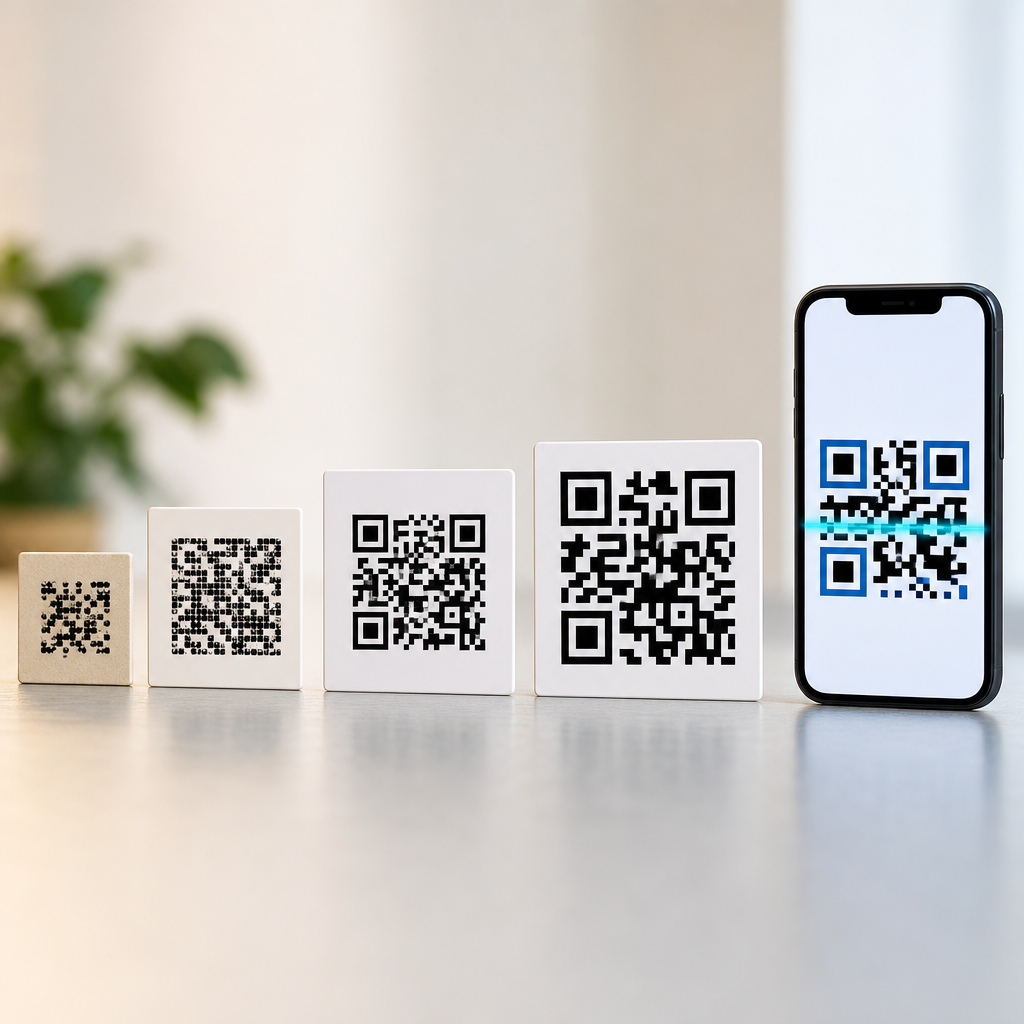
If your goal is simply to open a website, join Wi-Fi, or save contact information, use the camera already on your phone. If you are creating codes, choose static for permanent destinations and dynamic for campaigns or materials that may need updates later. Make the code large enough to scan comfortably, pair it with a clear label, and send users to a mobile-friendly page that delivers the promised value immediately. If you need analytics, governance, workflow automation, or enterprise integrations, a dedicated platform may be worth the cost.
The bigger lesson is that QR codes are not just black-and-white squares; they are a practical interface layer between physical and digital environments. Knowing what they are, how they work, and when an app is or is not necessary helps you make better choices whether you are scanning a menu, launching a product campaign, setting up a payment experience, or building educational materials for customers. Start with your phone’s built-in scanner, test the user journey end to end, and use dedicated tools only when the job genuinely requires more control.
Frequently Asked Questions
Do you need an app to scan QR codes on a smartphone?
In most cases, no. Most modern smartphones can scan QR codes using the built-in camera app or a native scanning feature that comes with the operating system. On newer iPhones, for example, simply opening the Camera app and pointing it at a QR code usually triggers a notification banner or link automatically. Many Android phones work the same way, either through the default camera app, Google Lens integration, or a built-in scanner available in quick settings. That means for everyday tasks like opening a restaurant menu, paying at a parking meter, visiting a website from product packaging, or checking in at an event, you usually do not need to download a separate QR code reader. A dedicated app may still be useful in specific situations, such as saving scan history, scanning unusual code formats, or using business features, but for the average user, the phone already has the tools needed.
How can you tell if your phone can scan QR codes without downloading anything?
The easiest way is to test the camera first. Open your phone’s camera app, point it steadily at a QR code, and wait a moment to see whether a link, notification, or action prompt appears. If nothing happens, check your settings. On some devices, QR scanning can be turned off in the camera settings, so enabling that feature may solve the issue immediately. On Android, it is also worth trying Google Lens, which is often built into the camera or available through the Google app. Some phones also include a QR scanner in the control center, quick settings panel, or native browser. If your phone is older or running outdated software, it may not support QR scanning directly, and in that case a separate app could be necessary. As a rule, if your device was made in the last several years and is updated, there is a very good chance it can scan QR codes without any extra download.
When would you actually need a separate QR code scanner app?
A separate app is usually only needed when your phone does not support QR scanning natively or when you want extra features beyond basic scanning. For example, some older smartphones do not recognize QR codes through the camera app at all, making a third-party scanner the simplest workaround. In other cases, businesses, marketers, warehouse teams, and power users may prefer apps that keep a scan history, export data, create QR codes, scan barcodes alongside QR codes, or work with custom workflows. There are also situations where a dedicated app may offer better performance in low light or with damaged codes. That said, many standalone QR apps are unnecessary for casual use, and some come with drawbacks such as intrusive ads, excessive permissions, or questionable privacy practices. If your built-in camera already scans reliably, downloading an extra app often adds clutter rather than value.
Is it safe to scan QR codes with your phone’s camera?
It is generally safe to use your phone’s built-in camera to scan QR codes, but the real security issue is not the act of scanning itself. The risk comes from what the QR code leads to. A QR code can open a website, start a payment request, add contact information, join a Wi-Fi network, or launch another action, and malicious codes can send users to fake login pages, scam payment portals, or harmful downloads. Built-in camera scanners are often safer than random third-party apps because they rely on trusted system tools and usually require fewer permissions. Even so, users should still pause before tapping. Check whether the previewed link looks legitimate, avoid scanning codes from suspicious stickers placed over official signs, and be especially cautious when the code asks for payment information or account credentials. The safest habit is to treat QR codes the same way you would treat any unfamiliar link: convenient, useful, but worth verifying before you proceed.
Why do people still think they need an app to scan QR codes?
Many people remember a time when QR codes were far less integrated into smartphones. Years ago, scanning one often did require downloading a separate app, and that habit stuck even as phone makers built the feature directly into their cameras and operating systems. There is also some confusion because not every phone works the exact same way. One person may scan through the camera, another through Google Lens, and someone else through a control-center shortcut, which can make the process seem less standardized than it really is. On top of that, app stores still promote QR scanner apps heavily, so users may assume a download is the normal first step. In reality, the technology has matured. For most people using a relatively recent iPhone or Android device, the built-in camera is the first and best place to start. The belief that a separate app is always required is mostly outdated, even though it continues to circulate because of older experiences and inconsistent device interfaces.