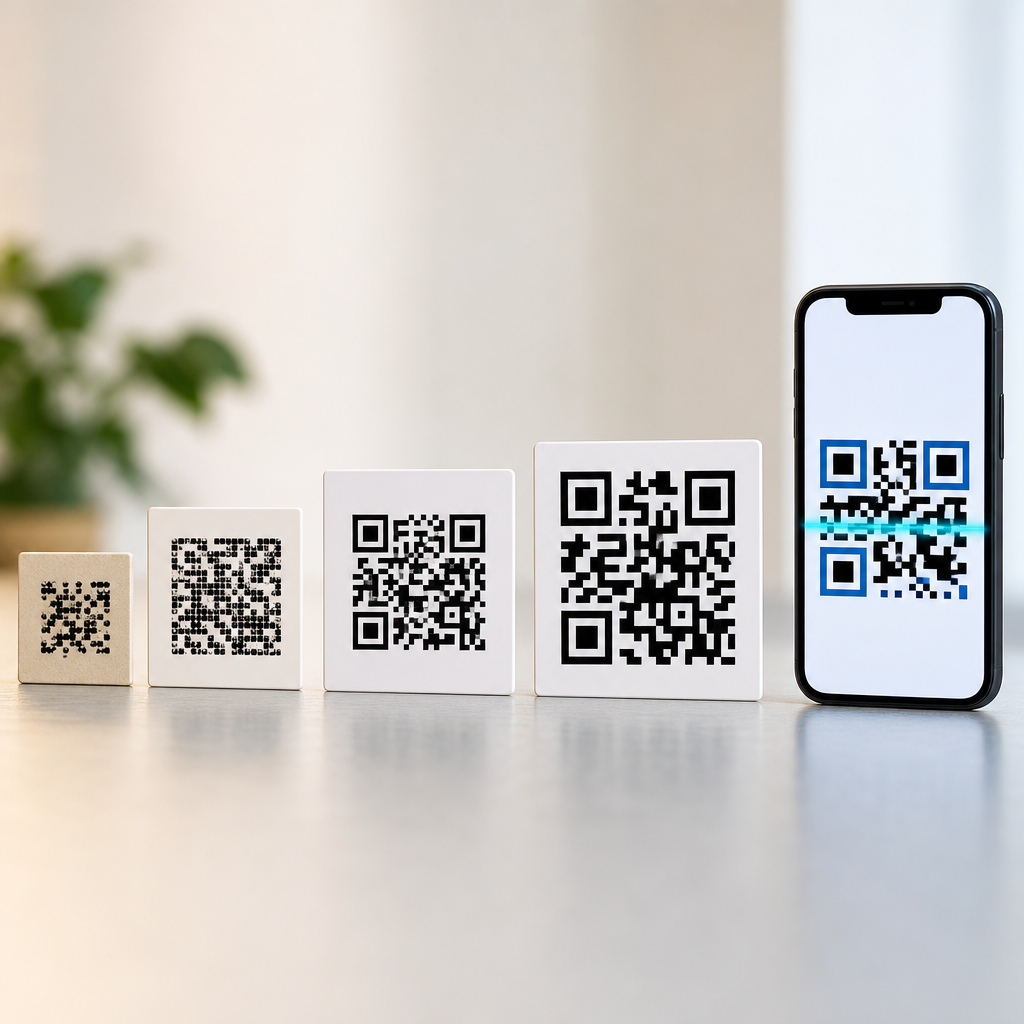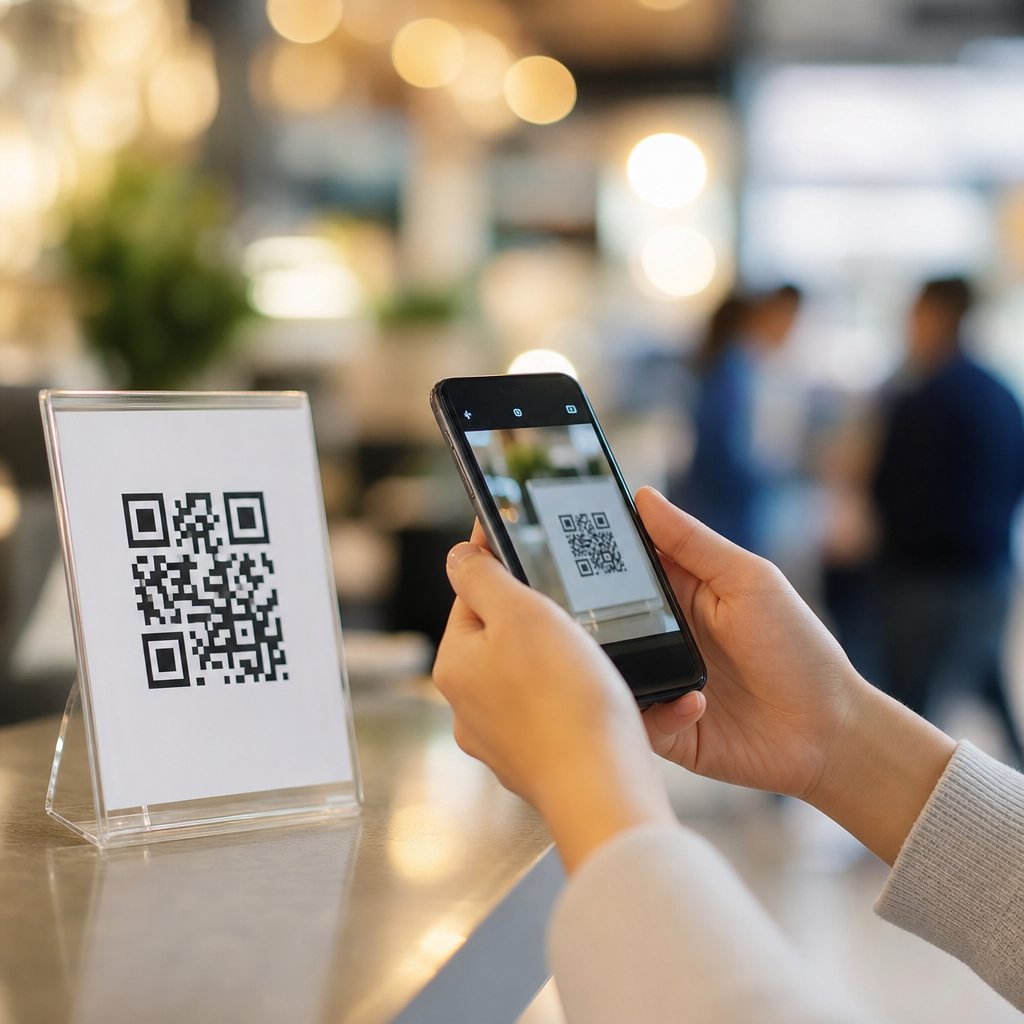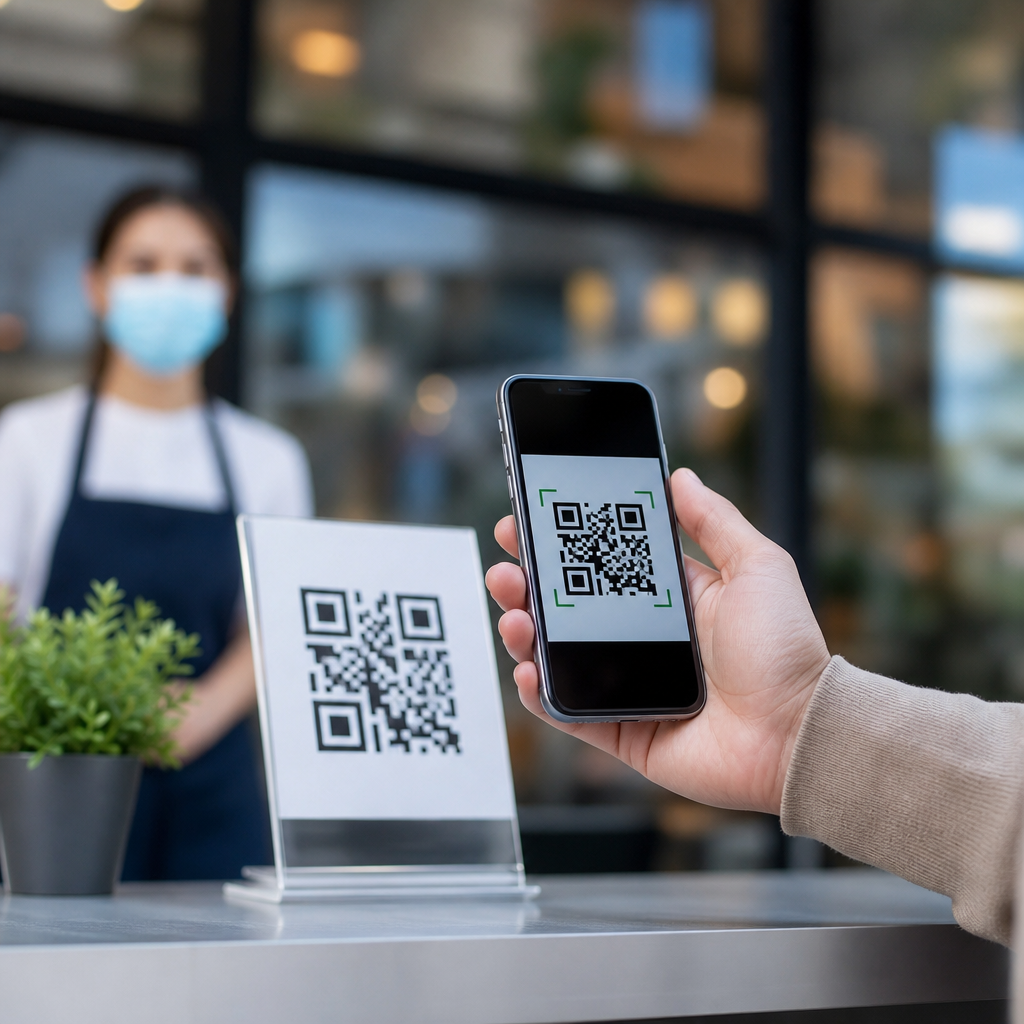
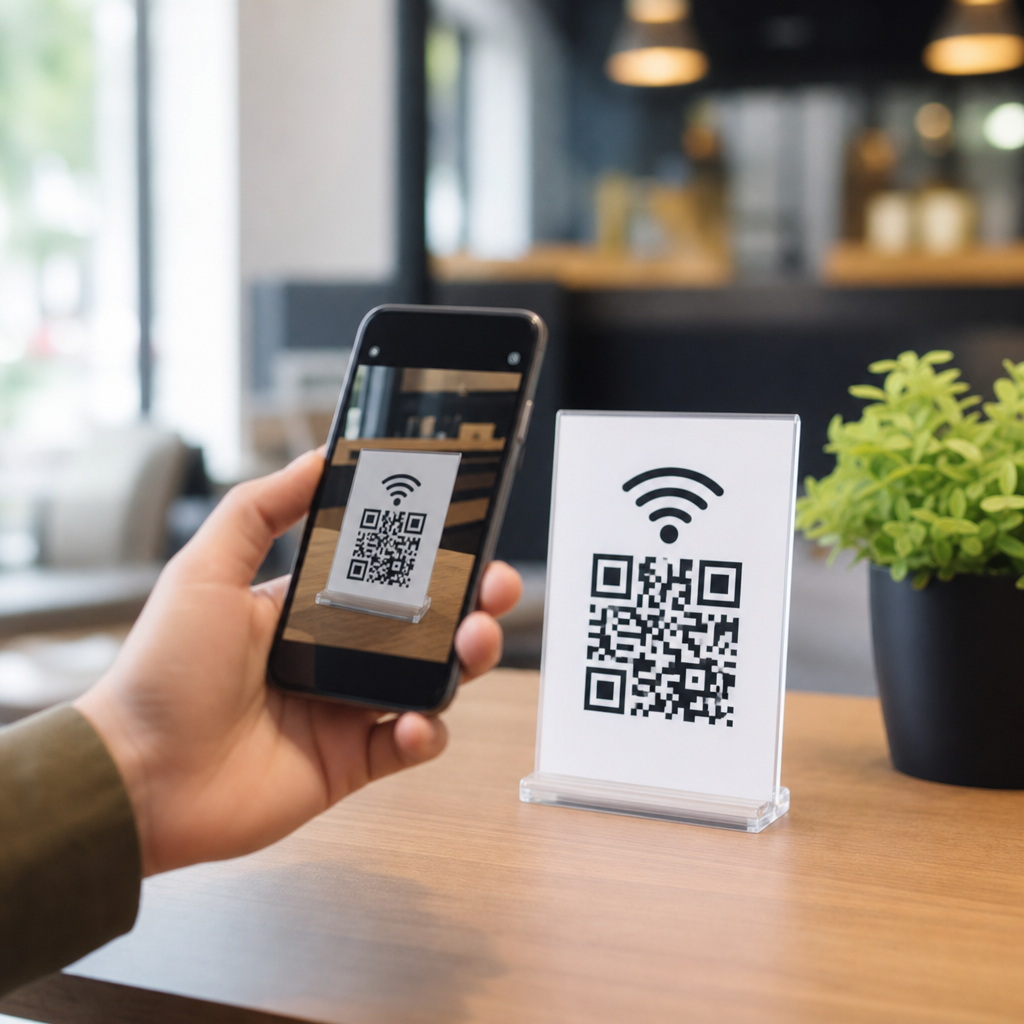
A WiFi QR code is a scannable code that stores a wireless network’s name, password, and security type so a phone, tablet, or laptop can join the network without manual typing. In practical terms, it turns a tedious setup task into a quick scan-and-connect action, which is why WiFi QR codes now appear in cafés, hotels, offices, clinics, classrooms, rental properties, and homes. I have implemented them for reception desks, event check-in tables, and guest networks, and the difference is immediate: fewer support questions, fewer password mistakes, and a smoother first impression.
To understand why this matters, define the core pieces first. “WiFi” refers to a local wireless network, usually identified by an SSID, protected by a password, and configured with a security protocol such as WPA2 or WPA3. A QR code is a two-dimensional matrix barcode that can hold structured text and be read by smartphone cameras or scanning apps. A WiFi QR code combines those ideas by encoding connection details in a standard string format. When scanned, compatible devices recognize the payload and prompt the user to join the network. That means no reading tiny labels on routers, no spelling complex passwords aloud, and no passing around sticky notes with credentials.
This topic also matters because WiFi QR codes sit inside a broader family of QR code types, and choosing the right type affects usability, security, analytics, and maintenance. A WiFi QR code is different from a URL QR code, vCard QR code, PDF QR code, app store QR code, email QR code, SMS QR code, payment QR code, or menu QR code. Some are static, meaning the encoded content cannot change after printing. Others are dynamic, meaning the destination can be updated later through a management platform. As the hub page for types of QR codes, this article explains where WiFi QR codes fit, how they work, when to use them, and how to decide between static and dynamic approaches for real-world deployments.
Most people asking “What is a WiFi QR code and how do you use it?” really want four answers. What information does it contain? Is it safe? How do you create one correctly? And what other QR code types should you know before choosing a code for your business or organization? The rest of this guide answers those questions directly, using plain language but accurate technical detail, so you can create a code that scans reliably and supports the experience you want users to have.
How a WiFi QR Code Works and What It Contains
A WiFi QR code works by encoding network credentials in a structured text string that supported devices can interpret. The typical fields are SSID, security type, password, and whether the network is hidden. In many generators, the format follows a convention similar to: network name, encryption method such as WPA or WEP, password, and hidden status. When a user scans the code with a modern smartphone camera, the device detects that the code contains WiFi configuration data rather than a web link and displays a join prompt. The user taps to connect, and the phone attempts authentication with the router or access point.
In implementation, accuracy is everything. SSIDs are case-sensitive in many environments, passwords must match exactly, and hidden network settings must reflect the actual network configuration. I have seen otherwise perfect signage fail because someone typed “Guest Wi-Fi” in the QR code while the real SSID was “Guest_WiFi,” or because the venue upgraded security from WPA2 to WPA3 and forgot to regenerate the code. Good WiFi QR code setup means validating every field on both iPhone and Android before printing at scale.
Compatibility is generally strong, but not universal in exactly the same way across devices. Recent iOS and Android versions read WiFi QR codes directly through the native camera or built-in scanner. Some laptops can scan via companion apps or camera software, though desktop use remains less seamless than mobile. Older devices may require a dedicated QR scanner app. That is why the best practice is to place the plain network name and password in small text under the code as a fallback, especially in public spaces where device diversity is high.
When to Use a WiFi QR Code Instead of Other QR Code Types
Use a WiFi QR code when the primary goal is instant network access. If your goal is to send people to a login page, booking form, menu, product catalog, or onboarding guide, a URL QR code is usually the better choice. This distinction matters because the scan experience should match user intent. At a coffee shop counter, a guest expects quick internet access, so a WiFi QR code is ideal. On a restaurant table, guests often need the menu first, so a URL QR code or menu QR code may be more useful than direct network access.
As a hub for types of QR codes, it helps to frame the major categories clearly. URL QR codes open websites and are the most flexible option for marketing, support, and navigation. vCard QR codes save contact details into a phone’s address book. PDF QR codes open downloadable documents such as manuals, brochures, or compliance sheets. App store QR codes route users to an app listing. Email and SMS QR codes prefill communication fields. Payment QR codes initiate a transaction through standards used by payment platforms. WiFi QR codes are narrower in purpose, but within that use case they are one of the highest-friction reducers available.
The decision also depends on whether content needs to change after the code is printed. A static WiFi QR code is common because the connection details live directly in the symbol. If the password changes, the code must be replaced. Dynamic URL QR codes, by contrast, can redirect to updated content and often provide scan analytics such as timestamp, device type, and location at a broad level. If you need both network access and post-scan control, one practical approach is to use a WiFi QR code for the actual connection and place a second URL QR code nearby for onboarding, terms, or guest portal instructions.
Static vs Dynamic QR Codes Across the Main Types
Static and dynamic are not different visual styles; they are different content management models. A static QR code embeds the final data directly in the pattern. It is simple, durable, and often inexpensive, but it cannot be edited once printed. A dynamic QR code usually points to a short redirect URL managed in a platform. That allows you to change the destination later, pause the code, add UTM parameters, or review scan data. For a WiFi QR code, static is the norm because the payload is a network configuration string, not a web destination. Dynamic WiFi experiences usually involve a redirect to a captive portal rather than direct wireless credentials.
In practice, the right choice depends on maintenance risk. For a home office guest network that rarely changes, a static WiFi QR code works well. For a hotel chain updating guest credentials by property or season, a managed system may be better, often combining property-specific URL redirects, captive portal logic, and printed fallback instructions. The same logic applies across other QR code types: static codes suit evergreen information, while dynamic codes suit campaigns, changing offers, rotating files, and multilingual routing.
| QR code type | Best use case | Usually static or dynamic | Main limitation |
|---|---|---|---|
| WiFi | Instant network access | Usually static | Password changes require replacement |
| URL | Web pages, menus, campaigns | Often dynamic | Needs internet to load destination |
| vCard | Contact sharing | Static or dynamic | Outdated details reduce trust |
| PDF/File | Manuals, spec sheets, brochures | Often dynamic | Large files can slow mobile users |
| Payment | Fast checkout or donations | Varies by platform | Standards differ by market |
How to Create and Use a WiFi QR Code Correctly
Creating a WiFi QR code is straightforward, but small mistakes cause most failures. Start by gathering the exact SSID, current password, and security type from your router, controller, or access point dashboard. Common security options are WPA/WPA2-Personal, WPA3-Personal, or open networks with no password. Avoid WEP unless you are supporting legacy equipment, because it is obsolete and insecure. Next, enter those fields into a reputable QR code generator or a network management tool that supports WiFi payloads. Then test the code on multiple devices before printing or publishing it digitally.
Design and placement matter more than many teams expect. Keep strong contrast, preserve a quiet zone around the code, and do not distort the square shape. For printed signs, I usually recommend at least 2 x 2 inches for close-range indoor scanning, larger if mounted on walls or read from queues. Matte finishes scan better than glossy finishes under bright lights. Place the code where users naturally pause: reception counters, guest room folders, conference tables, welcome packets, or entry signage. Label it clearly with a simple instruction such as “Scan to join guest WiFi.”
Use cases vary by environment. In a clinic, a WiFi QR code reduces receptionist interruptions and helps patients access digital forms while waiting. In a short-term rental, it improves guest arrival because travelers do not need to hunt for a password after a late check-in. In a conference venue, separate WiFi QR codes for staff, exhibitors, and attendees can streamline segmentation, though each code should be tightly controlled and rotated as needed. In a home setting, families often place one code near the entryway for visitors and one near a home office for a separate guest VLAN.
Security, Privacy, and Operational Best Practices
WiFi QR codes are convenient, but they do not remove the need for network security. A QR code simply exposes credentials in a machine-readable format, so treat it as you would any printed password. The safest pattern is to create a dedicated guest network isolated from internal systems, point-of-sale devices, printers, cameras, and employee endpoints. Use network segmentation, client isolation where appropriate, and time-bounded or rotating credentials for higher-risk venues. Enterprise environments using WPA2-Enterprise or WPA3-Enterprise with 802.1X authentication generally require more than a simple shared-password QR code.
Privacy concerns are usually limited, but still worth understanding. A basic static WiFi QR code does not inherently collect scan analytics because it contains direct connection data, not a tracked redirect. That can be a benefit for low-friction guest access, especially in settings where users may not want to hit a landing page. However, if you need consent notices, acceptable use policies, or marketing opt-ins, direct WiFi codes may be too simple. In those cases, a captive portal, managed guest access platform, or a companion URL QR code is often the better operational design.
Good maintenance is what separates a helpful sign from a recurring support problem. Document where each code is deployed, store the source file, and create a replacement process tied to password rotation. If your brand standards team redesigns signage, retest scan performance after changing colors or adding logos. Follow recognized wireless security guidance from vendors such as Cisco, Aruba, Ubiquiti, and standards bodies like the Wi-Fi Alliance and NIST-aligned security practices. The basic rule is simple: easy access for guests should never mean broad access to your internal network.
Common Problems, Testing Steps, and Choosing the Right QR Strategy
The most common WiFi QR code problems are incorrect credentials, unsupported encryption labeling, poor print quality, low contrast, and unrealistic expectations about device behavior. If a code fails, first verify that the SSID and password are exact. Then confirm whether the network is hidden and whether the generator used the correct security setting. Next, test with native camera apps on current iPhone and Android devices. If one platform works and the other does not, the payload format or security declaration is often the culprit. If neither works, the issue is usually the data itself or a damaged visual pattern.
Choosing the right QR strategy means matching the code type to the user task, update frequency, and security posture. If people need internet access immediately, use a WiFi QR code. If they need content, use a URL QR code. If they need a saved contact, use vCard. If they need a document, use a file or PDF code. If they need to pay, use a payment code aligned with your region and processor. As a sub-pillar hub for types of QR codes, the key takeaway is that no single QR code type is “best” in every situation; the best type is the one that removes friction without creating maintenance or security debt.
For most organizations, the practical path is simple: create a segmented guest network, generate a tested WiFi QR code, place it where users naturally look, and maintain a fallback text password. Then review whether companion QR codes would improve the journey, such as a menu, help page, portal, or feedback form. Done well, a WiFi QR code saves time for users and staff, reduces login errors, and makes the entire experience feel more polished. If you are building out your QR code basics library, start with your highest-friction task, choose the right QR code type for that job, and test it in the real world before rolling it out broadly.
Frequently Asked Questions
What is a WiFi QR code, and what information does it contain?
A WiFi QR code is a scannable code that stores the details a device needs to join a wireless network automatically. Instead of asking someone to manually type a network name and password, the code packages that information into a format a phone, tablet, or laptop can read instantly with its camera or QR scanner. In most cases, a WiFi QR code includes the network name, also called the SSID, the password, and the security type, such as WPA/WPA2 or WPA3. Some codes can also indicate whether the network is hidden, which helps devices connect correctly when the WiFi name does not appear in the usual list of available networks.
The real value is convenience. Typing long passwords with capital letters, symbols, or ambiguous characters can be frustrating, especially for guests, customers, or event attendees who need quick access. A WiFi QR code removes that friction and turns the process into a simple scan-and-connect action. That is why they are now common in cafés, hotels, offices, clinics, classrooms, rental properties, and homes. In practical settings like reception desks, guest lounges, and check-in tables, they help people get online faster while reducing repetitive questions for staff.
How do you use a WiFi QR code to connect to a network?
Using a WiFi QR code is usually very straightforward. On most modern smartphones, the user opens the camera app and points it at the code. The device recognizes that the QR code contains wireless network credentials and displays a prompt to join the network. Tapping that prompt connects the device automatically, without the user needing to manually enter the password. On some devices, the process may happen through a built-in QR scanner, a WiFi settings page, or a third-party camera app, but the end result is the same: the network details are read and applied for the user.
The experience can vary slightly depending on the device and operating system. Many Android phones support direct WiFi QR scanning natively, and iPhones also recognize QR codes through the Camera app in most current versions of iOS. Laptops are less standardized. Some can connect through a camera-based scanner or companion app, while others may still require a manual process. Even so, the code remains useful because it presents the credentials in a shareable, reliable format. In busy environments such as front desks, event registration areas, hotel rooms, or meeting spaces, placing a clearly labeled WiFi QR code where people naturally look can dramatically speed up onboarding and reduce support requests.
Are WiFi QR codes secure to use?
WiFi QR codes can be secure, but their safety depends on how they are created, displayed, and managed. The QR code itself does not magically make a network safer or less safe; it simply delivers the same credentials a person would otherwise type manually. If the underlying network uses strong encryption, a strong password, and sensible access controls, the QR code is just a convenient distribution method. In that sense, it is no more inherently risky than printing the WiFi password on a card at a reception desk or writing it on a sign for guests.
That said, visibility matters. Anyone who can scan the code can attempt to join the network, so WiFi QR codes are best paired with appropriate network design. For public or semi-public use, a separate guest network is usually the smartest choice. That keeps visitors off the main business or household network and limits exposure to sensitive devices and systems. It is also a good idea to change guest passwords periodically, monitor access, and avoid placing QR codes where they can be photographed and reused far beyond the intended audience. In professional settings, the most effective approach is to treat the QR code as part of a broader access strategy, not as a substitute for security best practices.
Where should you place a WiFi QR code for the best results?
The best placement is wherever people naturally pause and look when they need internet access. In hospitality settings, that might be a hotel room welcome card, a café counter, or a restaurant table display. In offices, it often works best at reception desks, meeting rooms, waiting areas, and visitor check-in stations. For events, registration tables, badge pickup areas, and entry signage are especially effective because attendees are already stopping there and often need immediate connectivity for tickets, schedules, or event apps. In homes or short-term rentals, common locations include entryways, kitchen notice boards, living rooms, and guest welcome books.
Good placement is not just about visibility; it is also about usability. The code should be large enough to scan easily, printed clearly, and labeled so users know exactly what it does. Including a short line such as “Scan to join guest WiFi” removes uncertainty and improves adoption. It also helps to place the code at eye level or on a flat, well-lit surface to avoid scanning problems. In my experience, well-positioned WiFi QR codes at reception desks and event check-in tables make an immediate difference because they reduce congestion, speed up arrivals, and let staff focus on more important interactions instead of repeating the network name and password all day.
Can you create a WiFi QR code for a home, business, or guest network, and when is it most useful?
Yes, you can create a WiFi QR code for virtually any wireless network, including a home network, an office network, or a dedicated guest network. The process typically involves entering the WiFi name, password, and security type into a QR code generator that supports wireless network formatting. Once generated, the code can be saved digitally, printed on signs or cards, or added to welcome materials. For businesses and organizations, guest networks are often the ideal use case because they let visitors connect easily without exposing the primary internal network. For homes, the code is especially helpful when hosting family and friends, since it eliminates the need to recite or retype a complex password every time someone visits.
WiFi QR codes are most useful anywhere repeated access requests create friction. That includes front desks, waiting rooms, classrooms, coworking spaces, rental properties, conference venues, and healthcare environments where visitors need connectivity quickly and staff time is limited. They are also valuable for improving the overall user experience. A guest who can scan and connect in seconds is far more likely to feel that the space is organized and thoughtfully managed. In practical deployment, that is often the biggest benefit: not just convenience for the user, but smoother operations for the host. When implemented well, a WiFi QR code turns a small but annoying task into an effortless part of the arrival experience.