QR codes for calendar events look simple on the surface, but they rely on specific data formats, operating system behavior, and app support that can vary noticeably from one phone to another. In practice, a calendar event QR code usually contains structured event details such as title, start time, end time, location, description, and sometimes timezone, encoded in a text format that a phone or scanning app can interpret and pass into a calendar application. This matters because businesses use these codes on invitations, posters, conference badges, restaurant booking cards, school notices, and webinar landing pages, where a smooth add-to-calendar experience can raise attendance and reduce missed appointments. I have tested event QR codes across iPhone, Samsung Galaxy, Pixel, and lower-cost Android devices, and the same code can produce different prompts, field mapping, or user steps depending on the scanner and calendar app involved. Understanding how these codes work also helps explain a broader topic: types of QR codes. Calendar event codes sit within a wider ecosystem that includes URL, vCard, email, SMS, Wi-Fi, app store, payment, PDF, and dynamic tracking QR codes. If you are building a reliable campaign or educational resource under QR Code Basics and Education, calendar events are one of the clearest examples of why QR code type selection affects usability, analytics, and compatibility.
A QR code is a two-dimensional matrix barcode that stores machine-readable data in black-and-white modules arranged in a square grid. “Static” means the encoded content is fixed after creation, while “dynamic” usually means the code points to a short URL managed on a platform, allowing destination edits, scans tracking, expiry rules, or device routing. A calendar event QR code can be static when the full event payload is embedded directly, or dynamic when the code opens a web page or redirect that then offers event actions. The difference is important: static event codes can work offline once scanned, but dynamic event codes are easier to update if the venue changes, the session time shifts, or you need separate links for Apple Calendar and Google Calendar. For anyone comparing types of QR codes, this distinction is foundational because it influences maintenance, analytics, error correction strategy, and long-term reliability.
How a Calendar Event QR Code Is Encoded
Most calendar event QR codes use plain text formats recognized by software that handles event data. The two most common are iCalendar-based data, often associated with ICS files or VEVENT structures, and platform-specific web links that open a calendar service with prefilled fields. In direct encoding, the QR code may include lines for summary, start date, end date, location, and description. Some generators use UTC timestamps, while others encode local time with timezone identifiers. That choice affects whether the receiving phone creates the event at the correct hour, especially during daylight saving transitions. I have seen codes that worked perfectly on one device but shifted an hour on another because the source generator omitted timezone context.
Compatibility depends on three layers working together: the camera or QR scanner must detect the code, the operating system must classify the content correctly, and the receiving calendar app must map the fields into an editable event form. On iPhone, the native Camera app generally recognizes QR payloads quickly, but not every payload opens directly into Calendar; sometimes the device presents a notification banner or Safari preview first. On Android, results vary more by manufacturer. Google Lens, the Pixel Camera, Samsung Camera, and third-party scanners may each handle the same event string differently. That is why event testing should be part of any QR code deployment process, just as link testing is standard for URL QR codes.
How Different Phones Handle the Same Event Code
On recent iPhones running current iOS versions, event QR codes often behave best when they resolve to an ICS file or a well-formed web page with an explicit add-to-calendar action. A direct event text payload may scan, but user experience can be inconsistent compared with a URL-based approach. If the code opens an ICS file in Safari, the user typically sees a prompt to add the event to Calendar, review details, and save. Apple Calendar usually preserves title, date, location, notes, and alerts if provided properly. However, recurring rules and custom organizer metadata may not always carry over cleanly from simplified generators.
On Pixel phones and many stock Android devices, Google Lens is often the deciding layer. Lens can detect QR content, but if the payload is uncommon or malformed, it may treat it as generic text rather than a calendar event. When the code resolves to a Google Calendar event link or a downloadable ICS file, the result is usually smoother. Samsung devices add another layer because Samsung Camera and Samsung Internet may route the action differently from Google apps. In my testing, Samsung phones often scanned quickly but occasionally opened event files through a browser before handing them to Calendar, adding one extra confirmation step. Budget Android phones can introduce further variation because vendor camera apps may lack robust content parsing, making URL-based event delivery safer than direct raw event encoding.
| Phone type | Most reliable event QR approach | Typical user flow | Common issue |
|---|---|---|---|
| iPhone | QR to ICS file or event landing page | Camera scan, prompt, Calendar preview, save | Direct payload not always mapped cleanly |
| Pixel | QR to Google Calendar link or ICS | Camera or Lens scan, browser/app opens, confirm | Raw text may be treated as plain text |
| Samsung Galaxy | QR to mobile event page with platform choices | Camera scan, browser handoff, calendar action | Extra steps caused by browser routing |
| Budget Android | Dynamic QR to responsive event page | Scanner opens page, user taps preferred calendar | Weak native parser support |
Where Calendar Event Codes Fit Among Types of QR Codes
To understand calendar event QR codes fully, it helps to place them within the broader family of QR code types. URL QR codes send users to a webpage and are the most universal because every smartphone can open a link. vCard QR codes store contact details and are commonly used on business cards. Email QR codes prefill recipient, subject, and body. SMS QR codes do the same for text messages. Wi-Fi QR codes encode network name, password, and security type so users can join a network without manual typing. App store QR codes route users to a download page. File QR codes typically point to hosted PDFs, menus, brochures, or image assets. Payment QR codes initiate wallet or banking actions. Calendar event QR codes are specialized action codes designed to reduce friction around scheduling.
As a hub topic under QR Code Basics and Education, the key lesson is that “type” is not just a label in a generator menu. It determines scan behavior, cross-device support, editing flexibility, and measurement options. A static Wi-Fi QR code behaves very differently from a dynamic URL QR code with analytics. A vCard QR code may save directly to contacts, while a PDF QR code opens a browser or file viewer. Calendar event codes sit between those models: they are action-oriented like vCard, but often more dependable when delivered through a dynamic URL landing page. That makes them an excellent teaching case for anyone learning how to choose the right QR code type for a specific user task.
Static Versus Dynamic for Event Use Cases
Static calendar event QR codes are best when the event details are final, the audience is small, and you need a self-contained code that does not depend on a hosted platform. For example, a printed wedding invitation with a fixed venue and start time can use a static event payload or static link to an ICS file. The benefit is simplicity. The downside is permanence: if the venue changes, every printed code becomes outdated. Dynamic event QR codes are usually better for business use because they allow edits after printing. A conference organizer can update room assignments, switch speakers, or create separate device-specific actions without replacing signage.
Dynamic delivery also improves analytics. Platforms such as Bitly, Beaconstac, QR TIGER, Uniqode, and Flowcode can report scans by date, device, and location, though the exact fields vary by vendor and privacy settings. Those reports help marketers measure poster performance, and they help event teams spot whether attendees are actually opening the schedule. The tradeoff is dependency on the provider and network connectivity. If the service has downtime, the QR code still scans but may not resolve correctly. For high-stakes events, I prefer dynamic codes backed by a fast redirect layer, plus a lightweight mobile event page with Apple Calendar, Google Calendar, Outlook, and ICS download options. That pattern is more resilient across phones than betting on one raw event payload.
Common Compatibility Problems and How to Prevent Them
The most common problem is malformed date formatting. Calendar systems expect predictable standards such as YYYYMMDD or UTC timestamps ending in Z. If a generator inserts ambiguous local dates or omits timezone references, users may get the wrong start time. The second issue is unsupported fields. Notes, organizer names, recurrence rules, and alarms may not transfer equally across Apple Calendar, Google Calendar, and Outlook. The third issue is scanner behavior. Many people assume “if it scans, it works,” but scanners can identify a QR code without understanding the intended action. That is especially true on older Android devices or generic camera apps.
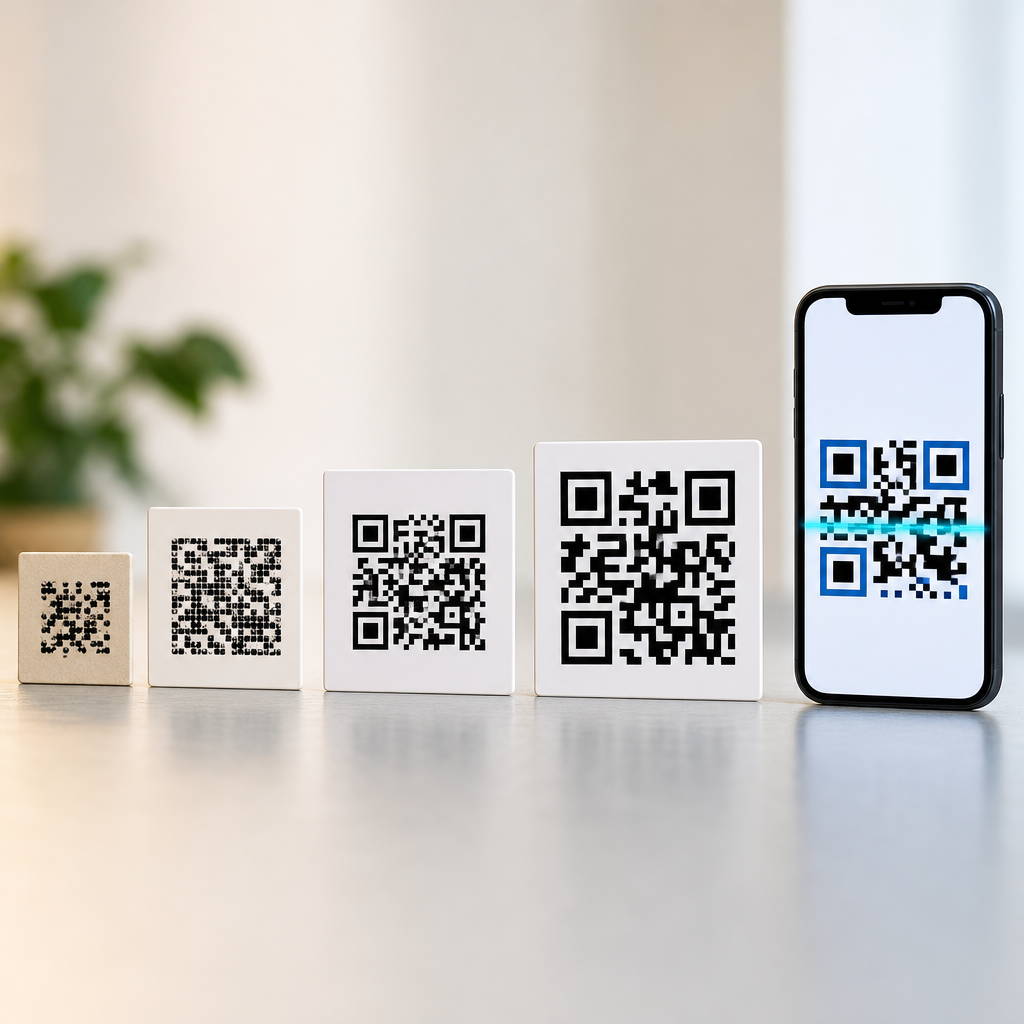
Design also matters. Tiny codes, low contrast, glossy print, and cluttered placement reduce scan success before compatibility even becomes relevant. Follow standard QR production rules: maintain a quiet zone around the code, use sufficient size for the expected distance, keep contrast high, and test after final printing, not just on screen. Error correction helps recovery from minor damage, but it does not fix bad payloads or poor routing. If a campaign matters, test on at least one current iPhone, one Pixel-class Android phone, one Samsung Galaxy, and one lower-end Android handset. Include both native camera scanning and a fallback using Google Lens or another common scanner.
Best Practices for Businesses, Schools, and Event Organizers
If your goal is dependable attendance, use a mobile landing page rather than encoding only raw event data. The page should identify the event clearly, show date and timezone in plain language, and offer buttons for Apple Calendar, Google Calendar, Outlook, and an ICS download. This approach respects how different phones behave while keeping one QR code on printed materials. It also allows updates, tracking, and accessibility improvements such as larger text, venue maps, and contact links. I have used this method for trade show sessions, school parent nights, medical webinars, and restaurant holiday bookings because it consistently reduces user confusion.
For educational content about types of QR codes, the broader recommendation is simple: match the QR code type to the intended action, then test on the devices your audience actually uses. Use URL QR codes for universal reach, vCard for contact capture, Wi-Fi for instant network access, PDF for document distribution, and calendar event QR codes when the primary task is saving a date. When device behavior is unpredictable, wrap the action in a dynamic experience that gives the user explicit choices. That extra layer often produces better outcomes than relying on hidden device parsing. If you are planning printed invites, venue signage, or campaign materials, audit your QR code type now, test it on multiple phones, and make sure the path from scan to saved event is unmistakably easy.
Frequently Asked Questions
How do QR codes for calendar events actually work on different phones?
Calendar event QR codes work by storing event information in a structured text format that a phone, camera app, or QR scanner can recognize and translate into a calendar entry. Instead of simply linking to a website, the QR code may contain details such as the event title, start date and time, end date and time, location, description, organizer notes, and sometimes timezone data. When a user scans the code, the phone attempts to interpret that information and hand it off to a compatible calendar app so the event can be reviewed and saved.
The reason behavior differs across phones is that not every device handles QR content the same way. iPhones often rely on native camera recognition and then pass supported event information into Apple Calendar or a prompt connected to it. Android phones can vary more widely because manufacturers may customize the camera app, default calendar app, or QR handling behavior. Some Android devices open the event directly in Google Calendar, while others require the user to confirm the action through a browser, scanner utility, or another app. In older phones or less capable scanning apps, the QR code may be read as plain text rather than as a structured calendar action.
That variation matters in real-world use. A QR code that works perfectly on one phone may produce a less seamless experience on another if the device does not fully recognize the calendar format or ignores optional fields. In short, the QR code itself is only one part of the process. The operating system, built-in camera, scanning software, and installed calendar apps all influence whether the event opens cleanly, partially, or not at all.
Why does the same calendar event QR code behave differently on iPhone and Android?
The biggest reason is platform-level interpretation. iPhone and Android do not use a single universal method for processing every QR code payload, especially when the content is more specialized than a URL. A calendar event QR code depends on the phone recognizing a supported event format and deciding what action to offer the user. Apple tends to control the camera, operating system, and default calendar flow more tightly, which can make the experience more consistent across supported iPhone models. Android, by contrast, includes many device makers, camera implementations, software overlays, and app combinations, so the same QR code can trigger different responses on different handsets.
Another factor is app support. On some phones, the native camera app understands event-formatted QR content immediately and offers an “Add to Calendar” style prompt. On others, the camera detects only that the QR code contains text and leaves it to the user to copy, open, or interpret manually. If a third-party scanner is being used, its developer may support one event format but not another. Likewise, a phone with Google Calendar installed and set as default may behave differently from one using Samsung Calendar, Outlook, or another calendar app.
Date and time interpretation can also differ. One phone may respect timezone information included in the QR code, while another may use the device’s current timezone or ignore the timezone field entirely. Line breaks, special characters, long descriptions, and formatting quirks can also affect parsing accuracy. That is why cross-device testing is so important. If a business wants a calendar event QR code to work broadly, it needs to consider not just the encoded event data, but how major mobile platforms and scanner apps are likely to read it.
What event information is usually stored in a calendar QR code, and can phones read all of it correctly?
Most calendar event QR codes include core fields such as the event name, start date and time, end date and time, location, and description. Some also include timezone information, all-day event flags, recurrence details, organizer data, or links related to the event. The exact fields depend on the event format used to generate the QR code. In many cases, the goal is to give the scanning phone enough information to prefill an event entry so the user can save it without typing anything manually.
However, not every phone reads every field with equal accuracy. The title and basic date information are usually the most reliably recognized because they are essential fields and widely supported. More advanced or optional fields can be less dependable. For example, one device may import the location correctly but truncate a long description. Another may preserve the description but ignore timezone data. Some phones may not support recurrence rules at all from a QR scan, even if the underlying calendar format technically allows them.
This is why concise, standardized event encoding matters. If the content is too complex, or if unusual formatting is used, support becomes less predictable across devices. For best compatibility, businesses often prioritize the fields that matter most to the attendee: clear event title, accurate date and time, useful location, and a short description. Extra information can still be included, but it should be tested carefully because the more sophisticated the event data becomes, the greater the chance that one phone will handle it differently from another.
Do calendar event QR codes need a specific format to work properly across phones?
Yes. The format is one of the most important factors in whether a calendar event QR code works consistently. A QR code is only a container; what matters is the text payload inside it. For calendar events, that payload typically needs to follow a recognizable event specification or a format that scanner apps are known to parse. If the data is loosely written, incomplete, or not formatted according to a structure that phones expect, the scanner may display it as raw text instead of converting it into a calendar action.
Even when a valid structure is used, compatibility is not automatically universal. Some phones and apps are more tolerant of formatting variations than others. A scanner may accept one event syntax but fail on another, or process only the mandatory fields while skipping optional ones. Small implementation details can matter more than people expect, including date syntax, line separators, field labels, timezone notation, and the way special characters are escaped. If any of those elements are malformed, some devices may still recover gracefully, but others will not.
For that reason, businesses and publishers should use proven event QR generation methods and test them on multiple devices before printing or distributing them widely. A strong setup usually includes a common calendar event format, cleanly structured fields, sensible character limits, and event details that do not depend on one brand’s app behavior. The safer the encoding, the more likely it is that both iPhone and Android users will get a straightforward path to adding the event to their calendar.
What are the most common problems users face when scanning QR codes for calendar events, and how can they be prevented?
The most common issues include the QR code opening as plain text instead of a calendar prompt, the wrong date or time appearing, the event being saved without a location or description, the timezone being interpreted incorrectly, or nothing happening at all after the scan. In many cases, the problem is not that the QR code is unreadable, but that the phone or scanning app does not fully support the event format used inside it. This is especially common on older devices, heavily customized Android phones, or third-party scanner apps that focus mainly on URLs and contact cards.
Timezone errors are another frequent problem. If an event is created without clearly encoded timezone information, or if the phone chooses to apply the device’s current local timezone instead, the event may appear shifted by an hour or more. This can be especially problematic for webinars, travel-related events, and multi-region promotions. Long descriptions, unusual symbols, or formatting copied from rich text sources can also cause parsing issues or field truncation on some phones.
Prevention starts with good event data hygiene and thorough testing. Use a clean, standardized event format, keep the event title and description readable but not bloated, verify date and time fields carefully, and include timezone information where relevant. Test the QR code with native camera apps on recent iPhones and several Android devices, as well as with common third-party scanners when possible. It is also smart to provide a fallback option, such as a short URL near the QR code, so users can still access the event details if their phone does not support direct calendar import smoothly. That combination of proper formatting, cross-device testing, and backup access dramatically reduces user friction.