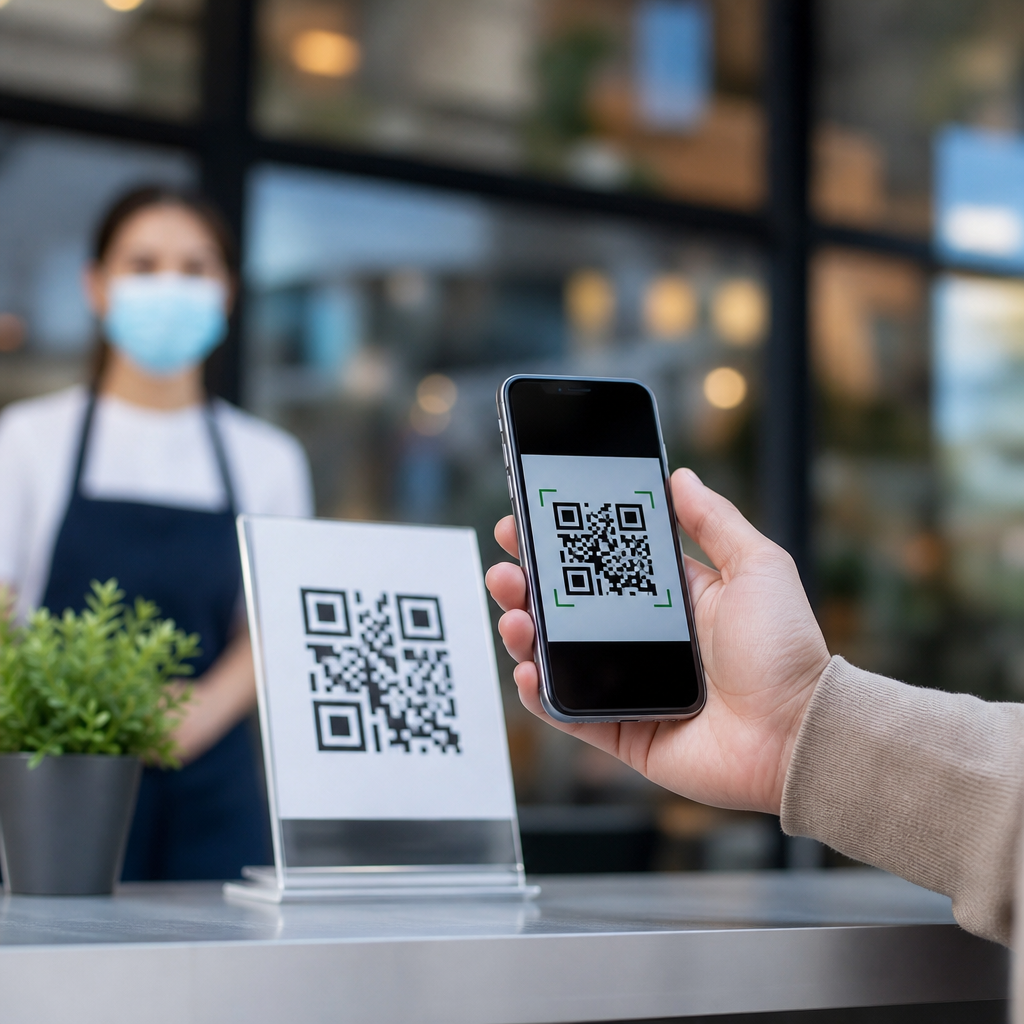
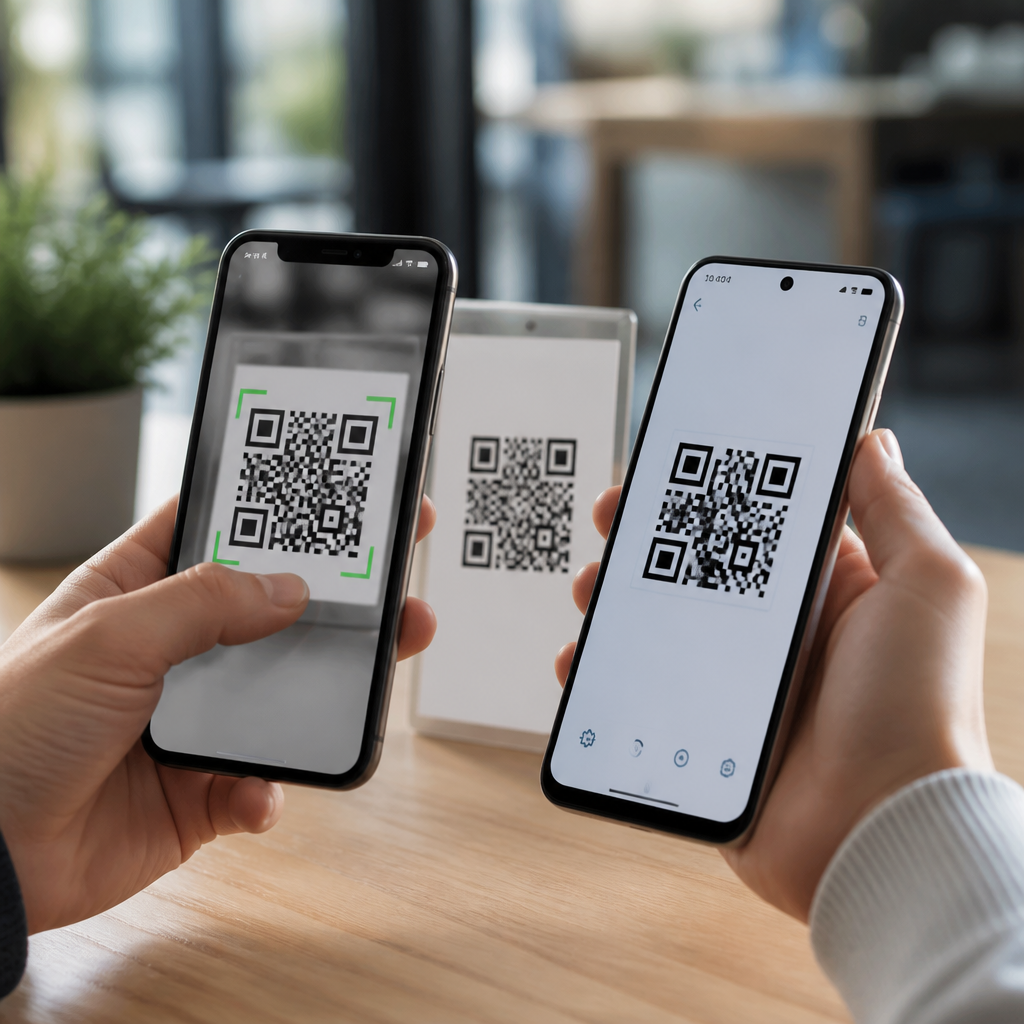
QR codes have become routine on restaurant tables, product packaging, posters, receipts, and payment screens, yet one question still comes up constantly: do QR codes need a smartphone app? The short answer is no, not in most cases. Modern iPhone and Android devices usually scan QR codes directly through the built-in camera, which means most people can open links, save contact details, join Wi-Fi networks, or start app downloads without installing anything extra. That convenience is a major reason QR codes have moved from niche industrial labels to everyday consumer tools.
To understand why this matters, it helps to define the basics. A QR code, short for Quick Response code, is a two-dimensional barcode made of black squares arranged on a white background. Unlike a traditional UPC barcode that stores data in one direction, a QR code stores data both horizontally and vertically, allowing it to hold much more information. Depending on the format, a QR code can contain a URL, plain text, a phone number, an email draft, a calendar event, a payment request, or machine-readable structured data such as a vCard or Wi-Fi login string.
I have helped businesses deploy QR codes for menus, event check-ins, packaging inserts, and field service documentation, and the same issue appears in nearly every rollout: if users think they need a separate scanner app, adoption drops. Friction matters. A code printed perfectly is still ineffective if the audience hesitates because they expect another download. That is why the built-in support on iPhone and Android is more than a convenience feature; it directly affects campaign performance, support requests, and conversion rates.
This guide serves as a hub for anyone learning QR code basics. It explains what QR codes are, whether you need an app, how scanning works on iPhone and Android, when a dedicated app still makes sense, and what security and usability issues you should know before creating or scanning codes. If you want a reliable starting point for understanding consumer QR code behavior, device compatibility, and practical use cases, this is it.
What Are QR Codes and How Do They Work?
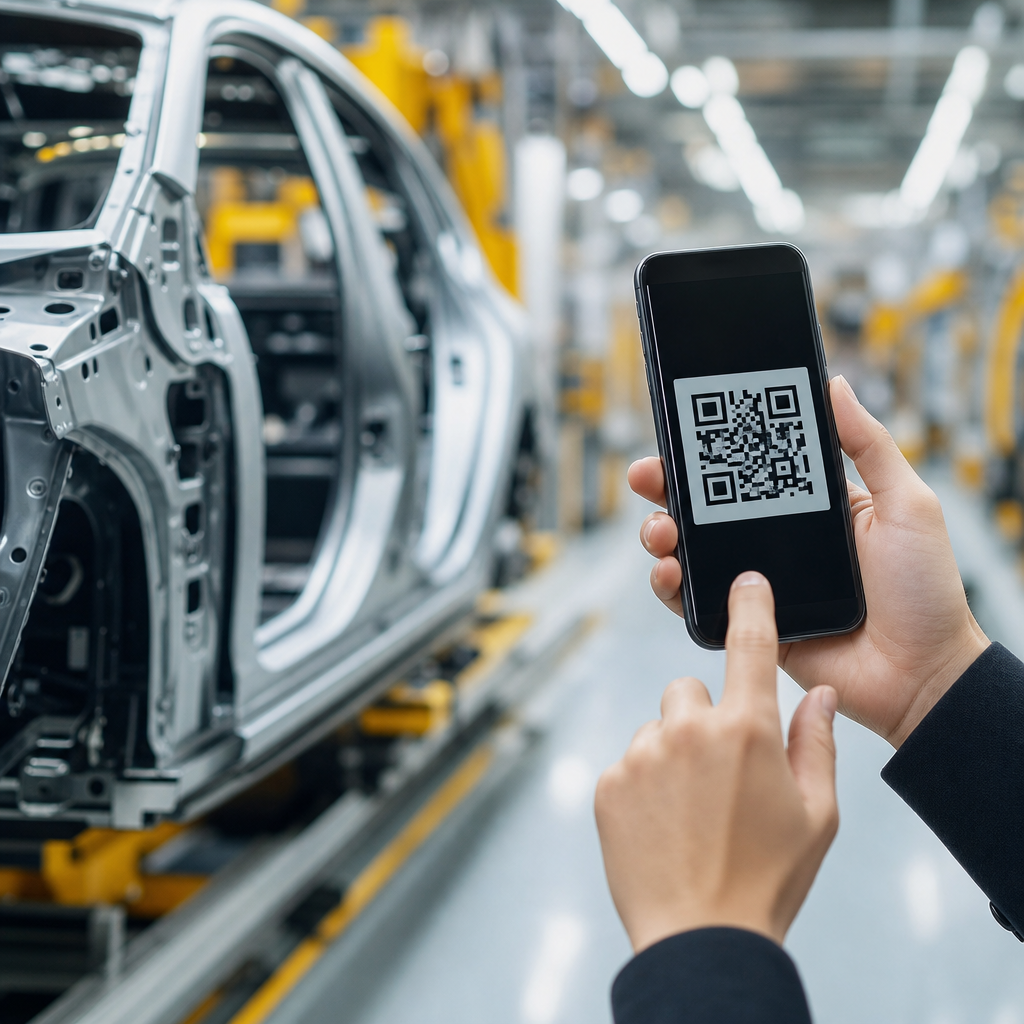
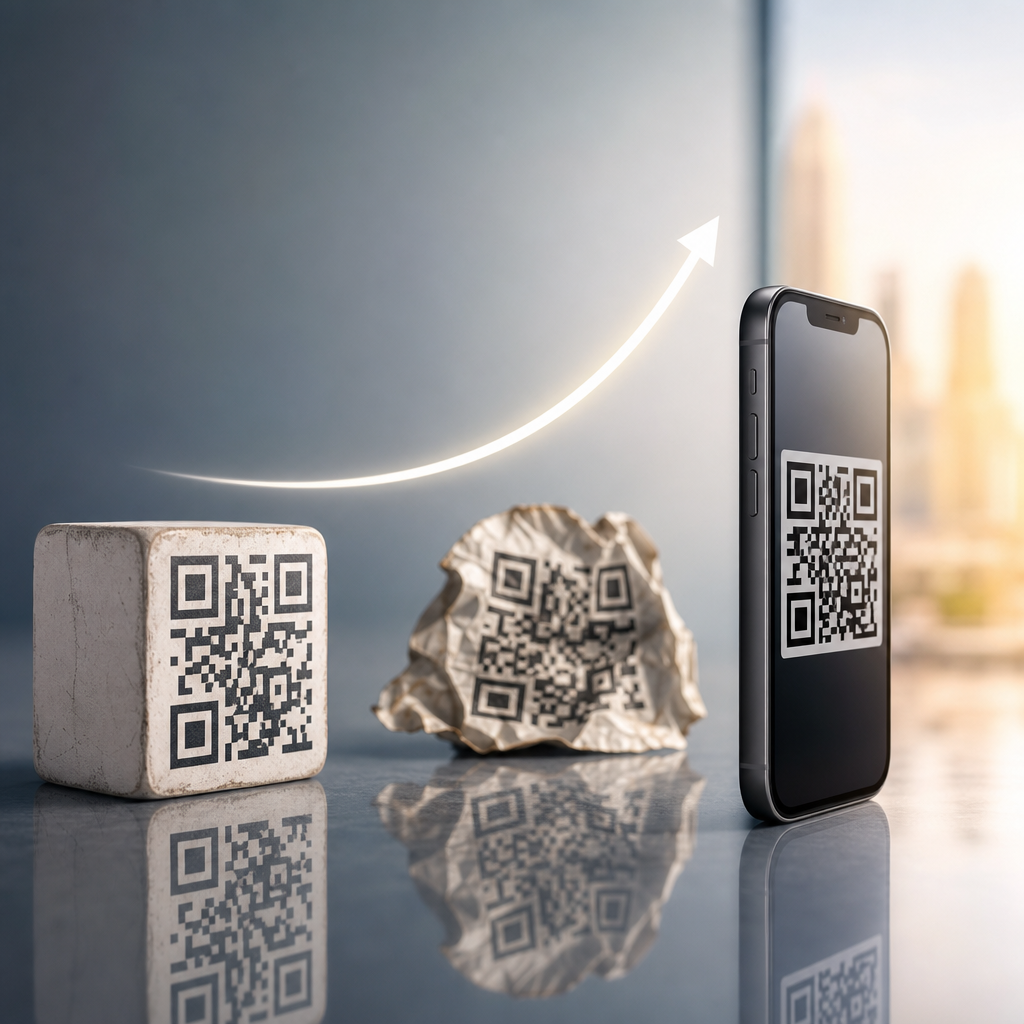
A QR code is a matrix barcode invented in 1994 by Denso Wave, a Toyota subsidiary, to track automotive components more efficiently. The design solved a key limitation of one-dimensional barcodes by allowing faster reading and higher data capacity. A scanner or smartphone camera identifies three large position markers in the corners, detects the grid, corrects for tilt or partial distortion, and decodes the pattern into stored information. Error correction, based on Reed-Solomon methods, allows many QR codes to remain readable even when part of the code is obscured or damaged.
In practical terms, that means a QR code is not “the website” or “the menu” itself. It is simply a container for data, most commonly a link. When a phone scans the code, it interprets the stored data and offers an action. If the code contains a URL, the phone opens a browser prompt. If it contains a Wi-Fi credential string, the phone may offer to join the network. If it contains contact data, the device can create a new contact entry. The code is just the bridge between the physical world and a digital action.
QR codes generally fall into two broad categories: static and dynamic. A static QR code stores the final destination directly in the pattern, so once printed, the content cannot be changed. A dynamic QR code points to a short redirect URL managed by a QR platform such as Bitly, QR Code Generator, Beaconstac, or Scanova. That redirect can later send users to a different landing page, and it also enables analytics such as scan counts, time of day, approximate location, and device type. For marketing, packaging, and long-lived signage, dynamic codes are usually the smarter option.
Do QR Codes Need a Smartphone App?
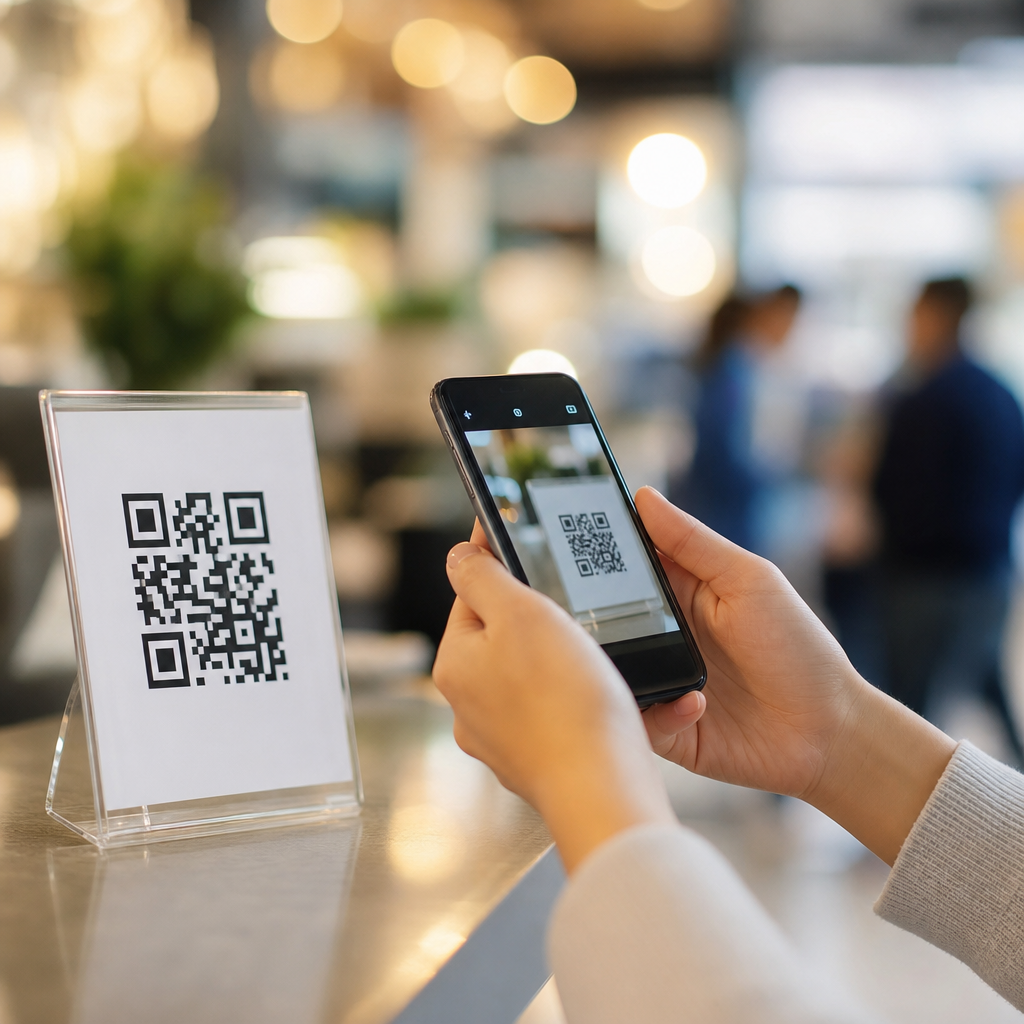
For most users today, QR codes do not need a smartphone app. On current iPhones, the native Camera app can scan QR codes automatically. On most modern Android phones, the native camera can do the same, often with help from Google Lens built into the camera interface. In both ecosystems, the operating system detects the code and displays a prompt so the user can open the link or perform the embedded action. That means the old instruction “download a QR scanner” is now outdated for the majority of devices in active use.
There are, however, a few exceptions worth understanding. Older smartphones may lack built-in QR support, especially devices running older versions of Android with customized camera software. Some budget phones also have camera apps that do not expose the feature clearly even if the hardware can support it. In managed enterprise environments, security settings or mobile device management policies may limit camera access, browser opening, or app installation. In those situations, a dedicated QR code scanner app can still be useful, though it is the exception rather than the rule.
The biggest practical takeaway is this: when creating QR codes for the public, assume most people can scan without installing anything, but design the experience so it is obvious what will happen after the scan. Add a short callout such as “Open menu,” “View installation guide,” or “Join Wi-Fi.” That simple label improves trust and gives users a reason to point their camera. In testing, I have seen labeled QR codes consistently outperform unlabeled ones because users understand the value before they scan.
How iPhone Scans QR Codes
Apple added native QR code recognition to the Camera app with iOS 11, released in 2017. On an iPhone, the normal process is simple: open Camera, point it at the QR code, wait for the notification banner, then tap the banner. No photo needs to be taken. If the code is valid and well lit, the phone reads it in real time. Control Center also includes a dedicated Code Scanner on many devices, which can be useful in low-distraction workflows because it opens a scanning-only interface.
Apple’s implementation is consistent, which is one reason QR code campaigns often perform smoothly on iPhone. Safari, Wallet, Wi-Fi joining, App Store links, Maps, and Contacts all integrate predictably with scanned data types. If scanning does not work, the usual causes are practical rather than technical: poor contrast, glare on glossy print, a damaged code, a code displayed too small, or camera settings restrictions. Users can also enable QR scanning in Settings if it has been disabled, though on current iOS versions it is normally on by default.
Another useful iPhone feature is Live Text and image-based detection in Photos, which can identify QR codes from saved screenshots or images. That matters when someone receives a code in an email, presentation, or PDF and wants to open it on the same device. Instead of needing a second screen, they can long-press or tap the detected code from the image and follow the prompt. For support teams and marketers, this expands the number of contexts in which a QR code can still function.
How Android Scans QR Codes
Android QR scanning is widespread, but less uniform because Android runs across Samsung, Google Pixel, Motorola, OnePlus, Xiaomi, and many other manufacturers. On most recent Android phones, opening the Camera app and pointing it at a QR code is enough. Many devices use Google Lens for recognition, either invisibly in the camera or through a visible Lens icon. Samsung devices often support scanning directly in the camera and may also offer it through Bixby Vision or browser utilities, depending on software version.
If a code does not scan immediately on Android, the next step is usually to check whether camera suggestions, scene optimizer, or Lens features are enabled. On some devices, the scanning function exists but is not active by default. Google Photos can also detect QR codes inside stored images on many Android phones, which is useful for screenshots. If the stock camera truly lacks support, installing Google Lens or a reputable scanner app can solve the problem quickly.
Because Android is fragmented, support documentation should be specific. Instead of saying “just scan with your camera,” it is better to say “open your camera or Google Lens and point it at the code.” That wording covers the majority of Android scenarios without overwhelming the user. It also reduces support tickets, because people recognize Lens as a familiar fallback if the standard camera does not react right away.
When a Dedicated QR Code App Still Makes Sense
Although most consumers do not need a separate QR app, dedicated tools still have valid uses. Retail associates, warehouse staff, field technicians, and event teams may need scan history, batch scanning, export logs, or support for multiple barcode formats beyond QR, such as Code 128, Data Matrix, EAN-13, or PDF417. In those workflows, a specialized app or rugged handheld scanner is often more efficient than the default camera. Business requirements, not consumer convenience, drive the decision.
Another reason to use a dedicated app is governance. Some organizations want scans routed through a secure browser, logged for compliance, or restricted to approved domains. Healthcare, manufacturing, and enterprise IT environments sometimes need that control. The general public, however, should not be forced into an app unless there is a compelling post-scan feature that truly requires it. If your printed sign says “scan to read instructions,” making users install an app first is usually an unnecessary barrier.
| Scenario | Built-in Camera | Dedicated App | Best Choice |
|---|---|---|---|
| Restaurant menu | Fast, familiar, no download | Extra friction for guests | Built-in camera |
| Warehouse inventory | Limited logging and workflow control | Supports batch scans and exports | Dedicated app |
| Product packaging link | Works for most shoppers instantly | Rarely justified | Built-in camera |
| Secure enterprise process | May bypass required controls | Can enforce approved actions | Dedicated app |
Common QR Code Uses and What Happens After You Scan
Most people associate QR codes with websites, but their use cases are broader. A URL QR code opens a landing page, video, PDF, coupon, or download page. A vCard QR code adds contact details. A mailto QR code opens a prefilled email draft. A tel QR code starts a phone call. A Wi-Fi QR code shares network credentials without forcing users to type a long password. Payment QR codes, common in many markets, can launch bank apps or digital wallets using standards such as EMVCo in supported ecosystems.
The post-scan experience determines whether the QR code feels helpful or frustrating. If a code opens a mobile-unfriendly PDF, users drop off. If it launches a responsive page with a clear next step, completion rates rise. I recommend treating the destination as part of the QR code itself. Test on iPhone and Android, over cellular and Wi-Fi, in bright and dim conditions, and with the code printed at actual size. A technically valid QR code can still fail as a user experience if the landing page is slow, blocked, or hard to read.
Security, Privacy, and Scanning Best Practices
QR codes are convenient, but they can also be abused. A malicious QR code can direct users to a phishing page, trigger unwanted app behavior, or mask a suspicious URL behind a shortened link. That does not make QR codes inherently unsafe; it means users should treat them with the same caution they apply to links in email or text messages. Before tapping, read the preview notification carefully. If the domain looks misspelled, unrelated, or suspicious, do not proceed.
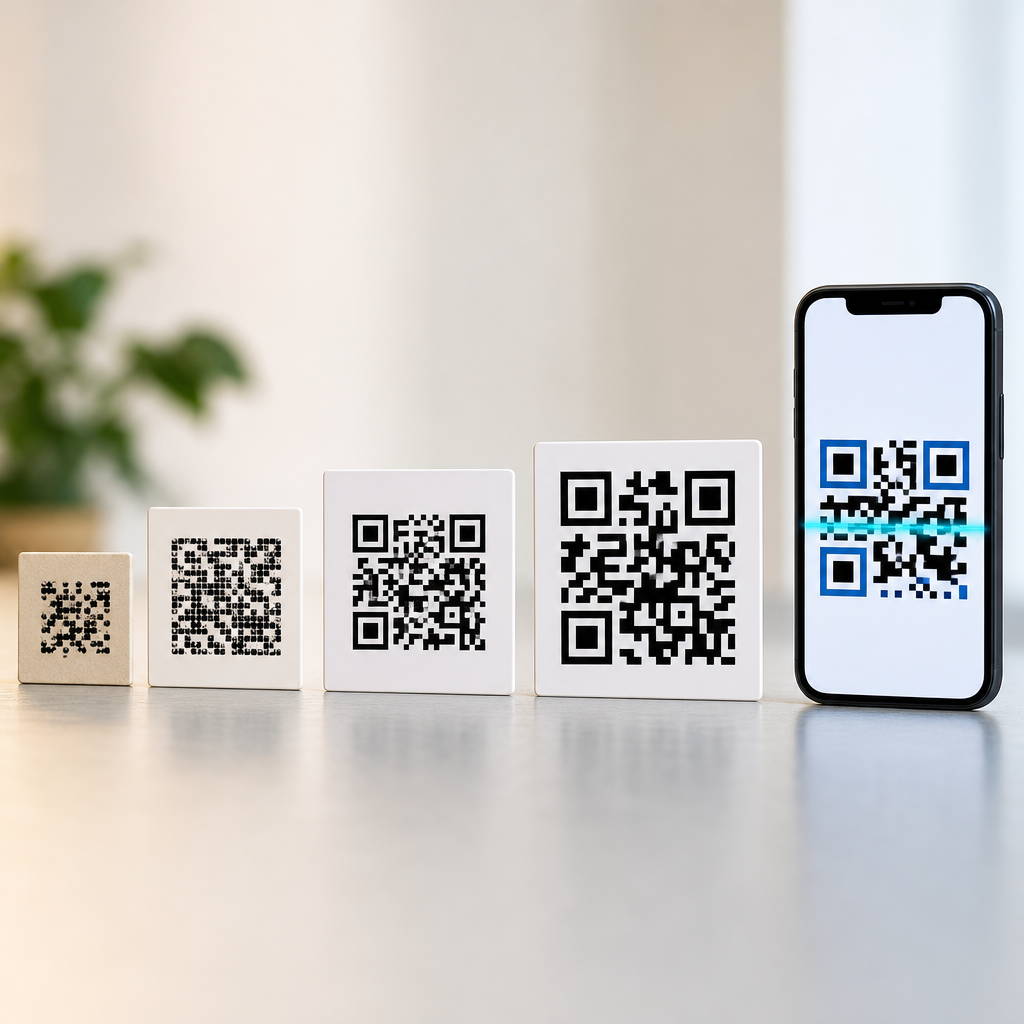
Organizations should also follow clear creation standards. Use high contrast, preserve a quiet zone around the code, avoid tiny print sizes, and never place critical finder patterns under folds, curves, or glare-heavy laminates. For public-facing campaigns, dynamic QR codes offer one major risk-management advantage: if the original destination changes or a typo is discovered, the redirect can be updated without reprinting every asset. Analytics platforms can also reveal scan anomalies that indicate tampering or placement issues.
Another good practice is transparency. Tell users what the scan will do, where it will go, and whether any data will be collected. If a QR code opens a form, payment page, or app store listing, say so next to the code. Clear labeling improves trust and helps prevent accidental scans. For businesses building a broader education path, this hub should lead naturally into related resources on dynamic versus static QR codes, QR code sizing, error correction levels, and QR code testing before print.
QR codes do not usually need a smartphone app, and that simple fact explains much of their success. On modern iPhone and Android devices, the built-in camera is typically all a user needs to scan a code and take action immediately. Once you understand that, QR codes become easier to evaluate, create, and use well. They are not magic squares and they are not outdated gimmicks; they are efficient data carriers that connect offline moments to digital actions with very little friction.
The key is matching the code to the context. Use built-in scanning for public convenience, reserve dedicated apps for specialized workflows, and design every destination for mobile users first. Label the code clearly, test it on real devices, and keep security in mind. If you are building your knowledge of QR code basics, start by mastering these fundamentals, then explore deeper topics like static versus dynamic QR codes, sizing, analytics, and printing standards. A well-planned QR code is easy to scan, easy to trust, and easy to act on.
Frequently Asked Questions
Do QR codes need a separate app on iPhone or Android?
In most cases, no. Modern iPhones and Android phones usually scan QR codes directly through the built-in Camera app, so most users do not need to download a separate QR code reader. On iPhone, Apple has supported QR scanning through the native camera for years, and many Android devices from major brands do the same. When you point the camera at a QR code, the phone typically recognizes it automatically and shows a prompt to open the link, save contact information, join a Wi-Fi network, or complete another action.
This built-in support is one of the main reasons QR codes are now so common on menus, packaging, signs, tickets, and payment screens. For the average user, the process is simple: open the camera, hold the phone steady, and tap the notification that appears. A separate app is usually only needed in special situations, such as if the phone is very old, the camera software has limited features, or a business wants advanced scanning tools like scan history, analytics, or bulk code management.
How do you scan a QR code with an iPhone?
Scanning a QR code with an iPhone is usually straightforward. Open the Camera app and point it at the QR code so the entire code is visible on the screen. You do not need to press the shutter button. If the code is readable, a notification banner or highlighted link should appear near the top of the screen. Tap that prompt to open the website, add a calendar event, save a contact, connect to Wi-Fi, or perform whatever action is built into the code.
If it does not work right away, check that the feature is enabled by going to Settings, then Camera, and making sure QR code scanning is turned on. Some iPhones also let you use the Code Scanner shortcut from Control Center, which can be helpful if you want a dedicated scanning tool without installing anything else. In general, current iPhones make QR scanning a native feature, so users can rely on built-in tools rather than hunting for third-party apps.
How do you scan a QR code with an Android phone?
Most Android phones can also scan QR codes without a separate app, although the exact steps can vary slightly by device brand and Android version. On many phones, you simply open the Camera app and point it at the QR code. If the device supports native QR recognition, a link or action prompt will appear on the screen. Tap it to continue. Some Android phones also include scanning through Google Lens, which may be built into the camera or available as a button inside the Google app.
If the camera does not recognize the code automatically, try opening Google Lens directly and scanning from there. This is common on devices where the standard camera app does not immediately process QR codes. In rare cases, especially on older phones, a user may still need a dedicated QR scanning app. Even then, the need is more about the age or software limitations of the device than about QR codes themselves. On modern Android devices, built-in scanning is now the norm.
Why might a QR code not scan even if no app is required?
There are several common reasons a QR code may not scan, even when the phone already has native support. The code may be too small, blurry, damaged, poorly printed, or placed in low lighting. Glare on glossy packaging or a sharply angled phone can also prevent the camera from recognizing the pattern. In other cases, the problem is not the scan itself but the action behind it, such as a broken link, expired destination, or network issue after the code is read.
To improve results, hold the phone steady, make sure the QR code is fully visible, move closer or farther away until the image is sharp, and use better lighting if possible. Cleaning the camera lens can also help. If the phone still does not respond, test the code with another device to determine whether the issue is the phone or the code. When a QR code is created and printed properly, and the phone has a functioning camera with current software, scanning is usually quick and reliable without any extra app.
Are there any situations where a dedicated QR code app is still useful?
Yes, although these situations are now more specialized than essential. A dedicated QR code scanner app can still be useful for older smartphones that lack built-in scanning support, for users who want a scan history, or for workplaces that need extra features like batch scanning, security filtering, inventory workflows, or integration with business systems. Some advanced apps also offer options to create QR codes, organize saved scans, or preview URLs more clearly before opening them.
That said, for everyday consumers, a separate app is usually unnecessary. Built-in camera scanning on iPhone and Android handles the most common uses, including opening websites, downloading apps, viewing restaurant menus, checking into events, making payments, and joining wireless networks. Unless you have a device compatibility issue or a specific professional need, the native camera experience is typically the fastest, safest, and simplest way to use QR codes today.