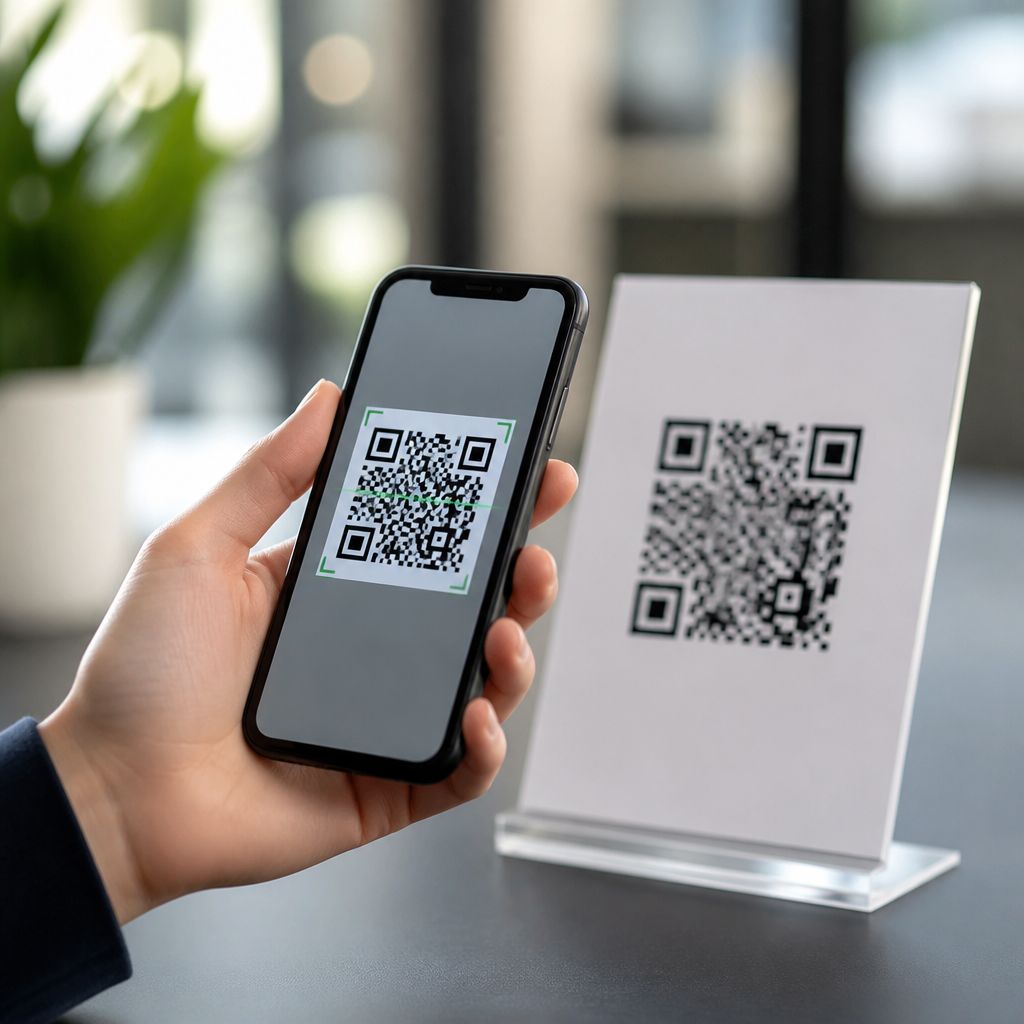
QR code errors can break a customer journey in seconds, turning a simple scan into a failed payment, a missed signup, or a support request your team did not need. In practical terms, a QR code error is any issue that prevents a phone, tablet, scanner, or app from reading the code correctly and taking the user to the intended destination. That destination might be a website, PDF, app store page, Wi-Fi login, payment request, restaurant menu, vCard, video, or deep link inside an app. When the code fails, the problem usually comes from one of four sources: poor code generation, weak print or display quality, difficult scanning conditions, or a broken destination after the scan. Understanding those categories is the fastest way to troubleshoot intelligently instead of guessing.
This matters because QR codes now sit in critical parts of marketing, operations, and customer service. I have seen campaigns lose measurable traffic because a code was printed too small on packaging, and I have also seen event check-ins stall because mobile data was weak and the linked landing page was too heavy. The code itself often gets blamed, but the real fault can sit anywhere from contrast ratios to URL redirects to camera permissions. For teams managing QR code tutorials, guides, and resources, a strong troubleshooting hub should answer the questions users ask first: Why is my QR code not scanning? Why does one phone read it and another fail? Why does a dynamic QR code suddenly stop working? What size should a code be? How much damage can error correction handle? This guide covers those answers directly, so readers can diagnose issues, prevent repeat mistakes, and choose the right follow-up article with confidence.
What QR code errors usually mean
Most QR code failures are not random. They follow recognizable patterns that can be tested. If a code never scans on any device, the likely causes are bad encoding, an invalid format, extremely low contrast, missing quiet zone, or severe physical distortion. If it scans only on some devices, look at camera quality, scanning app behavior, glare, low light, screen brightness, and whether the destination relies on modern browser features older phones cannot handle. If the code scans but opens the wrong page, the issue is usually human error during setup, such as linking to a staging URL, adding the wrong UTM parameters, or misconfiguring a redirect. If the code opens a page and then fails, the problem is usually not the QR symbol at all; it is a website, server, DNS, SSL, or mobile compatibility problem.
A useful distinction is static versus dynamic QR codes. A static QR code stores the final data directly in the symbol. If you encoded the wrong URL, phone number, or text, the symbol itself must be replaced. A dynamic QR code usually stores a short redirect URL controlled from a platform. That lets you change the destination later, collect analytics, pause campaigns, or segment traffic. It also creates another failure point: if the subscription expires, the redirect service goes down, or the domain is blocked, scans can fail even when the printed code remains perfect. In my work, dynamic codes are usually better for campaigns and printed assets that stay in circulation, but they demand vendor due diligence, redirect testing, and documented ownership.
Scanning failures: the most common root causes
The most frequent complaint is simple: the phone will not scan the code. Start with contrast. Black on white remains the most reliable combination because most scanning algorithms look for strong luminance differences. Light gray on white, pastel branding, metallic inks, transparent overlays, and low-opacity prints reduce machine readability even when the design looks attractive. Next, check the quiet zone, the blank margin around the code. ISO/IEC 18004 defines the structure of QR codes, and scanners depend on that border to detect boundaries. Remove or crowd that area with text, icons, or background patterns, and detection becomes inconsistent.
Size is the next issue. A practical rule many printers use is a minimum of about 2 x 2 centimeters for short URLs in close-range use, but that is not a universal standard. The right size depends on viewing distance, data density, print process, and expected device quality. A poster in a shop window needs a larger code than a business card because users scan from farther away. Dense codes need more modules and therefore more physical space to remain readable. I advise teams to test a printed proof on several older Android and iPhone models before approving production. Screen display introduces different variables, especially glare, cracked protectors, low brightness, and animation behind the code.
| Problem | Likely Cause | Plain-English Fix |
|---|---|---|
| Code will not scan at all | Low contrast, missing quiet zone, bad encoding | Use dark code on light background, restore margin, regenerate from a trusted tool |
| Scans only on some phones | Small size, glare, old camera, dense data | Enlarge the code, improve lighting, shorten the URL, test across devices |
| Scans but opens nothing | Broken link, redirect failure, poor signal | Test the destination directly, check redirects, reduce page weight |
| Printed code worked before but not now | Physical damage, fading, vendor issue on dynamic code | Inspect print quality, verify error correction limits, confirm platform status |
Design mistakes that make QR codes unreadable
Brand teams often want custom QR codes, and customization is possible, but every visual change carries risk. Rounded modules, embedded logos, gradients, inverted colors, patterned backgrounds, and decorative frames can all work when handled carefully, yet they can also push the code past the tolerance of weaker scanners. Error correction helps, but it is not a magic shield. QR codes support four standard levels: L, M, Q, and H, which can recover increasing amounts of lost data, roughly around 7 percent, 15 percent, 25 percent, and 30 percent under ideal conditions. Those figures are widely cited, but they assume damage patterns and decoding conditions that are more controlled than real retail environments. A large center logo with weak contrast can still fail despite using level H.
Another frequent mistake is overstuffing the symbol with data. The more data you encode directly, the denser the matrix becomes. A long URL with tracking parameters, special characters, and nested redirects creates many small modules that are harder to print and scan. In practice, a short clean URL or dynamic redirect is better than a giant static string. I also recommend avoiding image compression workflows that were built for photos rather than machine-readable graphics. Exporting a QR code as a crisp SVG or high-resolution PNG is safer than pulling a low-quality screenshot from a messaging app. For print, vector files are preferred because they preserve edge sharpness at any scale.
Placement matters as much as design. I have seen codes wrapped around bottle necks, printed across package folds, placed on glossy curved surfaces, or positioned where store lighting creates a hard reflection. These are preventable errors. Keep the code on a flat area whenever possible, away from seams, perforations, and rounded edges. Do not place it too close to other visual noise. Give it breathing room, clear labeling, and a visible instruction such as “Scan to view menu” or “Scan for setup guide.” That text improves user confidence and raises scan rates because people know what will happen next.
Destination errors after the scan
Sometimes the scan works perfectly but the user still reaches a dead end. This is a destination error, and it is more common than many teams expect. Broken URLs, 404 pages, redirect loops, expired campaign pages, removed files, unsupported app deep links, and geoblocked content all create post-scan failure. A QR code should never be considered finished until the landing experience has been tested on real mobile connections, not just office Wi-Fi. I routinely open codes using both iOS and Android, with default camera apps and alternate scanners, then verify the final URL, page speed, SSL certificate, analytics tags, and form completion path.
Dynamic QR codes deserve special attention here. They are useful because you can edit the destination without reprinting the code, but they depend on a third-party platform and often a managed short domain. If the account lapses, scan limits are reached, or the provider changes service terms, your printed asset may fail in the field. For permanent materials such as product manuals, storefront signage, and packaging, choose a platform with export options, transparent ownership policies, and documented uptime. Better yet, use a branded short domain your company controls. That reduces platform lock-in and improves trust because users recognize the domain after the scan.
Mobile landing pages also cause avoidable breakdowns. A code that opens a desktop PDF, a region-locked app store page, or a video that autoplays in high resolution on weak mobile data will feel broken even when the link is technically live. Optimize the destination for mobile first. Compress images, simplify scripts, and make the main action obvious above the fold. If the scan is intended for support, send users to a concise troubleshooting page rather than a general homepage. Relevance is part of reliability.
How to test and troubleshoot QR codes systematically
The fastest way to solve QR code problems is to use a repeatable checklist. First, test the destination URL directly in a mobile browser. If that fails, fix the page before touching the code. Second, scan the code on multiple devices and apps, including at least one older phone. Third, inspect contrast, quiet zone, and size. Fourth, check whether the asset was resized, compressed, or recreated by a designer outside the original generator. Fifth, test in realistic conditions: low light, arm’s length, glossy print, and weak connectivity. A code that works only under ideal office conditions is not production-ready.
For formal verification, use more than one tool. Google Lens, the native iPhone camera, and common Android camera apps provide a baseline because that is what most users rely on. For deeper checks, generators and validators from established platforms such as QR Code Generator Pro, Bitly, Scanova, Beaconstac, or Flowcode can help confirm payload structure and analytics behavior. If the code is part of industrial workflows, dedicated handheld scanners may have different tolerance levels than consumer phones. Match your testing tools to the real-world environment. A warehouse, clinic, trade show, and restaurant each present different scanning conditions.
When teams ask me for a one-line answer to “Why is my QR code not working,” my answer is this: verify the destination, simplify the code, improve the print, and test where users actually scan. That sequence resolves most cases quickly. Troubleshooting becomes much harder when multiple changes are made at once, so isolate variables. Replace the custom branded design with a plain black-and-white version. Print it larger. Swap a long static URL for a short dynamic one. Move it to a matte surface. Those controlled changes reveal the true bottleneck.
Prevention best practices for campaigns, packaging, and support
The best way to avoid QR code errors is to treat the code as part of a complete user journey, not as a decorative asset dropped in at the end. Start with the objective: payment, download, registration, authentication, product information, or customer support. Then choose the simplest payload that achieves that goal. Prefer short URLs, strong contrast, vector exports, and mobile-optimized destinations. Maintain a print checklist that includes minimum size, quiet zone, substrate review, and live-link approval. For dynamic codes, document account ownership, billing contacts, expiration terms, and fallback procedures. This is basic operational hygiene, and it prevents surprising failures months after launch.
For long-life materials, build redundancy. Add a short typed URL below the code so users have a backup path. Use descriptive page slugs rather than random strings when possible. Monitor scans and landing-page status through analytics, uptime alerts, and routine spot checks. If a code supports troubleshooting or onboarding, link to a maintained hub page that can route users to current answers instead of hard-linking every print asset to a narrow campaign page. That structure improves resilience and makes future updates easier.
QR codes work exceptionally well when teams respect the technical basics. Keep them clean, test them widely, and manage the destination with the same care you give the symbol itself. If you are building a broader resource center on QR code FAQs and troubleshooting, use this article as the hub, then expand into focused guides on sizing, dynamic versus static codes, custom design limits, scan analytics, and print testing. Audit your live codes today, fix weak links in the scan path, and you will prevent the vast majority of QR code errors before users ever see them.
Frequently Asked Questions
What is a QR code error, and why does it matter so much for businesses?
A QR code error is any problem that stops a device from scanning a QR code correctly or prevents the scan from leading the user to the intended destination. In real-world terms, that could mean a customer cannot open a checkout page, a diner cannot view a menu, a patient cannot access a form, or an event attendee cannot retrieve a ticket. The error may happen at the scanning stage, where the camera cannot detect or decode the pattern, or after the scan, where the code resolves to a broken link, expired file, unsupported app route, or incorrectly configured action.
These errors matter because QR codes are often used at high-intent moments. Someone is already trying to pay, sign up, download, connect, or learn more. If the code fails at that point, the user experience breaks immediately. Businesses may lose conversions, create support tickets, frustrate customers, and damage trust in the process. A small printing issue, weak contrast, poor placement, or incorrect destination URL can turn a simple scan into a dead end. That is why QR code reliability is not just a design detail; it is part of the customer journey, and it deserves the same level of testing and quality control as any landing page, checkout flow, or app link.
What are the most common causes of QR code scanning failures?
The most common causes of scanning failures usually fall into a few practical categories: design problems, size and placement issues, poor print quality, damaged codes, low contrast, and destination setup mistakes. A QR code may be technically valid but still difficult to scan if it is too small, stretched out of proportion, printed on a curved surface, or placed where glare, shadows, or motion make camera detection harder. Codes with inverted colors, busy backgrounds, or overly customized branding can also become unreliable, especially on older devices or lower-quality scanners.
Another major cause is insufficient quiet zone, which is the blank margin around the code. Scanners use that space to recognize the code boundaries. If text, borders, images, or background graphics crowd the edges, the scanner may struggle to lock onto it. Physical wear is another common issue. Codes on packaging, posters, labels, or storefront windows can become scratched, faded, torn, smudged, or partially blocked. Even a code with built-in error correction has limits, and once too much of the pattern is obscured, performance drops fast.
Finally, some failures happen after a successful scan. The QR code may point to a URL that has changed, a PDF that was removed, an app deep link that is not configured correctly, or a page that loads too slowly on mobile. In those cases, users often think the QR code itself is broken, even though the problem is actually the destination. That is why effective troubleshooting must look at both the code image and the full path the user takes after scanning.
How can I make sure a QR code is easy to scan on different devices and in different environments?
The best way to improve scan reliability is to treat QR code deployment as both a technical and environmental task. Start with a clean, standard code generated from a reputable tool. Keep the code square and undistorted, maintain strong contrast such as dark modules on a light background, and preserve a clear quiet zone around all four sides. Avoid making the code too small, especially for posters, packaging, retail displays, menus, or signage that users will scan from a distance. As a general rule, the farther away people will stand, the larger the code needs to be.
Testing is just as important as design. Scan the code using multiple devices, including newer and older smartphones, both iPhone and Android, and if relevant, dedicated barcode scanners or in-app camera readers. Test in realistic lighting conditions such as bright sunlight, low indoor light, reflective surfaces, and busy environments. If the code will appear on glossy print, vehicle wraps, windows, digital kiosks, or curved bottles, test on those actual surfaces before launch. A code that works perfectly on a flat computer screen may fail in production because of glare, distortion, or material texture.
You should also test the destination itself. Confirm that the landing page is mobile-friendly, loads quickly, supports HTTPS, and behaves correctly inside common browsers and in-app webviews. If the code is meant to trigger Wi-Fi access, app store routing, payment flows, or deep links, verify the exact user experience from start to finish. The strongest QR code strategy combines proper sizing, print quality, contrast, placement, and cross-device testing with ongoing monitoring so you can catch issues before customers do.
Does customizing a QR code with logos, colors, or design elements increase the risk of errors?
Yes, customization can increase the risk of errors if it is not done carefully. Branding a QR code can be useful for recognition and trust, but every visual change reduces the margin for scanning tolerance. Problems usually happen when businesses add low-contrast colors, place a logo that covers too much of the center, alter the shape of the data modules too aggressively, remove the quiet zone, or place the code over patterned backgrounds. These changes may still allow some phones to scan under ideal conditions, but performance often becomes inconsistent across devices, lighting conditions, and third-party scanner apps.
That does not mean branded QR codes are a bad idea. It means they need disciplined implementation. Use high contrast, keep the essential finder patterns clear, preserve the code structure, and rely on appropriate error correction levels without assuming error correction can save an overly stylized design. If you add a logo, keep it modest in size and test heavily. If you use brand colors, make sure the foreground remains dark enough against the background. Decorative frames, call-to-action labels, and supporting text can improve usability, but they should sit outside the critical scanning area rather than interfere with it.
The safest approach is to begin with function first and branding second. Create a version optimized for reliable scanning, then apply minimal customization and compare performance under real conditions. If scans slow down or fail, simplify the design. A visually impressive code that frustrates users is not an asset. A slightly less stylized code that scans instantly is almost always the better business decision.
What are the best ways to avoid QR code errors before printing or publishing them at scale?
The most effective way to avoid QR code errors is to use a pre-launch checklist and treat every code like a live customer touchpoint. First, validate the encoded content. Make sure the destination URL is correct, secure, live, and final. If the code points to a PDF, video, menu, payment page, app store listing, or deep link, confirm that the asset is published and accessible without broken permissions or login barriers unless authentication is intentional. If you expect to update the destination later, consider using a dynamic QR code so you can change the target without reprinting the code.
Next, review the physical and visual setup. Confirm the code size fits the expected scan distance, the contrast is strong, the quiet zone is intact, and the design has not been stretched or compressed by layout software. Print a production-quality sample rather than relying only on digital previews. Scan it from different angles, in different lighting conditions, and on multiple phones. If the code will be installed outdoors or in a high-touch area, think about weather, fading, scratches, wrinkles, and obstruction. Lamination, protective coatings, and durable materials can help, but they should not introduce glare that hurts scan performance.
Finally, build in maintenance after launch. Monitor scan analytics if available, check that linked content still works, and create a process for replacing damaged materials quickly. It is also smart to include a fallback option near the code, such as a short URL, support instruction, or alternate access path, especially for critical actions like payments, registrations, and check-ins. QR code errors are often preventable, but prevention requires more than generating the code once. It requires validation, testing, deployment planning, and ongoing oversight so the experience remains reliable long after the code goes live.