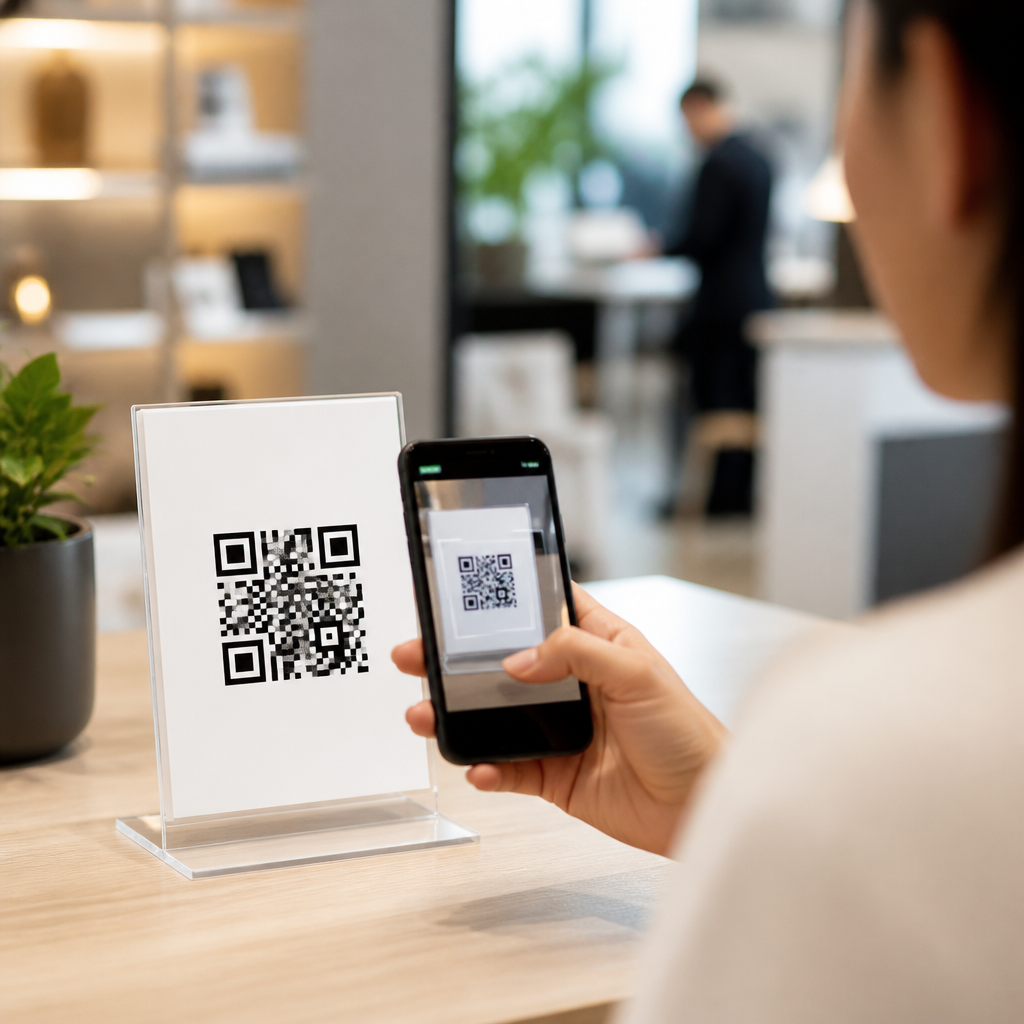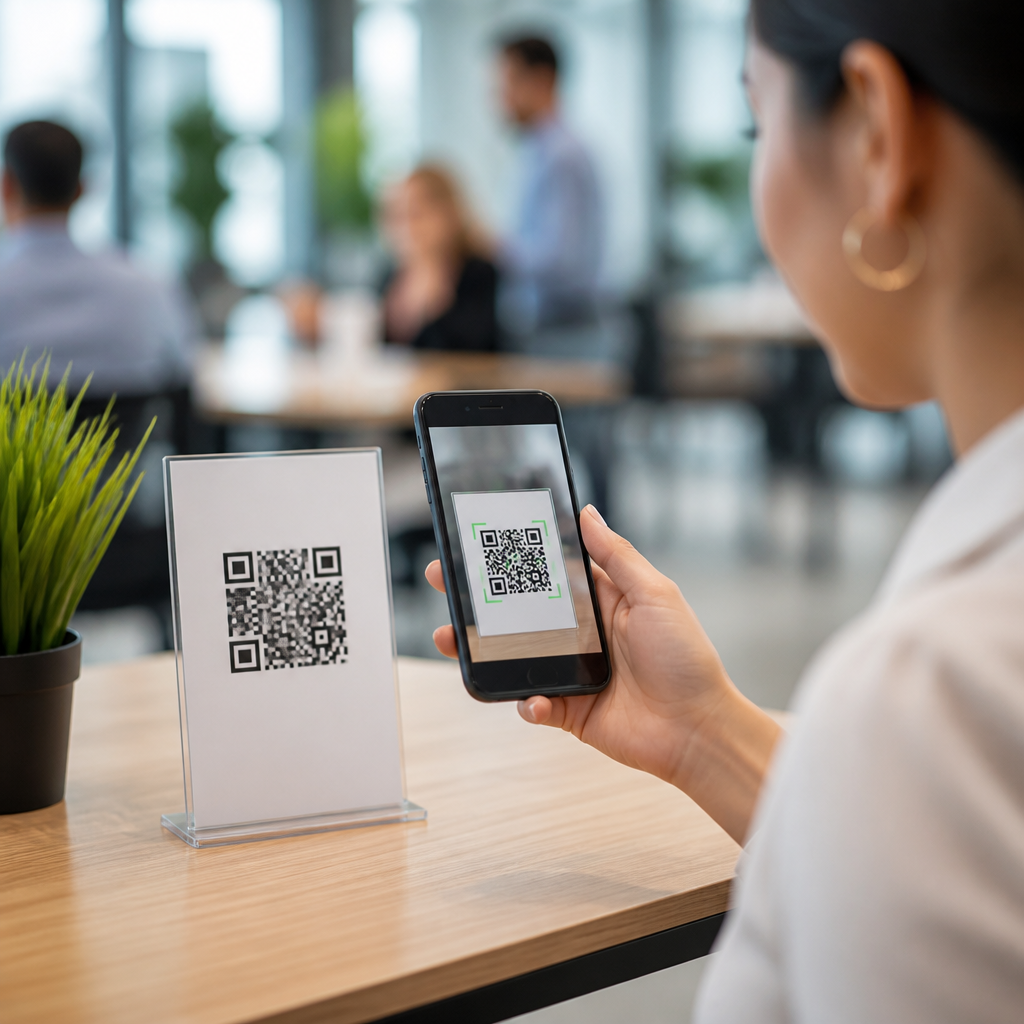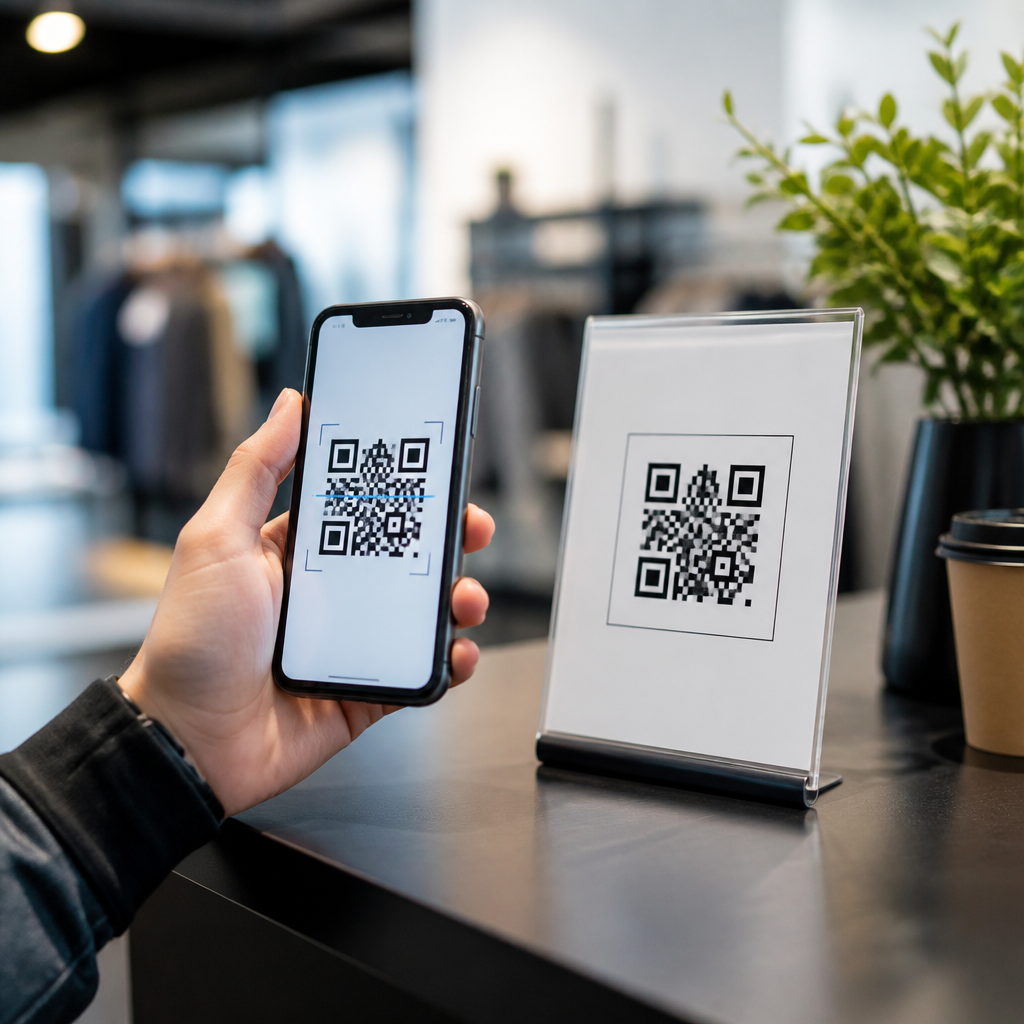
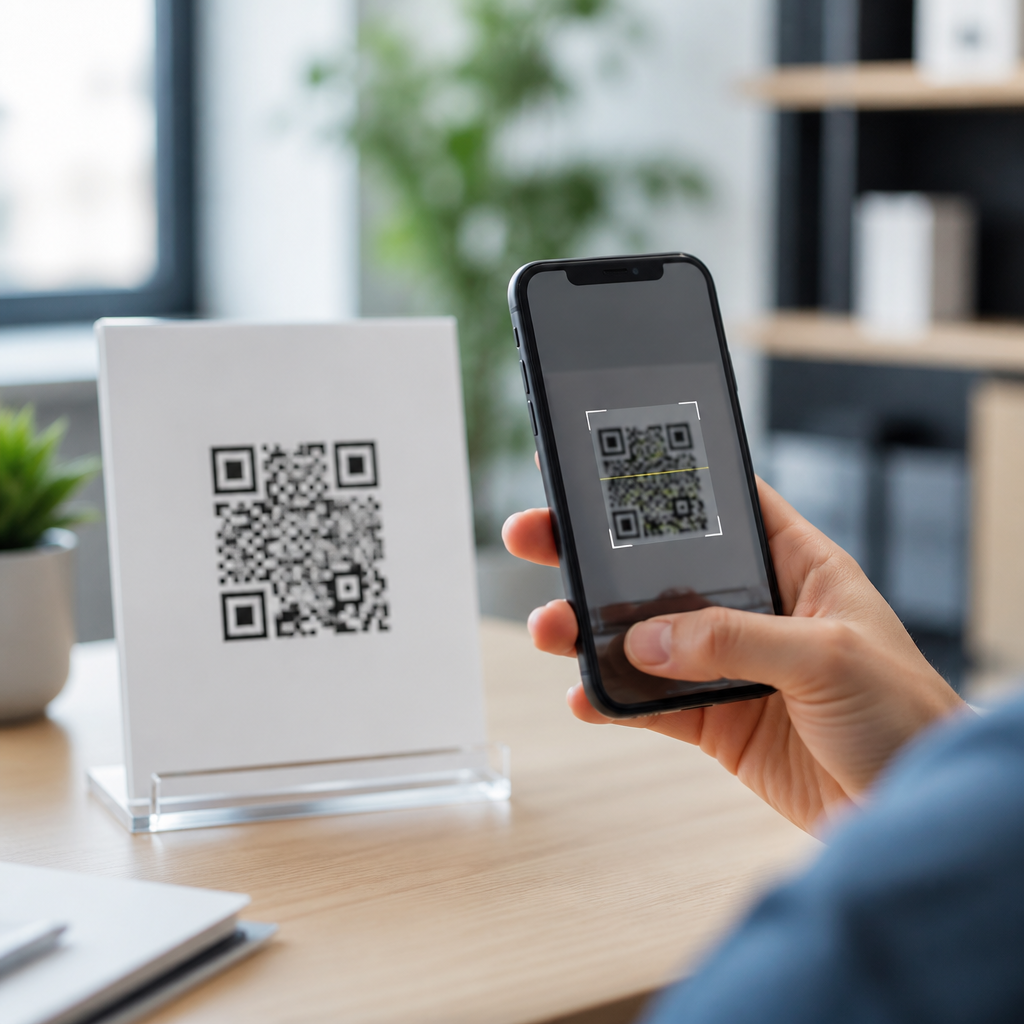
A QR code that won’t scan is usually suffering from one of four problems: poor print or display quality, weak contrast, damaged code structure, or a mismatch between the code’s data and the scanner reading it. In practice, fixing the issue means isolating whether the failure comes from the code itself, the surface it appears on, the device trying to read it, or the destination it opens. I have diagnosed scan failures on product packaging, restaurant menus, trade show signage, direct mail, and mobile checkout flows, and the pattern is consistent: most broken QR codes are preventable when you test size, contrast, error correction, quiet zone, and destination behavior before launch.
For anyone managing campaigns, customer support, packaging, or in-store materials, this matters because a failed scan is not a minor inconvenience. It is a conversion leak. If the code is meant to open a menu, payment page, app download, Wi-Fi credential, warranty form, or lead capture page, every failed attempt creates friction at the exact moment a user intended to act. QR code troubleshooting is the process of identifying and correcting the technical or environmental reason a code cannot be read reliably by common smartphone camera apps or barcode scanners.
Key terms are straightforward but important. The quiet zone is the empty margin around the code that helps a scanner distinguish the symbol from surrounding design elements. Error correction is the built-in redundancy that lets a scanner recover data if part of the code is obscured or damaged; common levels are L, M, Q, and H. Static QR codes store fixed data directly in the symbol and cannot be edited after printing, while dynamic QR codes point to a short URL that redirects to an editable destination. Scan reliability depends on all of these factors working together, not on visual style alone.
This hub article covers the full troubleshooting process for FAQs and scan failures, then points toward the practical areas most teams need to master: print settings, screen display, smartphone compatibility, URL behavior, and design constraints. If you need a direct answer first, start here: a QR code usually becomes scannable again when you increase contrast, restore the quiet zone, enlarge the code, simplify the destination URL through a dynamic redirect, and test with multiple devices under normal lighting conditions.
Start With the Fastest Diagnostic Checks
When a QR code fails, begin with the simplest checks before assuming the code is corrupt. I use a short triage sequence that catches the majority of issues in minutes. First, try scanning with at least two devices, ideally an iPhone using the native Camera app and an Android phone using Google Lens or the default camera. If one phone reads the code and another does not, the problem may be autofocus, low light, an aggressive camera filter, or older software rather than the code pattern itself.
Second, inspect the code visually. A readable QR code should have sharp square modules, a clear white margin around all sides, and strong contrast between dark foreground and light background. If the code is blurry, stretched, glossy, curved around a narrow bottle, or printed over a textured surface, scan performance drops fast. Third, test distance. Many users hold the phone too close. A code that fails at two inches may scan instantly at eight or twelve inches because the camera can resolve the full grid. Fourth, confirm the destination. Sometimes the code scans correctly, but the landing page throws a 404 error, a redirect loop, a blocked app deep link, or a mixed-content warning.
If you created the code recently, pull the original file and compare it against the printed or displayed version. Export mistakes are common. I often find a crisp SVG replaced with a low-resolution screenshot, or a properly proportioned design squeezed by layout software. Adobe Illustrator, Canva, Figma, and PowerPoint can all introduce resizing problems when a code is handled like artwork rather than machine-readable data. The fastest win is frequently replacing a raster image with the original vector file and retesting.
Most Common Reasons a QR Code Won’t Scan
Most scan failures fall into predictable categories. Low contrast is the first. Black on white remains the benchmark because scanners detect edge contrast, not branding intent. Dark blue on black, light gray on white, metallic ink, transparent overlays, and gradients reduce readability. The second major cause is missing quiet zone. Industry guidance commonly expects a border at least four modules wide around the code. If text, icons, borders, or background graphics intrude into that margin, detection suffers.
Size is another frequent problem. For print, a practical baseline is at least 2 x 2 centimeters for short URLs viewed at close range, with larger sizes required for distance scanning. On posters, storefront windows, or billboards, code size should scale with expected scanning distance. A simple field rule is roughly one inch of code width for every ten inches of scan distance, then test in the real environment. Data density matters too. A QR code storing a long URL, UTM parameters, or vCard content creates a denser grid with smaller modules, making small-format printing far less forgiving.
Damage and distortion are equally important. Creases in brochures, scratches on labels, warped packaging, low-ink thermal printing, and reflective lamination can all break the pattern. I have also seen logos placed too large in the center, covering finder patterns or alignment modules beyond what the error correction level can recover. Error correction helps, but it is not a license for aggressive decoration. Higher correction levels preserve functionality when some modules are obscured, yet they also increase density, which can hurt small-print performance. The right level depends on context.
| Problem | Typical Symptom | Best Fix |
|---|---|---|
| Low contrast | Camera sees code but never opens it | Use dark code on light background, avoid gradients and metallics |
| Quiet zone missing | Scanner does not recognize a code is present | Add clear margin of at least four modules on all sides |
| Code too small | Works only at one exact distance or not at all | Increase physical size and reduce encoded data length |
| Blurry or compressed file | Printed code looks soft or pixelated | Use SVG, EPS, or high-resolution PNG from the source generator |
| Damaged surface | Some users scan, many cannot | Reprint on flat matte material or raise error correction carefully |
| Broken destination | Code scans but page fails to load | Fix redirects, test HTTPS, and update dynamic destination |
How to Fix Print, Packaging, and Physical Placement Issues
Physical QR codes fail more often than digital ones because the real world is messy. Ink spreads, labels wrinkle, surfaces curve, and lighting changes by the hour. If your code appears on packaging, start with substrate and finish. Matte labels generally scan better than glossy ones because they reduce glare. On shrink sleeves or flexible pouches, keep the code away from seams and curves. A code wrapped around a small cylindrical container can distort enough to confuse a camera, even when the artwork file is perfect.
Printer settings matter. Thermal printers used in logistics and warehousing often produce acceptable 1D barcodes but weak QR modules if print heads are dirty or resolution is low. For product labels, verify printer DPI, edge sharpness, and quiet zone after printing, not just on screen. On offset or digital press jobs, request a hard proof and test the actual material under store lighting. I have seen codes pass office tests but fail in supermarkets because overhead lighting reflected off varnish exactly where customers stood.
Placement is just as important as print quality. Avoid corners likely to crease, folds in brochures, and low positions on doors where people must crouch to align the camera. On posters, leave visual breathing room around the code and pair it with a concise instruction such as “Scan to view menu” or “Scan to claim warranty.” Clear intent increases patience; users are more willing to reposition their phones if they know what the scan will deliver. If the code is mission-critical, add a short fallback URL below it. That simple redundancy prevents complete failure during edge cases.
How to Fix QR Codes on Screens, Phones, and Digital Displays
Digital display issues are different. A QR code shown on a phone, tablet, kiosk, TV, or laptop can fail even when the underlying file is valid. Brightness is the first variable to test. A dim screen lowers contrast, while an over-bright glossy screen can bloom under sunlight. Raise brightness to a readable level and disable blue-light filters if necessary because color shifts can reduce edge definition. Screen resolution also matters. If the code is rendered too small in a responsive layout, the modules become indistinct, especially on older displays.
Animation and compression can quietly break scannability. Codes embedded in video, carousel banners, or auto-scaling presentations may blur during motion or become compressed by streaming platforms. If a QR code appears in a webinar slide or TV commercial, keep it on screen long enough for users to notice, frame, and scan. In live event work, I aim for a minimum of several seconds with no movement and a generous code size relative to the display. Fast transitions are a common reason audiences assume the code is broken when it was simply unavailable long enough.
Users also need workable device conditions. Smudged camera lenses, outdated operating systems, restricted camera permissions, or battery-saving modes can affect recognition. On Android, results can vary by manufacturer camera app; testing with Google Lens helps isolate app-specific behavior. On iPhone, native camera support is generally reliable, but extremely small or stylized codes still fail. When a support ticket says “the QR code won’t scan on my phone,” ask whether the issue occurs with all codes or only yours. That question quickly separates local device issues from code design defects.
Fix the Data, URL, and Redirect Layer
A QR code can be technically scannable and still fail the user if the payload is poorly structured. The most common example is an overlong static URL packed with campaign parameters. Long strings make the symbol denser, which hurts scan performance. Use a dynamic QR code or a short redirect domain to keep the pattern simple. This also gives you post-print flexibility. If a landing page changes, you can update the destination without replacing physical materials.
Destination reliability needs the same discipline as the symbol itself. Check that the URL uses HTTPS, loads quickly on mobile networks, and does not trigger geographic blocks, bot protection challenges, or app-store region mismatches. I regularly see scans fail in practice because the destination opens a desktop page with heavy scripts, cookie banners, and intrusive pop-ups that obscure the content. Users interpret that as a QR problem even though the code decoded correctly. A successful QR experience ends only when the intended page loads clearly on a phone.
If you use deep links, test fallback behavior. An app link that works for installed users but strands everyone else is not fully fixed. Smart routing should detect device type and send users to the App Store, Google Play, mobile web page, or in-app destination as appropriate. For Wi-Fi, SMS, vCard, PDF, and payment payloads, validate the formatting standard used by your generator. Reputable tools such as QR Code Generator, Bitly, Beaconstac, Uniqode, and Me-QR simplify creation, but the output still needs human testing across devices and scenarios.
Design Rules That Preserve Scan Reliability
Branded QR codes can work well, but only when branding respects the underlying geometry. The safe approach is simple: keep the finder patterns prominent, preserve the quiet zone, limit logo size, and maintain strong foreground-background contrast. Rounded modules, custom colors, and center logos are not automatically bad, yet each customization reduces tolerance. In my experience, teams get into trouble when they treat the code like an illustration instead of a data symbol with strict detection requirements.
Use vector formats whenever possible for master assets. SVG and EPS scale cleanly for print, signage, and packaging, while high-resolution PNG is acceptable for web use when exported at the final size. Never take a screenshot of a QR code from a browser preview and send that to production. Screenshots introduce anti-aliasing, cropping errors, and accidental background artifacts. Also avoid reversing a code to light-on-dark unless you have verified the scanner compatibility. Many modern apps can read reversed codes, but dark-on-light still delivers the most consistent results across devices.
If you need a styled code for a campaign, run a test matrix before approval: native iPhone camera, Google Lens, one mid-range Android device, indoor lighting, outdoor daylight, and the actual print or display size. This step sounds basic, yet it is where most preventable failures are caught. The best QR design is the one users scan on the first try, not the one that wins internal design reviews.
FAQs and Troubleshooting Workflow for Teams
The most useful FAQ is often “Why does my QR code work for some people but not others?” The answer is usually environmental variation: different cameras, software, lighting, distance, and screen or print quality. Another common question is “Can a QR code expire?” Static codes do not expire on their own, but dynamic codes can stop working if the service plan lapses, the redirect is disabled, or the destination URL changes. “Does increasing error correction always help?” No. It helps with partial obstruction, but it also increases density, which can hurt small codes. “Can I put a logo in the middle?” Yes, if the logo is modest and the code is tested thoroughly.
For teams supporting multiple campaigns, document a repeatable workflow. Save the original generated file, note the payload type, record the error correction level, keep proof images from production, and maintain a device testing checklist. When an issue appears, test the source file first, then the deployed version, then the destination. That sequence identifies whether the failure entered during generation, design export, printing, placement, or routing. Internal documentation also makes future articles on print sizing, branded design, dynamic versus static codes, and mobile compatibility easier to connect into a complete QR code tutorials and troubleshooting library.
The core fix for a QR code that won’t scan is disciplined troubleshooting, not guesswork. Check contrast, quiet zone, size, file quality, surface, placement, device conditions, and destination behavior in that order. Most failures can be corrected by re-exporting the code properly, enlarging it, simplifying the payload, or updating the redirect target. When you build QR codes with testing in mind from the start, scan rates improve, support requests drop, and campaigns perform the way they were intended to perform. Audit your current codes, test them on real devices, and replace any asset that does not work on the first attempt.
Frequently Asked Questions
Why won’t my QR code scan even though it looks fine?
A QR code can appear visually normal and still fail in real-world scanning conditions. Most scan failures come down to four root causes: poor print or display quality, weak contrast, physical or structural damage, or a mismatch between the code’s data and the scanning environment. For example, a code printed too small on product packaging may look sharp to the eye but lack enough detail for a phone camera to resolve. A glossy restaurant menu or trade show sign may introduce glare that washes out key pattern areas. A code on direct mail might have been compressed, stretched, or partially obscured by design elements, which can interfere with the finder patterns and quiet zone the scanner relies on.
The fastest way to diagnose the problem is to isolate where the failure is happening. First, test the same code on multiple phones and scanning apps. If none of them can read it, the issue is likely with the code itself, the print quality, or the surface it appears on. If one phone works and another does not, the problem may be related to camera focus, lighting, app permissions, or how the destination content loads after the scan. Also check whether the code opens the intended destination correctly. Sometimes the scan succeeds, but users think it failed because the URL is broken, the landing page is slow, or the content is blocked on mobile devices. A systematic check of the code, surface, device, and destination usually reveals the actual reason it “won’t scan.”
How can I tell whether the problem is the QR code itself or the phone trying to scan it?
The best method is controlled testing. Start by scanning the QR code with several different devices, ideally a mix of iPhones, Android phones, and both native camera apps and third-party QR readers. If the code consistently fails across all of them, that points to a code, print, or placement issue rather than a device problem. If it scans on some devices but not others, the code may be borderline usable, meaning it works only under ideal conditions such as strong lighting, steady hands, and newer cameras with better autofocus.
Next, inspect the code closely. Look for blurry edges, pixelation, low contrast, missing corners, reflections, warping from curved surfaces, or insufficient white space around the outside. The quiet zone is especially important; without enough empty margin around the code, many scanners struggle to distinguish it from the surrounding design. Then test the device side: clean the camera lens, improve lighting, hold the phone at different distances, and make sure the scanning app has camera permission and internet access if needed. If the code scans but the destination fails to load, the issue is not scanning at all but rather the link, file, app behavior, or mobile compatibility of the landing experience. Separating scan recognition from post-scan behavior is one of the most important parts of accurate diagnosis.
What print and design mistakes most often make a QR code hard to scan?
The most common design mistake is making the QR code too small for the intended scanning distance. A code on a business card can be relatively small because the user holds the card close, but a code on signage, packaging on a shelf, or a booth display needs to be much larger to scan reliably. Low contrast is another major issue. Dark code modules on a light background generally work best. When designers use pastel colors, metallic inks, transparent overlays, gradients, or patterned backgrounds, the scanner may have trouble separating the code from its surroundings.
Other frequent problems include removing or shrinking the quiet zone, stretching the code out of proportion, placing it over folds or seams, and printing it on reflective or curved surfaces. On restaurant menus, lamination and overhead lighting often create glare. On direct mail, low-resolution export settings can soften the module edges. On product packaging, shrink wrap can distort the code, and on trade show signage, the viewing angle may make it difficult for a phone to capture a clean image. Even decorative customization can go too far if logos cover critical data areas or the error correction capacity is exceeded. A reliable QR code is not just about the graphic file itself; it is about size, contrast, margin, placement, surface, and the way people will actually attempt to scan it in context.
Can a damaged or partially covered QR code still be fixed, or do I need to generate a new one?
It depends on how the code was created and how severe the damage is. QR codes include error correction, which means they can still scan even if a portion is obscured or degraded. That is why some customized QR codes with logos in the middle still work. However, error correction has limits. If key structural elements such as the finder patterns in the corners are damaged, if the code has been torn, smudged, scratched, or folded across important data regions, or if too much of the code has been covered by branding or labeling, scanning reliability drops sharply.
If the problem is with the printed instance rather than the underlying QR file, you may be able to fix it by reprinting at higher resolution, increasing the size, restoring contrast, or moving the code to a flatter and less reflective surface. If the original digital file has been altered incorrectly, compressed too aggressively, or exported in poor quality, it is usually better to regenerate the QR code from the original destination data. This is also the safest choice when you cannot confidently verify whether the code structure remains intact. Before republishing, test the replacement code in the actual use environment, not just on a computer screen. A code that works perfectly in a design proof can still fail once it is printed on packaging, mounted on signage, or viewed under venue lighting.
What is the best step-by-step way to fix a QR code that won’t scan?
Use a simple four-part troubleshooting process: check the code, check the surface, check the device, and check the destination. First, verify the QR code file itself. Confirm it has not been stretched, cropped, stylized too heavily, or exported at low resolution. Make sure it includes a proper quiet zone and strong contrast. If possible, compare it to the original generated version. Second, evaluate where the code appears. Look for glare, curvature, wrinkles, poor lighting, small size, or physical damage. A code on glossy product packaging or laminated menus may need a matte finish, larger placement, or repositioning to avoid reflections.
Third, test the scanning device. Try multiple phones, clean the lens, adjust the distance, improve lighting, and use both the native camera and a dedicated QR reader. This helps determine whether the issue is universal or device-specific. Fourth, confirm the destination works correctly after the scan. Check that the URL is valid, secure, mobile-friendly, and loads quickly on different networks. If the QR code opens outdated content, a broken page, or an app experience that does not function on all devices, users may interpret that as a scan failure. In many cases, the real fix is not just replacing the graphic but improving the full path from camera recognition to landing-page usability. When you troubleshoot in that order, you can identify the exact failure point and correct it with much less guesswork.