Social media QR codes turn a printed square into a direct path to your profiles, posts, messages, or link-in-bio pages, making them one of the simplest bridges between offline attention and online engagement. If you want to know how to create a QR code for social media, the process is straightforward: choose the destination, generate the code with the right settings, test it across devices, and place it where people can scan it easily. In practice, however, good results depend on details such as URL structure, error correction, sizing, contrast, analytics, and the platform you want people to reach. I have created QR campaigns for retail counters, event badges, restaurant tables, packaging inserts, and sales decks, and the difference between a code that gets ignored and one that drives followers is usually not the generator itself. It is the planning around the code.
A social media QR code is a scannable code that sends users to a single social profile, a post, a direct message entry point, or a landing page listing multiple channels such as Instagram, TikTok, Facebook, LinkedIn, X, YouTube, or Pinterest. Static QR codes store the final destination directly and cannot be edited later. Dynamic QR codes use a short redirect URL, so you can change the destination, track scans, and run time-limited campaigns without reprinting materials. That distinction matters because social platforms change URLs, campaigns expire, and teams often need attribution. For businesses, creators, nonprofits, and local services, social media QR codes matter because they reduce friction. A customer standing in your store is more likely to scan than manually type a long handle, search through lookalike accounts, or remember your username later.
This guide covers the complete step-by-step process and the decisions that affect performance. You will learn when to link directly to one platform versus a multi-link landing page, how to size and style the code without breaking scan reliability, which mistakes commonly ruin campaigns, and how to measure results. By the end, you will have a practical framework you can reuse for business cards, packaging, posters, menus, event signage, product labels, window decals, invoices, and social growth campaigns.
Step 1: Choose the right social media destination
The first step in creating a QR code for social media is deciding exactly where the scan should go. This sounds obvious, but it is where most weak campaigns begin. If your goal is to gain Instagram followers, link directly to your Instagram profile. If your goal is to help people choose among several channels, use a landing page that lists all major profiles. If your goal is customer support, link to WhatsApp click-to-chat, Facebook Messenger, or a contact page with social buttons. The destination should match the user’s context at the exact moment of scanning.
For example, a fitness studio printing QR codes on lobby signs may want a landing page with Instagram, TikTok, and class booking links, because a visitor is still deciding how to engage. A speaker at a conference often benefits more from a LinkedIn profile or a branded page with LinkedIn, newsletter, and website links. A product package usually works best with a single clear action, such as “Follow us on Instagram for tutorials,” because shoppers scan quickly and need one next step, not five competing choices.
Use full, canonical URLs rather than shortened links you cannot control. For Instagram, use the profile URL. For LinkedIn, use the public profile or company page URL. For YouTube, use the channel URL, not a temporary share link from the app. If you use a link-in-bio tool such as Linktree, Beacons, Later’s Link in Bio, or a branded landing page built on your own domain, make sure the page loads fast and is mobile optimized. A slow page can erase the convenience that made the QR code valuable in the first place.
Step 2: Decide between static and dynamic QR codes
Static and dynamic QR codes serve different needs, and choosing correctly saves time and printing costs later. A static code permanently stores the destination. It is fine for a personal business card pointing to a stable LinkedIn profile or a restaurant sign pointing to a long-term Instagram account. It is usually free and simple, but if the destination changes, the printed code becomes obsolete. A dynamic code routes through a managed link, allowing you to update the final URL after printing. That matters for campaigns, seasonal promotions, franchise locations, and any asset with a long shelf life.
Dynamic codes also support scan analytics in many platforms. Depending on the provider, you may see total scans, unique scans, date and time, device type, and approximate location. Those metrics help answer practical questions: Did more people scan the code on product packaging or on the checkout counter? Did the event banner outperform the handout? Did a campaign generate more scans during morning foot traffic or evening service? In my experience, dynamic codes are worth the small subscription cost for most businesses because reprinting physical materials is usually far more expensive than paying for editability and reporting.
| Option | Best for | Main advantage | Main limitation |
|---|---|---|---|
| Static QR code | Permanent profile links, one-off personal use | Free and simple to create | Destination cannot be changed |
| Dynamic QR code | Campaigns, printed assets, analytics, multi-location use | Editable destination and scan tracking | Usually requires a paid tool |
If you expect to reuse the code across flyers, packaging, signage, or paid print, choose dynamic. If you only need a quick QR code for a personal resume card and the destination will not change, static is acceptable. The best choice is not about trendiness; it is about operational flexibility.
Step 3: Generate the QR code with a reliable tool
Once you know the destination and code type, use a reliable generator. Well-known options include QR Code Generator, Bitly, Flowcode, Uniqode, Canva, Adobe Express, and browser-based generators built into some link management platforms. For advanced teams, you can also create QR codes through APIs, especially if you need bulk generation for stores, products, or sales reps. The tool matters less than the output quality and management features, but not all generators are equal. Some free tools add watermarks, create low-resolution exports, or provide no editing controls.
Paste your destination URL carefully, then review the generated preview before download. Choose a high error correction level if you plan to add a logo or use the code in physically demanding environments such as packaging, labels, textured surfaces, or outdoor signs. Error correction allows the code to remain scannable even when part of it is obscured or damaged. The common levels are L, M, Q, and H, with H offering the greatest redundancy. Higher redundancy can make the pattern denser, so the design still needs testing, but it is often the right tradeoff for branded social media QR codes.
Download vector formats such as SVG, EPS, or PDF for print, because they scale cleanly without losing sharpness. Use PNG for digital placements such as social graphics, presentation slides, or email signatures. Keep a master file with naming conventions that identify the campaign, destination, version, and date. That small administrative habit prevents confusion later when someone asks which QR code is on the trade show banner versus the product insert.
Step 4: Customize for branding without hurting scan performance
A branded QR code can look polished and still scan reliably if you respect the underlying rules. The code needs strong contrast between the dark modules and the light background. Black on white is safest. Dark navy on white usually works. Light pastel modules on a beige background often fail, especially under poor lighting or on lower-quality phone cameras. Avoid reversing the scheme unless you have tested thoroughly. Some modern phones can scan inverted codes, but reliability drops.
Leave the quiet zone intact. This is the clear margin around the code that scanning software uses to detect edges. Many design teams accidentally crop too tightly when placing QR codes into layouts. I have seen perfectly generated codes fail simply because the designer removed the surrounding white space to make the placement feel cleaner. Do not distort the code by stretching it horizontally or vertically. Scale proportionally, and keep any embedded logo modest so it does not block too much of the pattern.
If you want a logo, use a dynamic code with higher error correction and test across iPhone and Android devices. Rounded modules, custom colors, and frame designs can work, but every decorative choice adds risk. The rule is simple: branding is secondary to scan success. A plain code that gets scanned beats a stylish code that confuses users and wastes print space.
Step 5: Size, format, and place the code for real-world scanning
The right size depends on scanning distance. A common baseline for close-range materials such as business cards, product inserts, or menu tents is at least 0.8 by 0.8 inches, though larger is often better. For posters and wall signs, increase size based on expected distance. A practical field rule is roughly one inch of code size for every ten inches of scanning distance, then round up when conditions are less than ideal. If users will scan while standing, moving, or carrying bags, make the code bigger than the minimum.
Placement matters as much as size. Put the code where people naturally pause: near a checkout terminal, on a waiting room sign, beside a call to action on packaging, or on the final slide of a presentation. Avoid curved surfaces when possible, because distortion can reduce readability. If you must use a bottle or cup, enlarge the code and test the wrapped proof. For glossy materials, watch for glare. Matte finishes generally scan more reliably in bright environments.
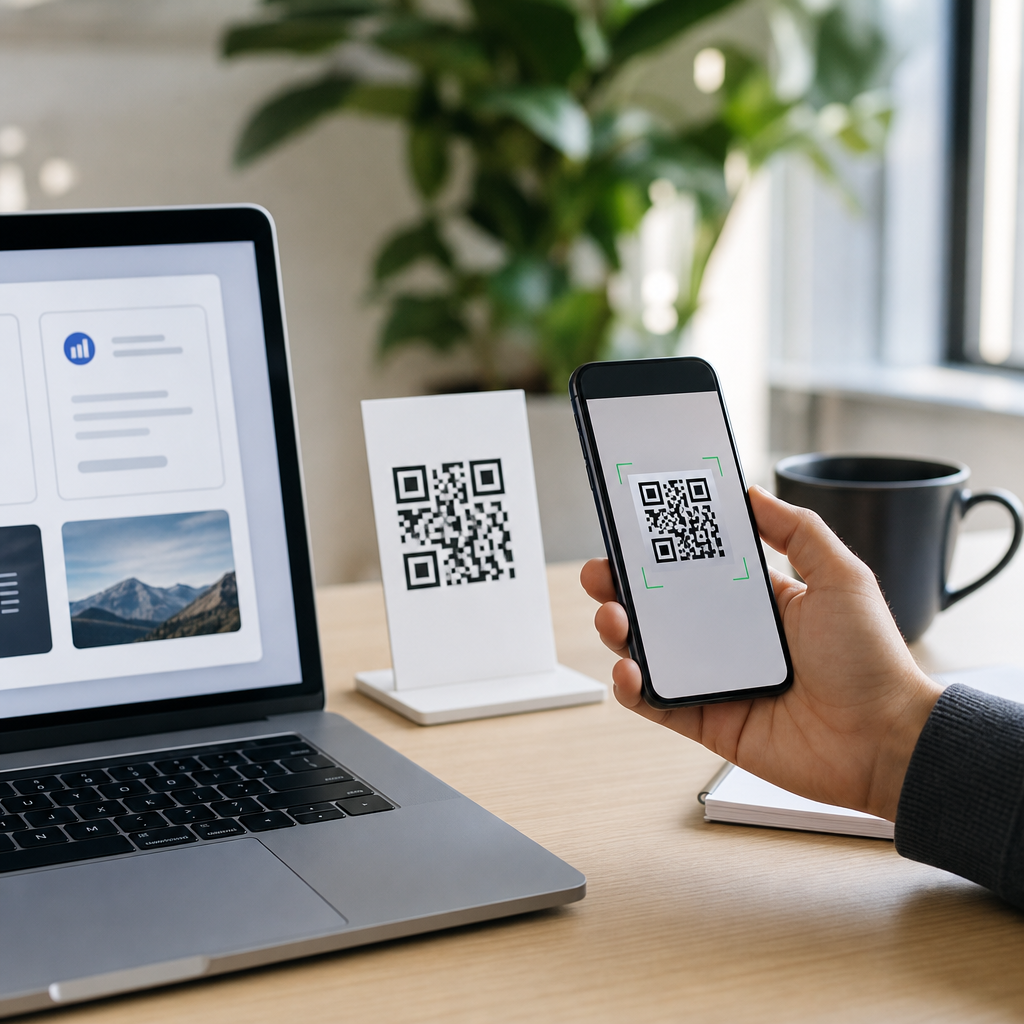
Always pair the code with clear instructional text. “Scan to follow us on Instagram” outperforms a floating code with no context. Users need to know what they will get and why it is worth the scan. If the destination is a multi-link social hub, say that plainly. If there is an incentive, state it directly, such as “Scan for behind-the-scenes videos” or “Scan to join our LinkedIn community.” Specific calls to action consistently improve scan rates.
Step 6: Test across devices, networks, and user scenarios
Testing is the step people skip, then regret after printing 5,000 inserts. Scan the code with multiple devices, ideally recent iPhones and Android phones, using both the native camera app and a common third-party scanner. Test in bright light, low light, and from the expected user distance. If the code points to Instagram, verify that it opens correctly whether the user has the app installed or not. If it points to a link-in-bio page, make sure every social button works and that the page loads quickly on mobile data.
Test the code in its final form, not only on your desktop screen. A QR code that works as a digital file may fail once it is printed too small, placed over a textured background, or laminated with glare. I usually print a draft at actual size, tape it in the intended location, and ask someone unfamiliar with the campaign to scan it without coaching. That reveals friction fast. Do they know what the code is for? Does the page load in under three seconds? Is the social profile obviously yours? Can they follow or message you in one tap?
For dynamic QR codes, verify the analytics dashboard records scans accurately and that your destination can be updated without breaking the code. Good testing is not glamorous, but it is the difference between assumed performance and measured performance.
Step 7: Track results and improve the campaign
Creating the QR code is only the beginning. To understand whether your social media QR code works, track scans and downstream outcomes. Dynamic code dashboards provide the top of the funnel. For deeper attribution, add campaign parameters to the destination URL when appropriate, especially if the scan leads to your own landing page before passing traffic to social profiles. Analytics platforms such as Google Analytics 4 can then show sessions, engagement, and conversions by source. Social platforms themselves may also reveal follower growth, profile visits, or message starts during the campaign period.
Compare placements and offers. A code on a trade show booth may attract many scans but few follows if the booth message is too broad. A code on product packaging with a specific promise like “Scan for setup tips on YouTube” may produce fewer scans but stronger engagement. Iterate based on evidence. Change the call to action, simplify the destination, enlarge the code, or switch from a multi-link page to a direct profile if users are dropping off.
For teams managing multiple assets, keep a simple QR inventory with destination, owner, location, launch date, and performance notes. That documentation prevents orphaned codes and makes future campaigns smarter. The best social media QR codes are not just generated; they are managed like marketing assets with clear goals and measurable outcomes.
Common mistakes to avoid when creating a social media QR code
The most common mistake is linking to the wrong destination. Businesses often send users to a homepage when the real objective is a social follow, forcing extra taps and losing intent. Another frequent problem is using a static code for a campaign that changes every month. Poor contrast, missing quiet zones, tiny print sizes, and overdesigned codes also cause scan failures. So does placing codes where people cannot comfortably stop and aim a camera, such as moving entrances or cramped checkout areas.
A subtler mistake is ignoring mobile experience after the scan. If your Instagram profile has no clear bio, your link-in-bio page is cluttered, or your LinkedIn page looks inactive, the QR code did its job but the destination did not. The scan should land on a page that immediately confirms value and authenticity. Before launch, update profile photos, bios, pinned posts, highlights, and contact options. Consistency between the physical call to action and the destination builds trust and increases follows.
Knowing how to create a QR code for social media means more than clicking generate. Start with a destination tied to a specific goal, choose static or dynamic based on how much flexibility you need, create the code with a reputable tool, preserve contrast and quiet space, size it for real scanning distance, and test it in the exact conditions where people will use it. Then track performance and improve. When done well, a social media QR code removes friction, connects offline audiences to your online presence, and turns passing attention into measurable engagement. Use the steps above to build your first code, test it today, and place it where your audience already pauses.
Frequently Asked Questions
What should a social media QR code link to?
The best destination depends on your goal. A social media QR code can send people directly to a single profile, a specific post, a direct message link, a follow page, or a link-in-bio landing page that gives visitors several options at once. If your main objective is growing one platform, such as Instagram, TikTok, LinkedIn, or Facebook, linking straight to that profile usually creates the fewest steps for the user. If you want to promote multiple channels, a mobile-friendly landing page is often the smarter choice because it lets people choose where to connect with you.
It is also important to think about the context in which the code will be scanned. A QR code on product packaging may work best when it leads to a branded page with social icons, recent content, and a clear call to action. A code on a business card might be more effective when it opens your primary professional profile, such as LinkedIn. For events, you might link to a campaign page, hashtag instructions, or a social post that invites attendees to tag your brand. In short, choose the destination that matches the user’s intent at the exact moment they scan.
How do you create a QR code for social media step by step?
Creating a social media QR code is simple, but a careful setup makes a big difference in results. Start by deciding exactly where the code should send people. Copy the full URL of your social profile, post, message link, or link-in-bio page. Then use a QR code generator and paste the URL into the correct field. If the tool offers static and dynamic QR codes, choose based on your needs. A static code permanently stores the destination, while a dynamic code lets you update the link later without changing the printed code.
Next, customize the settings. Many generators let you adjust the colors, add a logo, select the file type, and choose the error correction level. Keep the design clean and readable. Strong contrast, such as a dark code on a light background, is usually best. Once the code is generated, test it with multiple smartphones and scanning apps under normal lighting conditions. Download the final file in a format that fits your use case, such as PNG for web use or SVG for high-quality printing. Before publishing or printing, make sure the destination page loads quickly and looks good on mobile devices, since most people will scan on their phones.
Should you use a static or dynamic QR code for social media?
For many social media marketing use cases, a dynamic QR code is the better option because it provides flexibility. If you later change your Instagram handle, update your link-in-bio page, switch campaigns, or want to redirect users to a seasonal promotion, you can edit the destination behind the QR code without replacing the printed materials. This is especially useful for posters, menus, packaging, flyers, signage, trade show booths, and other assets that stay in use for a long time.
A static QR code can still be a good fit when the destination is unlikely to change and you want a simple one-time solution. For example, if you are printing a code for a permanent company homepage or a stable professional profile, static may be enough. The tradeoff is that any future change requires generating a new code and replacing it everywhere. If analytics matter to you, dynamic codes often provide additional benefits, such as scan tracking, location insights, and device data, which can help you understand whether your offline materials are actually driving online engagement.
What design and placement tips help a social media QR code get more scans?
The most effective social media QR codes are easy to notice, easy to understand, and easy to scan. Size matters: the code must be large enough for the scanning distance. A tiny QR code on a poster across the room will underperform no matter how well it is designed. Contrast is also critical. Use dark foreground elements on a light background whenever possible, and avoid cluttered patterns, low-contrast color combinations, or placing the code over busy images. If you add a logo or branded styling, make sure it does not interfere with scanability.
Placement should support the moment of discovery. Put the code where people naturally pause and have their phones available, such as on checkout counters, product labels, brochures, storefront windows, table tents, event badges, or presentation slides. Add a clear call to action near the code, such as “Follow us on Instagram,” “Scan to see our latest videos,” or “Connect with all our social channels.” This tells users what they will get and increases the chance they will scan. It is also wise to leave enough white space around the code, often called the quiet zone, so phone cameras can detect it properly. Good placement combines visibility, convenience, and a compelling reason to act.
How do you test and troubleshoot a social media QR code before using it publicly?
Testing is one of the most important steps because even a small mistake can make a QR code ineffective. First, scan the code on multiple devices, including both iPhone and Android if possible. Test with the native camera app as well as a third-party scanner. Confirm that the code opens the correct destination immediately and that the landing page works well on mobile. Check that the page loads over a secure connection, displays properly on smaller screens, and does not require unnecessary login steps before users can see the content you want to promote.
If the code does not scan reliably, review the most common issues. The design may have too little contrast, the logo may cover too much of the code, the file may have been compressed or distorted, or the printed version may be too small. Lighting and surface choice can also affect performance, especially on glossy materials that create glare. If the QR code links to a social media app, remember that some users may not have that app installed, so the link should still resolve in a browser whenever possible. Finally, test the code in the real environment where it will appear. A QR code that works on your computer screen may behave differently once printed on packaging, displayed outdoors, or viewed from a distance at an event.