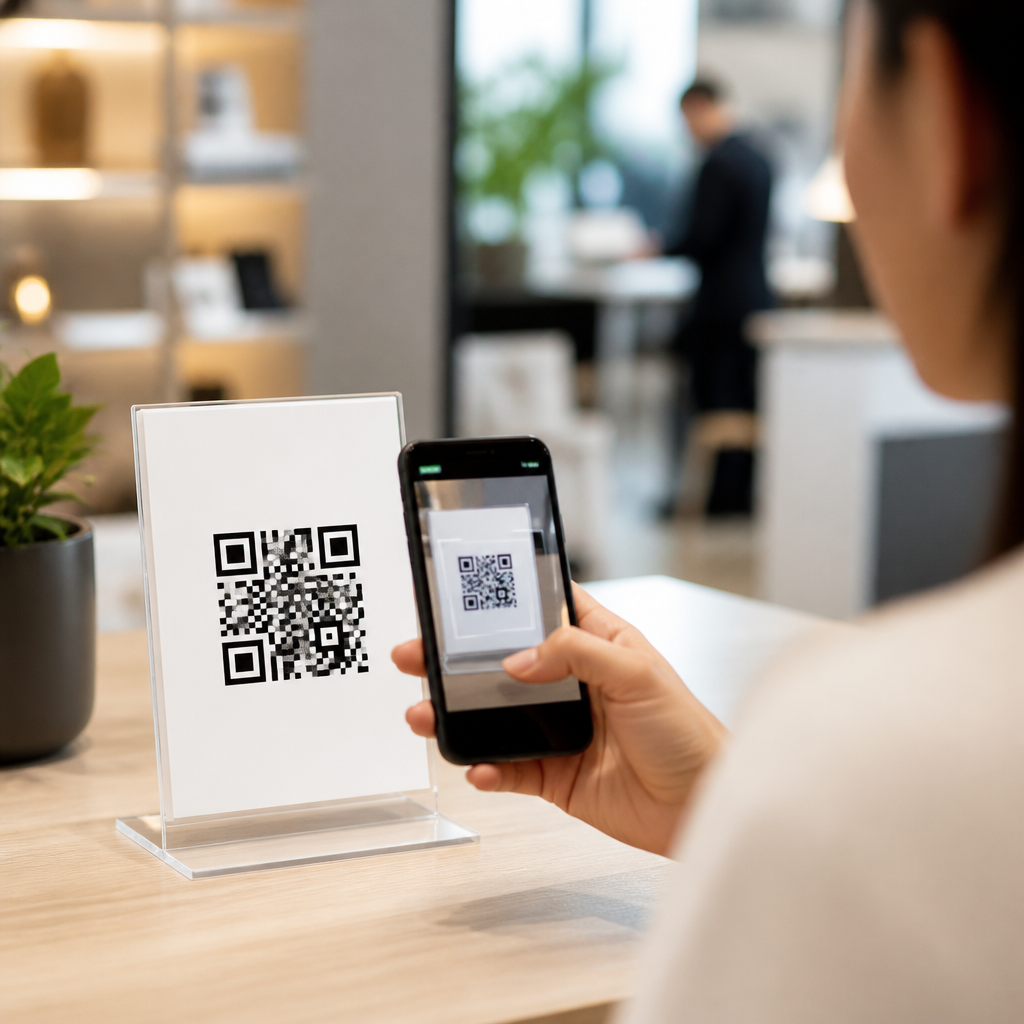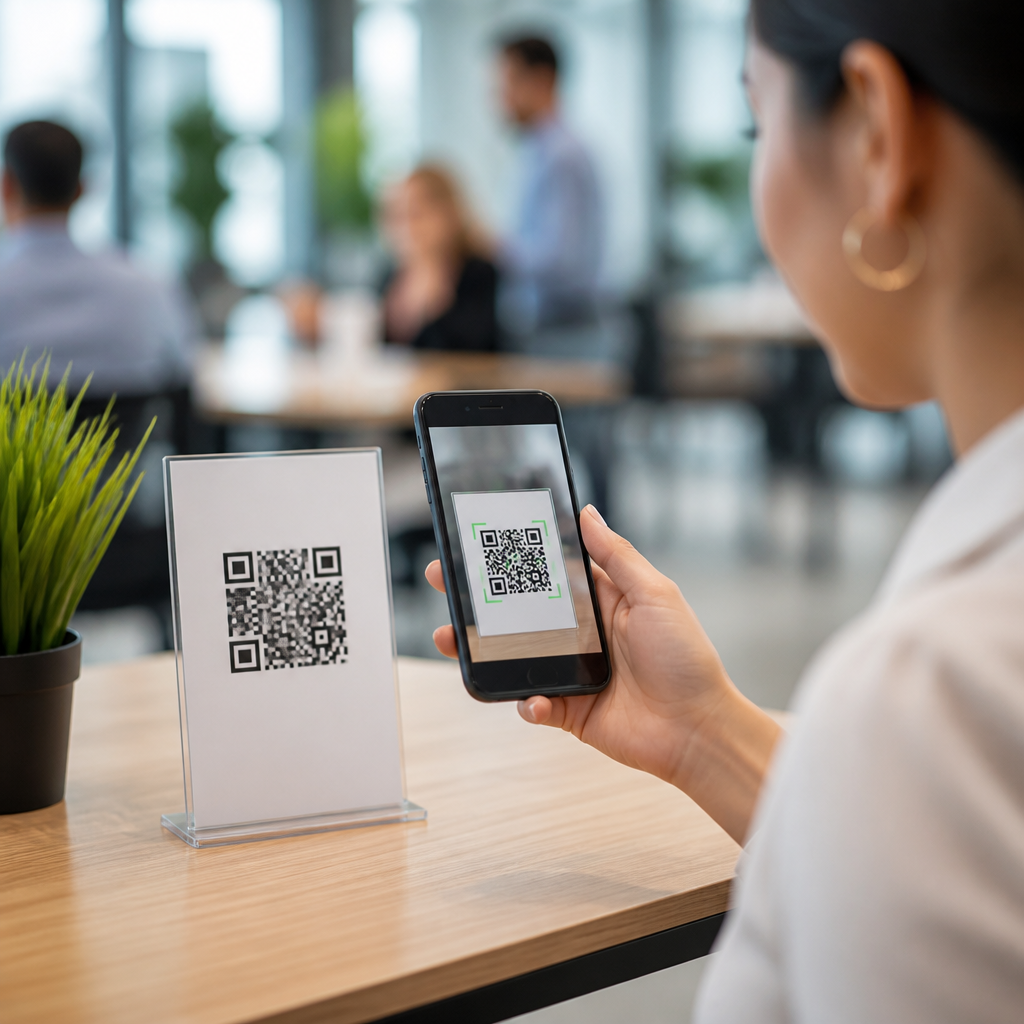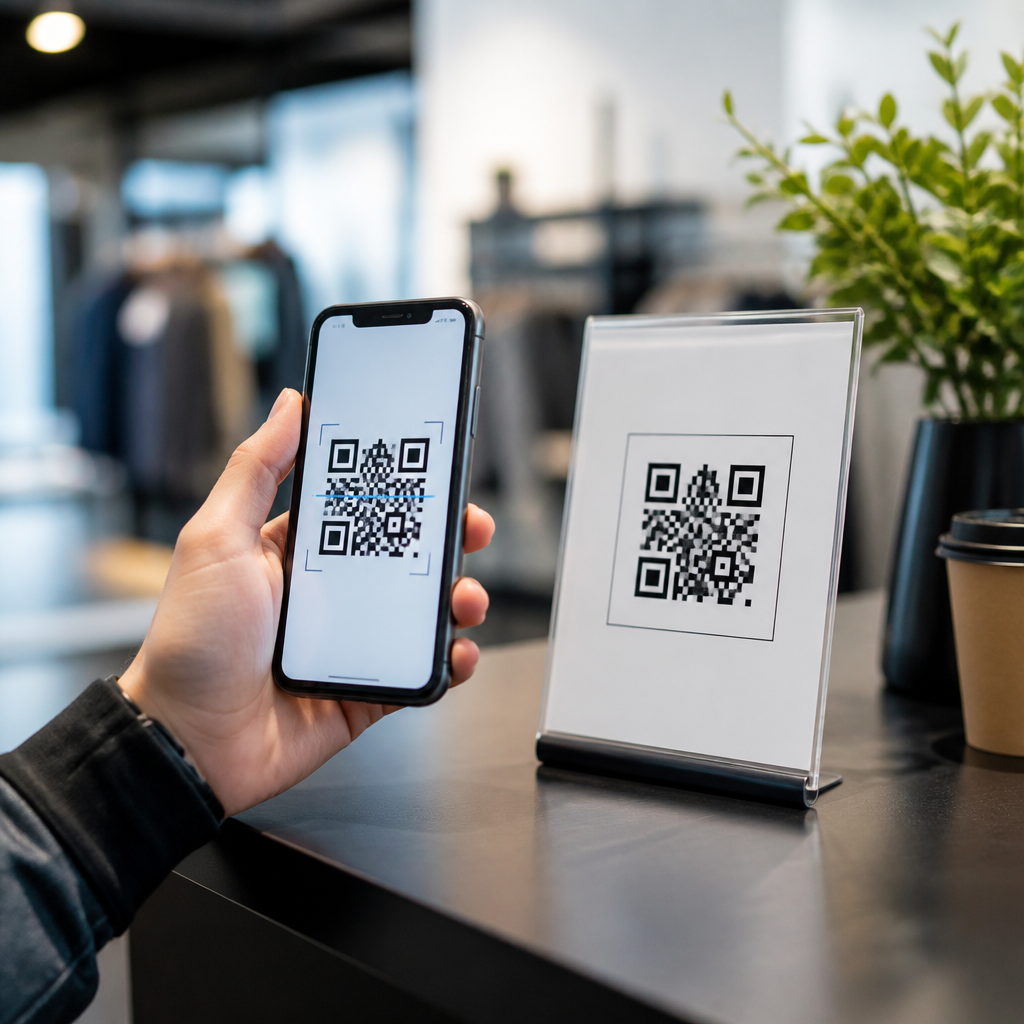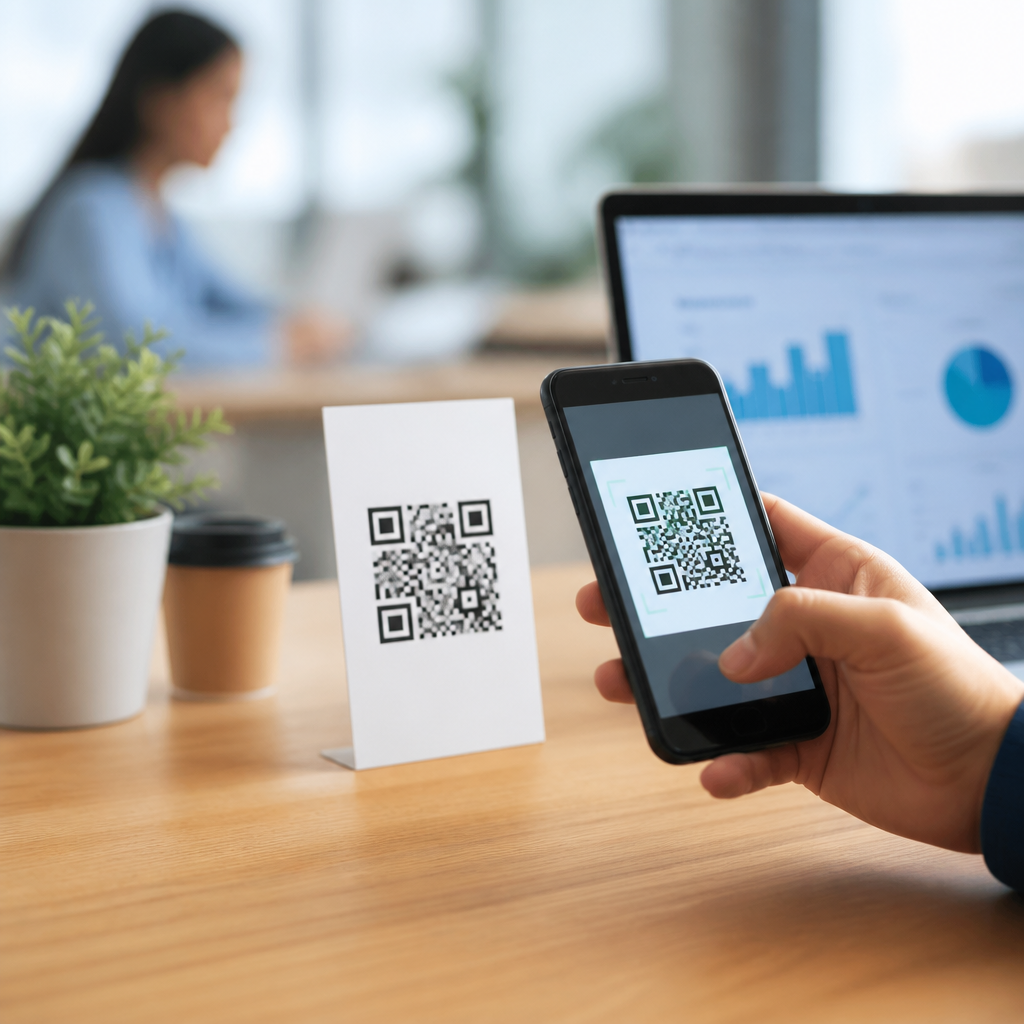
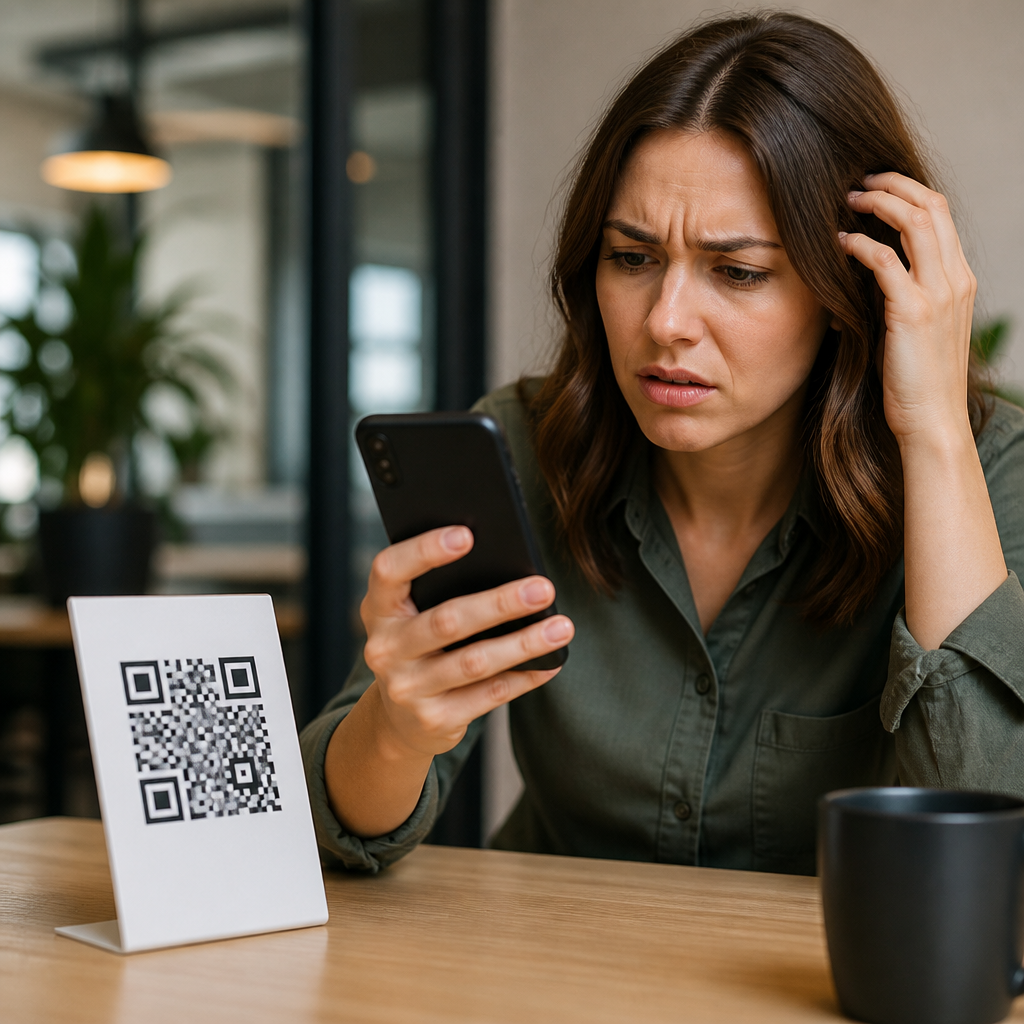
QR codes fail for a surprisingly small set of reasons, and once you know how scanners interpret the pattern, most problems become easy to diagnose. A QR code is a two-dimensional barcode made of dark and light modules arranged in a square grid, with position markers in three corners that help a phone camera locate, orient, and decode the symbol. When someone asks, “Why isn’t my QR code working?” the real question is usually which part of the scan path broke: the printed or displayed code, the destination link, the scanning device, or the environment around the scan. In practice, I have seen all four cause campaigns, menus, packaging, event signage, invoices, and product labels to fail.
This matters because QR codes sit at the point where offline attention becomes online action. A code on a poster may be the only bridge to a booking form. A code on a table tent may be the only way to open a restaurant menu. A code on packaging may carry setup instructions, compliance documents, or loyalty enrollment. If the code does not scan quickly, people do not troubleshoot; they leave. That drop-off is measurable. In retail, hospitality, field service, and events, even a modest failure rate translates into lost leads, delayed support, and frustrated customers. The good news is that QR code troubleshooting follows repeatable rules rooted in ISO/IEC 18004, print production basics, smartphone camera behavior, and URL handling.
This guide is the hub for QR code FAQs and troubleshooting. It explains what “not working” actually means, how to test a code methodically, and which fixes solve the most common problems. It also covers static versus dynamic QR codes, minimum size, contrast, quiet zone, damaged codes, redirects, password-protected destinations, low-light conditions, and design choices like branded colors or embedded logos. If you manage QR codes across marketing, operations, or product documentation, use this article as your starting point and your checklist.
What “Not Working” Usually Means
Before changing the artwork, define the failure clearly. A QR code can fail in several distinct ways: the camera never detects a code, the phone detects it but cannot decode it, it decodes but opens the wrong destination, it opens the correct destination slowly, or the destination loads and then fails because of a 404, login wall, expired campaign, or mobile usability issue. These are different problems with different fixes. In live troubleshooting, I separate them immediately because teams often redesign the code when the real issue is a broken URL or a weak cellular connection.
Start with a simple test sequence. Scan the code on at least three devices: one recent iPhone using the native Camera app, one recent Android device using the native camera or Google Lens, and one older phone if your audience includes older hardware. Test under indoor lighting and daylight. Test from the expected scan distance. If it is printed, inspect the file used for production, not just the final print. If it is digital, test the exact on-screen placement, brightness, and surrounding layout. Then ask four direct questions: Is the code detectable? Is it decodable? Does it resolve? Is the landing page usable on mobile? Those four checkpoints isolate almost every failure.
Print and Design Problems That Stop Scans
The most common reason a QR code does not scan is poor symbol quality. QR codes need strong contrast, enough physical size, a clean quiet zone, and an undistorted grid. The ideal format for print is vector artwork such as SVG, EPS, or PDF because vectors scale without blurring. Raster files like PNG or JPG can work for digital use, but they often fail in print when stretched, recompressed, or placed into layouts at low resolution. I regularly see codes exported from design tools at screen resolution, enlarged for packaging, and then softened by print processes until edge definition is lost.
Contrast matters more than decoration. The safest choice is black modules on a white background. Dark blue on white is often fine. Light gray on white, pastel colors, gradients, metallic inks, transparent overlays, and reversed white-on-black treatments are much riskier because camera software needs clear luminance separation. Many branded QR codes fail because they look attractive in a mockup but become unreadable under mixed lighting. Glossy lamination and reflective surfaces create another issue by adding glare that obscures modules. On windows, acrylic signs, and laminated menus, changing the finish to matte can dramatically improve scan rates.
Size also matters, but there is no single perfect measurement because distance changes the requirement. A practical rule is that scan distance should be roughly ten times the code width. A 2-centimeter code suits a very close scan, while a poster viewed from one meter away needs a substantially larger symbol. Tiny codes on medicine labels, electronics packaging, and business cards often fail because the user cannot hold the camera close enough to focus while keeping the code steady. Dense codes with long URLs need even more space because each module becomes smaller as more data is encoded.
The quiet zone is the blank margin around the code, and it is essential. Standard guidance calls for a margin at least four modules wide on all sides. Designers frequently break this rule by placing text, borders, background patterns, icons, or crop marks too close to the symbol. The scanner then struggles to separate the code from surrounding artwork. Distortion is equally harmful. Stretching a QR code horizontally, rounding corners too aggressively, warping it around curved packaging, or placing it over folds can all prevent decoding. If your code is on a bottle, can, or tube, increase size, reduce data density, and test on the actual finished substrate, not only on a flat proof.
Destination and Link Issues After a Successful Scan
If the phone recognizes the QR code but the result still feels broken, the problem is usually in the destination. Static QR codes encode the final URL directly, so a typo, expired page, removed file, or changed path makes the code permanently wrong. Dynamic QR codes point to a short redirect URL managed by a QR platform, which then forwards users to the current destination. Dynamic codes are easier to update and provide analytics, but they add dependency on the redirect service, account status, and campaign configuration. I have seen scans fail because a subscription lapsed, a destination rule was unpublished, or the domain behind the short link was blocked by a network filter.
Check the full chain. Scan the code, copy the detected URL if possible, and open it in a browser. Confirm whether it returns a 200 status, a redirect, a 404, a 403, or a timeout. If there are multiple redirects, simplify them; every hop adds latency and another point of failure. If the landing page is mobile-unfriendly, heavy, or blocked by cookie banners that obscure content, users interpret that as the QR code not working. The same applies to app deep links that fail when the app is not installed. In those cases, use smart routing that sends app users to the in-app screen and everyone else to a mobile web fallback.
Password protection, geofencing, firewalls, and captive portals also cause confusion. A code in a factory may work on corporate Wi-Fi but fail for contractors on guest access. A code inside a conference venue may open a login page first because the network requires acceptance of terms. A code on printed onboarding materials may lead to a shared drive that requires an employee login, which is fine for staff but broken for customers. Troubleshooting here means checking access assumptions, not redesigning the symbol.
Device, Camera, and Environment Factors
Even a perfectly generated QR code can fail in poor scan conditions. Older phone cameras have lower resolution, weaker autofocus, and less capable decoding software. Smudged lenses reduce contrast. Low light forces longer exposure, which adds blur when the hand shakes slightly. Harsh backlighting darkens the code. Cracked screens and dirty protective films affect on-screen scanning. In field tests, I have seen signs that scanned flawlessly in an office but failed near entrance doors because direct sunlight reflected off the surface and washed out the pattern.
Screen-based QR codes introduce another set of variables. If the code is displayed on a phone, tablet, kiosk, or laptop, low brightness can reduce contrast, while moiré patterns and refresh artifacts can appear when one camera scans another screen. Very small on-screen codes are especially troublesome. As a rule, increase brightness, enlarge the code, and avoid placing it over animated backgrounds, videos, or dark mode interfaces that reduce separation. If users must scan from moving vehicles, through glass, or at odd angles, treat the placement as high risk and test in the real environment.
Some scanning apps are simply better than others. Native iPhone Camera and Google Lens generally perform well, but third-party apps may struggle with stylized codes, low contrast, or uncommon encodings. If your audience includes rugged devices, industrial scanners, or older Android models, verify compatibility early. QR code troubleshooting is not complete until you test with the tools your users actually have.
Static vs. Dynamic QR Codes: Which Troubleshoots Better?
Static and dynamic QR codes can both scan reliably, but dynamic codes are usually easier to manage over time. A static code is permanent: the data inside the symbol cannot be changed after printing. That simplicity is useful for long-lived information like a plain website URL, a Wi-Fi credential, or basic contact details. A dynamic code contains a short URL that redirects to the destination you control in a dashboard. Because the visible pattern stays the same while the endpoint can change, dynamic codes are the safer choice for campaigns, restaurant menus, file downloads, product manuals, and any asset likely to move.
Troubleshooting advantages are practical. With a dynamic code, you can fix a typo, replace a broken link, reroute traffic during outages, attach UTM parameters, and review scan analytics by date, device, or location. You can also pause or sunset a campaign intentionally instead of letting users hit a dead page. The tradeoff is vendor dependence. Choose a provider with a stable domain, clear export options, and transparent policies around account expiration. If you need high control, use your own short domain and redirect rules so the code remains portable.
Fast Diagnostic Checklist for a Broken QR Code
| Symptom | Likely Cause | Best Fix |
|---|---|---|
| Camera never detects code | Low contrast, missing quiet zone, glare, code too small | Increase size, restore white margin, use dark-on-light colors, reduce reflections |
| Code detected but not decoded | Blur, distortion, excessive data density, damaged print | Regenerate at higher quality, shorten URL, use vector file, reprint cleanly |
| Scans but opens wrong page | Incorrect static URL or misconfigured redirect | Correct destination, update dynamic target, verify redirect chain |
| Scans slowly | Weak signal, too many redirects, heavy landing page | Simplify redirects, optimize page speed, provide better connectivity |
| Works on some phones only | Device compatibility, stylized design, small modules | Use standard design, enlarge code, test on older devices |
| Worked before, fails now | Expired page, lapsed subscription, changed permissions | Renew service, replace destination, check hosting and access rules |
Use this checklist in order. First, verify symbol quality and size. Second, verify the exact encoded content. Third, verify the network path and landing page behavior. Fourth, test environmental conditions. This order saves time because it moves from the most common and cheapest fixes to the more situational ones. When teams skip straight to redesign, they often miss a simple URL or hosting issue.
How to Prevent QR Code Failures Before Launch
Prevention is mostly process. Generate the code with a reputable tool, keep the payload short, export a vector master for print, and maintain at least a four-module quiet zone. Prefer dark modules on a light background. Choose an error correction level appropriate for the design and environment; higher error correction can help if you add a small logo or expect minor damage, but it also increases density, so do not treat it as a cure-all. For print, request proofs on the actual material, especially for textured labels, metallic substrates, flexible packaging, or very small placements. For digital use, test the code on the final screen size and brightness, not only in a design file.
Set up destination governance. Use dynamic codes when content may change. Monitor for broken links. Keep redirects to a minimum. Ensure landing pages are mobile-first, fast, and readable without pinch-zoom. If authentication is required, say so beside the code. If the code should launch an app, provide a fallback URL and plain text instructions. Many successful implementations also print a short human-readable URL near the code, which gives users a backup path and gives support teams a way to verify the destination quickly.
Most QR code problems are preventable with a disciplined checklist: strong contrast, adequate size, intact quiet zone, no distortion, tested destination, and real-device validation. When a code fails, do not guess. Determine whether the issue is the symbol, the link, the device, or the environment, then fix that exact layer. If you manage QR codes regularly, build a repeatable QA process and revisit it before every print run, launch, or campaign update. That one habit will catch nearly every “why isn’t my QR code working” issue before your users ever see it. Audit your live codes today, replace weak designs, and test every destination on a phone.
Frequently Asked Questions
Why won’t my QR code scan at all?
If a QR code will not scan at all, the problem is usually one of a few common issues: poor contrast, incorrect sizing, physical damage, a blurry display or print, or a scanner that cannot clearly detect the code’s structure. A QR code works by presenting a clean pattern of dark and light modules in a square grid, and the scanning app first has to find the three position markers in the corners before it can decode the content. If those markers are cut off, distorted, covered, too small, or blended into the background, the scan can fail before decoding even begins.
Start with the basics. Make sure the code is dark on a light background, with strong contrast and no busy design elements interfering with the pattern. Check that there is enough quiet zone, which is the blank margin around the QR code. Without that empty border, many phones struggle to distinguish where the code begins and ends. If the code is printed, look for smudging, ink spread, glare from glossy materials, folds, scratches, or low-resolution output. If the code is on a screen, increase brightness, reduce glare, and confirm the image is sharp rather than compressed or stretched. Also test the scanning distance. A code that is too small for the viewing distance may be technically valid but practically unreadable.
It is also worth testing with multiple devices and scanning apps. Some camera apps are more tolerant than others, and an older device may struggle with focus or low light. If the code fails everywhere, the issue is likely with the code itself or how it is being presented. If it works on one phone but not another, device compatibility, autofocus, camera quality, or software limitations may be the culprit. In most cases, improving clarity, contrast, spacing, and size solves the problem quickly.
Can a QR code stop working because it was designed incorrectly?
Yes. Design-related problems are one of the most common reasons a QR code becomes difficult or impossible to scan. While branded QR codes can look attractive, scanners still need to read the underlying module pattern accurately. If the design changes the code too aggressively, readability suffers. Common mistakes include using low-contrast colors, reversing the code with light modules on a dark background, placing the code over photographs or patterns, rounding or reshaping modules excessively, or covering key parts of the symbol with logos that exceed the code’s error correction capacity.
Another frequent issue is removing or shrinking the quiet zone. That blank margin around the code is not decorative; it is part of what helps the scanner isolate the symbol from surrounding content. If a QR code is placed too close to text, borders, images, or colored boxes, phones may have trouble identifying it as a distinct code. Likewise, stretching the QR code out of square shape, exporting it at low resolution, or using screenshot copies instead of the original file can introduce distortions that prevent successful decoding.
The safest approach is to keep the code square, use high contrast, preserve the quiet zone, and test every final version in the exact format it will be used in, whether that is packaging, signage, menus, business cards, or mobile screens. If branding is important, apply it conservatively and use a generator that supports custom styling without breaking the code’s readability. A QR code can absolutely be designed well and still look polished, but it must remain machine-readable first and decorative second.
Why does my QR code work on some phones but not others?
This usually points to a tolerance issue rather than a completely broken QR code. Different phones and camera apps vary in how well they focus, handle glare, recognize low-contrast patterns, and process small or stylized codes. A newer device with a sharper camera and better image processing may scan a marginal code easily, while an older phone may fail under the same conditions. That means the code may be technically valid but not robust enough for real-world use across a broad range of users.
Environmental factors can make this inconsistency worse. Reflections on glossy print, dim lighting, motion blur, extreme viewing angles, or a code placed too high or too low can create enough friction that only better cameras succeed. The same is true for dense QR codes that store long URLs or a lot of data. As data density increases, the modules get smaller, and smaller modules are harder for lower-quality cameras to resolve. If the code includes heavy styling or a logo overlay, some devices may still decode it while others cannot.
To fix this, simplify and strengthen the code. Shorten the URL if possible so the pattern becomes less dense. Increase the printed or displayed size. Improve contrast and maintain a clean quiet zone. Avoid overly decorative customizations. Then test on a range of iPhone and Android devices, using both native camera apps and third-party scanners. If you want dependable performance, optimize for the weakest likely scanning conditions, not just the best-case device in your office.
Does the destination link or content make a QR code seem broken?
Absolutely. Sometimes the QR code scans correctly, but the user experiences a failure immediately afterward and assumes the QR code itself is defective. In reality, the problem may be with the destination URL, landing page, app deep link, Wi-Fi payload, or other encoded content. A mistyped URL, expired page, broken redirect, geo-restricted content, blocked domain, or mobile-unfriendly page can all make a functioning QR code appear not to work.
Dynamic QR codes add another layer to troubleshoot. If the code routes through a redirect service, the short link platform may be misconfigured, paused, deleted, or affected by DNS or hosting issues. If the QR code points to a PDF or file download, the file may have been removed or may load too slowly on mobile data. If it triggers an app action, users may need a specific app installed for the experience to complete properly. In enterprise or secure network environments, firewalls or content filters can also block the destination.
The best way to diagnose this is to separate scanning from destination behavior. First, confirm that the QR code decodes consistently. Then inspect the actual decoded content and test the link directly in multiple mobile browsers and networks. Check for redirects, page load errors, SSL certificate problems, and mobile usability issues. If the content is correct and fast-loading, the QR code is doing its job. If the destination fails, the fix belongs to the web or app experience, not the symbol itself.
What is the fastest way to troubleshoot a QR code that is not working?
The fastest method is to walk through the scan path in order: code quality, presentation conditions, scanner behavior, and destination result. First, inspect the code itself. Is it square, sharp, high-contrast, and surrounded by enough blank space? Is any part cropped, warped, pixelated, smudged, or obscured by design elements? If it is printed, verify that the size matches the expected scanning distance. If it is on a screen, check brightness, glare, and image sharpness.
Next, test with multiple phones and apps. Try a recent iPhone and Android device if possible. Scan the same code in good lighting and from different distances and angles. If one device works and another does not, the code may be borderline readable rather than completely invalid. If no device can scan it, recreate the code from the source content and compare results. Use the original exported file rather than a screenshot or compressed copy. If the recreated version works, the old file was likely degraded or altered somewhere in production.
Finally, once the code scans, confirm the destination behaves properly. Open the decoded URL directly, follow redirects, and make sure the landing page loads quickly on mobile. This structured process usually reveals the issue very quickly because QR failures tend to come from a small set of causes: unreadable symbol, poor presentation, device limitations, or broken destination content. By isolating each stage instead of guessing, you can identify the exact failure point and correct it with confidence.