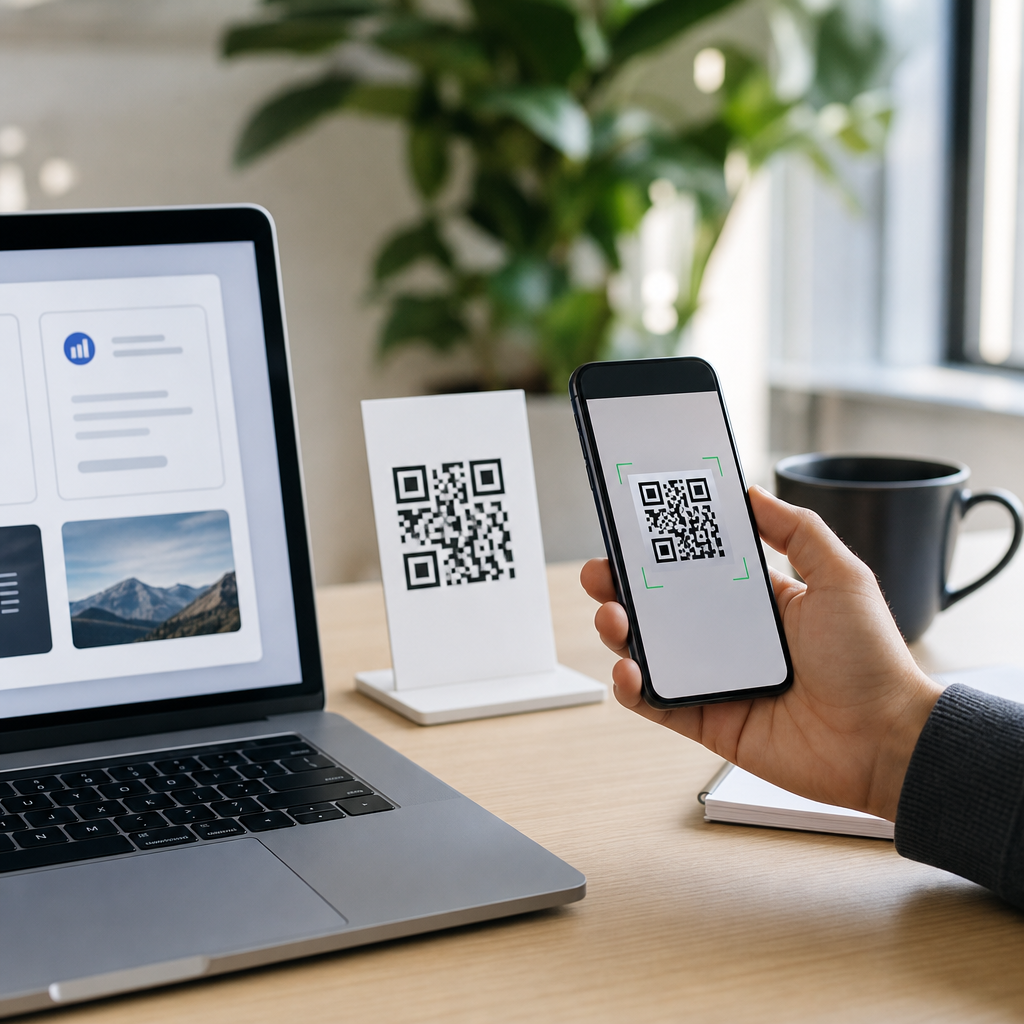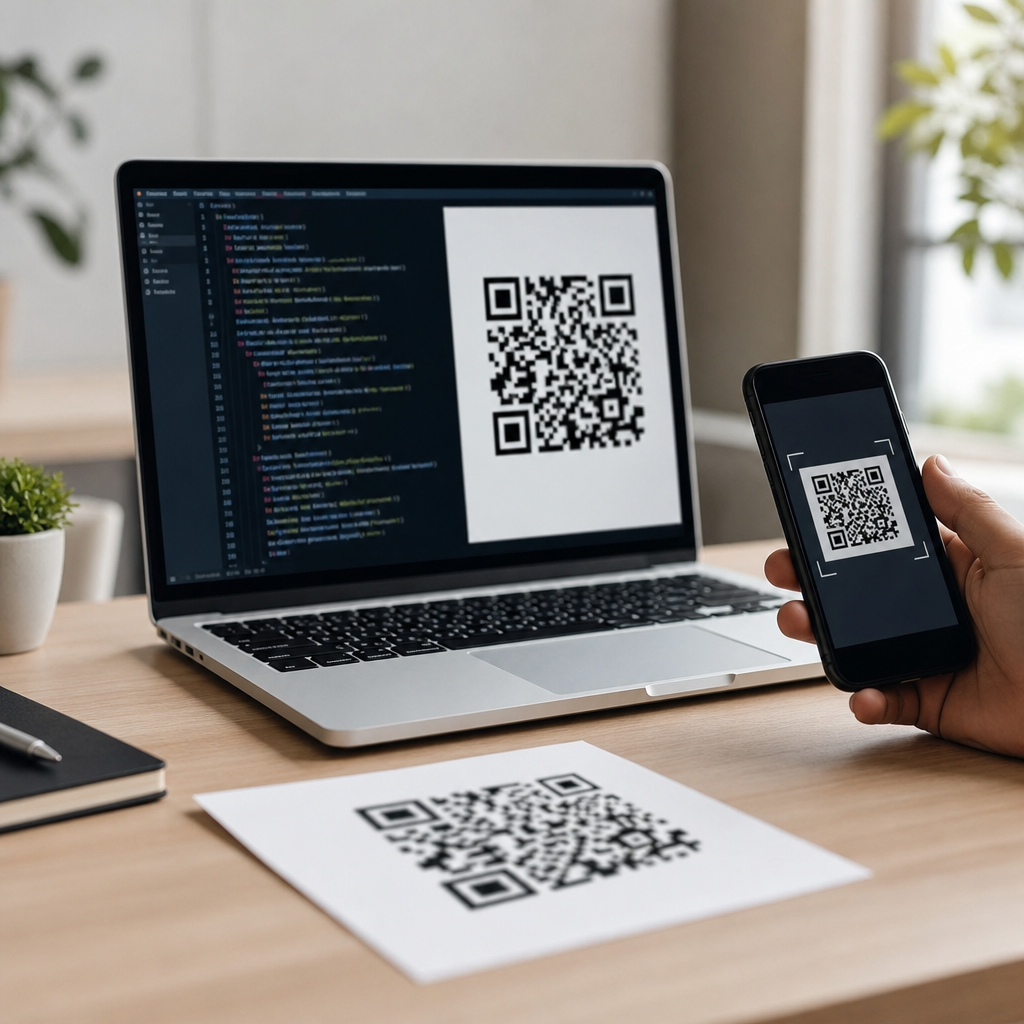
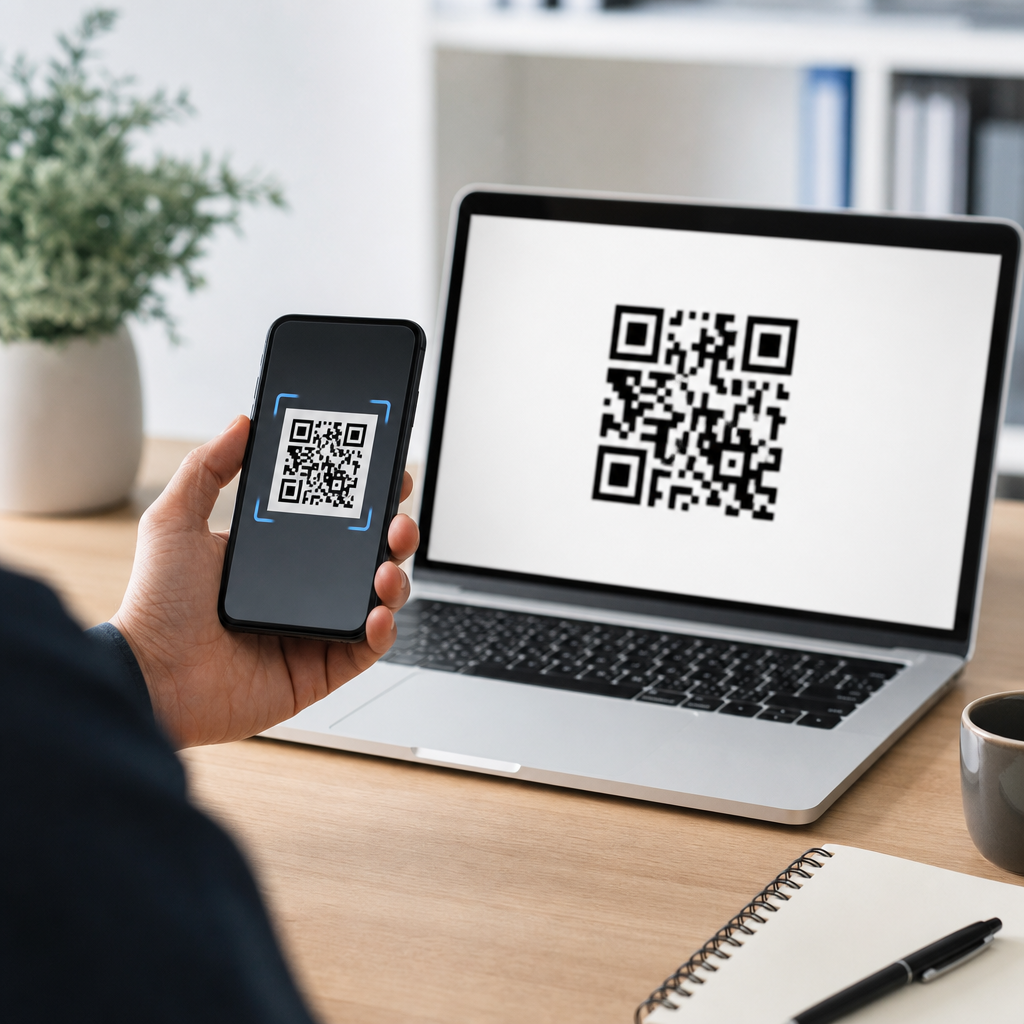
Creating a QR code is straightforward once you understand what information it stores, which generator to use, and how to test it before printing or publishing. A QR code, short for Quick Response code, is a two-dimensional barcode that can hold URLs, text, contact details, Wi-Fi credentials, payment data, app links, and more. Unlike a traditional one-dimensional barcode, it stores data both horizontally and vertically, which gives it far greater capacity and allows modern smartphone cameras to scan it quickly. Businesses use QR codes on packaging, menus, posters, invoices, product manuals, event tickets, and storefront displays because they bridge offline materials and digital actions with almost no friction.
When I build campaigns that rely on QR code scans, the difference between a useful code and a frustrating one usually comes down to planning, not software. The core decisions happen before generation: what content should open, whether the code needs analytics, how much design customization is safe, and where the code will appear. Those choices affect scan reliability, measurement, and conversion rate. A restaurant menu QR code needs a mobile-friendly destination and easy updates. A printed product label may need a permanent link that still works years later. A trade show badge might need dynamic redirection to track scans by event or location. In each case, the creation process starts with the same steps, but the implementation details matter.
This guide explains how to create a QR code step by step, from choosing the right type to testing size, contrast, and placement. It also covers the practical tradeoffs between static and dynamic QR codes, the standards that affect scan performance, and the common mistakes that make codes fail in the real world. If you need one dependable process that works for marketing, operations, retail, hospitality, education, or personal use, this is the framework to follow.
Step 1: Decide What the QR Code Should Do
The first step is defining the destination or action. A QR code can open a webpage, download a PDF, launch an app store page, save a vCard contact, join a Wi-Fi network, start an SMS, trigger a phone call, or display plain text. Choosing the right format matters because it affects usability. For most business use cases, linking to a mobile-optimized landing page is the safest option. It lets you update content on the page without reprinting the code, and it gives you room for analytics, accessibility text, and conversion tracking through tools such as Google Analytics 4 or Adobe Analytics.
Direct-data QR codes are useful when speed matters and the content is simple. A Wi-Fi QR code can instantly connect guests without forcing them to type a long password. A vCard QR code helps sales teams share contact details at conferences. A payment QR code can reduce checkout friction. Still, embedded data types have limits. If a phone does not support the format cleanly, the experience can vary by device or operating system. That is why I usually recommend a URL-based QR code for public campaigns and reserve direct-data formats for controlled environments like offices, booths, or hospitality desks.
Before moving on, answer three questions clearly: what should happen after the scan, who will scan it, and where will they scan it? A sidewalk poster, a product box, and an email signature all call for different choices. This simple planning step prevents most QR code problems before they start.
Step 2: Choose Between a Static and Dynamic QR Code
A static QR code contains the final destination directly in the pattern. Once created, it cannot be edited. If the linked URL changes, the code becomes outdated and must be replaced everywhere it appears. Static codes are best for permanent content, low-risk personal use, or situations where you do not need scan analytics. They are often free to create and do not depend on a third-party dashboard for redirection.
A dynamic QR code points to a short redirect URL managed by a QR platform. The visible pattern stays the same, but the destination can be updated later. Dynamic QR codes are better for marketing campaigns, menus, seasonal promotions, packaging, and any printed material where future changes are likely. They also support analytics such as total scans, time of scan, approximate location by IP, device type, and campaign performance. Platforms like Bitly, QR Code Generator Pro, Beaconstac, Uniqode, and Flowcode all offer dynamic options with dashboards and export tools.
The tradeoff is dependency. With a dynamic code, your scans continue to work only as long as the service remains active and the redirect is properly maintained. For critical long-term uses, verify the vendor’s reliability, domain structure, and export policies. In practice, I use static codes for fixed internal assets and dynamic codes for customer-facing campaigns where editability and measurement justify the added complexity.
Step 3: Prepare the Destination Before You Generate the Code
Never create a QR code first and figure out the destination later. The landing experience determines whether the scan turns into a successful action. If the QR code opens a webpage, make sure the page loads quickly on mobile, uses HTTPS, and contains one clear next step. A code on product packaging might lead to setup instructions, warranty registration, or a support center. A code on a restaurant table should open the menu immediately, not a cluttered homepage that forces users to hunt for links.
Short URLs are not required for modern QR generators because they encode data efficiently, but destination hygiene still matters. Remove tracking clutter where possible, and use campaign parameters carefully so analytics remain readable. If you need UTM parameters, keep naming conventions consistent. For example, use source=qr, medium=offline, and a campaign label tied to the placement, such as spring_menu_table_tent. That makes scan data easier to interpret later.
Also test the destination on multiple devices before you generate anything. I check at least iPhone Safari, Android Chrome, and one older midrange phone on cellular data. If the destination is slow, blocked by a pop-up, or difficult to navigate with one hand, the QR code itself is not the real problem. Fix the destination first.
Step 4: Use a Reliable QR Code Generator
Once the destination is ready, use a reputable QR code generator. Reliable tools let you choose the data type, error correction level, output format, and design options while producing standards-compliant codes that scanners can read consistently. Good generators include QRCode Monkey for flexible static creation, Uniqode and Beaconstac for dynamic management, Canva for quick design workflows, Bitly for link-based tracking, and Adobe Express for simple branded assets. Google Chrome can generate a basic URL QR code directly from the browser, which is convenient for internal or temporary needs, though it lacks advanced settings.
When evaluating a generator, look for PNG and SVG exports, high-resolution output, dynamic code support if needed, and transparent pricing. SVG is especially valuable for print because it scales cleanly without becoming blurry. PNG works well for digital placement when exported at sufficient resolution. If a platform adds its own branding or redirect domain, decide whether that is acceptable for your use case. For premium campaigns, I prefer custom domains on dynamic QR platforms because they improve brand trust and reduce the visual oddity of unfamiliar short links.
Be cautious with free generators that advertise dynamic features without making long-term limits clear. I have seen businesses print thousands of flyers only to discover that the free trial expired and the QR code stopped redirecting properly. Read the terms before publishing.
Step 5: Enter the Content and Configure Technical Settings
After selecting a generator, enter the exact content you want encoded. For a URL, paste the final destination or dynamic redirect link. For a Wi-Fi QR code, enter the network name, password, and encryption type, usually WPA/WPA2. For contact details, fill in standardized vCard fields such as full name, phone, email, organization, and website. Accuracy matters because even a small typo can break the intended action.
Next, configure technical settings. The most important is error correction. QR codes use four standard levels: L, M, Q, and H. Higher error correction allows more of the code to be damaged or obscured while remaining scannable, but it also increases pattern density. For simple black-and-white codes printed clearly, M is often sufficient. If you plan to add a logo in the center or the code may face wear, Q or H is safer. ISO/IEC 18004 defines the QR code standard, and staying within standard structure is essential for cross-device compatibility.
Character set and data volume also matter. The more content you encode directly, the denser the code becomes. Dense codes are harder to scan at small sizes or from a distance. That is one reason URL-based QR codes outperform long text blocks in many practical settings. Keep the payload as lean as the use case allows.
Step 6: Customize the Design Without Hurting Scanability
Branding a QR code can improve recognition, but readability must come first. Safe customization includes changing the black modules to a dark brand color, adding a modest central logo, rounding corners slightly, and styling the eye patterns without altering their basic geometry. The key requirements are high contrast, a clean quiet zone around the code, and preservation of the underlying module grid. Dark foreground on a light background remains the most reliable choice. Inverted schemes, such as white code on a dark background, can work, but performance is less consistent across older cameras and low-light conditions.
I advise clients to avoid gradients, busy photographic backgrounds, extremely thin modules, and oversized logos. If your logo covers too much of the pattern, the code may still scan on flagship phones in ideal lighting but fail on older devices or when printed small. A practical rule is to keep the logo area conservative and then test aggressively in realistic conditions. Decorative changes should support the brand without making the code look unfamiliar to users or fragile to scanners.
| Design element | Best practice | Risk if ignored |
|---|---|---|
| Contrast | Use dark modules on a light background | Low contrast causes failed scans |
| Quiet zone | Leave clear space around all sides | Scanners may not detect code boundaries |
| Logo size | Keep centered logo modest and test with high error correction | Oversized logos block too much data |
| Output format | Use SVG for print, PNG for digital | Raster images can blur when enlarged |
| Background | Keep it plain, not busy or photographic | Visual noise interferes with recognition |
Step 7: Download the Right File Type and Size
After generating the code, export it in the format that matches the placement. For professional print, SVG is usually the best choice because it is vector-based and stays sharp on packaging, posters, menus, and signage. EPS and PDF can also work well in print workflows. For websites, social graphics, presentations, or email assets, PNG is the common choice. If the code appears on a retina display or in a high-resolution layout, export at generous dimensions so the image remains crisp.
Physical size is not arbitrary. A common baseline is at least 2 x 2 centimeters for close-range scanning, though many practical uses need more. The farther away people stand, the larger the QR code should be. A useful rule of thumb is a scan distance ratio of about 10:1, meaning a code intended to be scanned from one meter away should be roughly ten centimeters wide. On billboards, transit ads, or storefront windows, size becomes critical. If people cannot comfortably approach the code, design for distance and limited scanning time.
Also preserve margin space in the exported file. Cropping too tightly removes the quiet zone, which many scanners rely on to identify the code correctly.
Step 8: Test the QR Code in Real Conditions
Testing is the step most people rush, and it is where costly mistakes surface. Scan the code with multiple devices, including iPhone and Android models, in bright light, dim light, and at the actual size you plan to use. Test from the intended distance and angle. If the code will be printed on glossy material, review it under reflections. If it will appear behind glass, test through glass. If it will sit outdoors, evaluate visibility in direct sun and shade. These details matter more than perfect generator settings.
Check both technical and user outcomes. Does the camera detect the code instantly? Does the destination load quickly? Is the page readable without pinch-zooming? Can the user complete the task in a few taps? In store environments, I often run tests using average mobile connectivity rather than office Wi-Fi because network conditions affect perceived QR performance. A code that technically scans but lands on a heavy, slow page still fails the user.
If scan speed is inconsistent, simplify the design, increase size, improve contrast, or reduce data density. Retest until the scan works smoothly for ordinary users, not just for the person who created it.
Step 9: Publish, Track, and Maintain the Code
Once testing is complete, place the QR code where people can see it, reach it, and understand why they should scan it. Add a short call to action such as “Scan to view the menu,” “Scan for setup guide,” or “Scan to claim your discount.” Context increases scan rate because users know the benefit before they lift their phones. Placement also matters. Avoid corners, curved surfaces, folds, and areas blocked by hands, packaging seams, or glare.
For dynamic QR codes, monitor analytics after launch. Review scans by date, location, and device type, then compare performance across placements. A tabletop card may outperform a window sticker because users are already seated and ready to act. A product insert may generate more support visits than the package exterior. Use those findings to improve future placements and landing pages. If the destination changes, update the redirect carefully and retest live.
Maintenance is part of successful QR code creation. Audit printed codes periodically, especially if they point to campaign pages, PDFs, or third-party tools that may move. Broken destinations erode trust quickly. Keep a simple inventory of where each code appears, what it links to, and who owns updates.
Creating a QR code successfully is less about pressing a generate button and more about following a disciplined process. Start by defining the action you want the scan to trigger, then choose the right format and decide whether static or dynamic control fits the job. Build or verify the destination first, use a reputable generator, configure error correction appropriately, and customize only within the limits that preserve scan reliability. Export the correct file type, size the code for the scanning distance, and test it on real devices in realistic conditions before publication.
The main benefit of doing this well is simple: a QR code becomes a dependable bridge between physical touchpoints and digital outcomes. When the code scans instantly and the destination solves the user’s need, you get fewer support issues, stronger campaign measurement, and better conversion from print, packaging, signage, and in-person interactions. When the process is rushed, the code may still look polished while quietly underperforming in the places that matter most.
If you are building a QR code for your business, create one small pilot first, test it thoroughly, and document what worked. Then scale the same method across menus, product labels, event materials, storefront signage, and support assets. A careful step-by-step approach turns QR codes from a novelty into a reliable operational tool.
Frequently Asked Questions
What information can a QR code store?
A QR code can store much more than just a website link. One of the main reasons QR codes are so useful is that they can hold many different types of data in a compact, scannable format. Common examples include URLs, plain text, phone numbers, email addresses, SMS messages, contact cards, Wi-Fi network credentials, app download links, calendar event details, location coordinates, and payment information. When someone scans the code with a smartphone camera or QR scanning app, the device reads the encoded data and prompts the appropriate action, such as opening a webpage, joining a Wi-Fi network, saving a contact, or launching a payment screen.
Because a QR code is a two-dimensional barcode, it stores data both horizontally and vertically. That gives it significantly more capacity than a traditional one-dimensional barcode. In practical terms, this means you can choose the type of content based on your goal. If you want people to visit a landing page, use a URL. If you want customers to connect in-store without typing a password, use Wi-Fi credentials. If you are creating printed business materials, a contact card or digital profile link may be the best option. The key is to decide what action you want the user to take before generating the code, because that choice determines the format and usefulness of the final QR code.
How do I create a QR code step by step?
Creating a QR code is usually a quick process, but doing it properly helps ensure it works reliably. First, decide what information you want the QR code to store. This might be a webpage URL, a PDF file link, your contact information, a product page, or a Wi-Fi login. Next, choose a reputable QR code generator. Many online tools offer free static QR codes, while paid platforms often include dynamic QR codes, analytics, design customization, and edit capabilities.
Once you open the generator, select the data type you want to encode. Enter the information carefully and check for formatting errors, especially with URLs, phone numbers, and passwords. After that, generate the code and review the preview. Most tools allow you to customize colors, add a logo, or change the frame style, but it is best to keep readability in mind rather than overdesigning it. Then download the file in a suitable format. PNG works well for digital use, while SVG or EPS is often better for professional printing because those formats scale cleanly.
The final and most important step is testing. Scan the QR code with multiple devices if possible, under different lighting conditions, and at different sizes. Confirm that it opens the correct content and that the destination is mobile-friendly. If you plan to print it, test a printed sample before committing to a large run. A QR code is easy to create, but careful setup and testing are what make it effective in real-world use.
What is the difference between a static QR code and a dynamic QR code?
A static QR code contains fixed information that cannot be changed after the code is created. For example, if you encode a specific URL directly into a static QR code, anyone who scans it will always be sent to that exact address. Static QR codes are often free to generate and work well for simple, permanent uses where the destination is unlikely to change. They are a good choice for personal projects, basic flyers, classroom handouts, or any situation where you are confident the stored information will remain accurate long term.
A dynamic QR code works differently. Instead of storing the final destination directly, it typically stores a short redirect link managed by the QR code service. That means you can update the destination later without changing the printed code itself. This is especially useful for marketing campaigns, restaurant menus, product packaging, event materials, and business signage. Dynamic QR codes also often include scan analytics, such as location, device type, time of scan, and total usage data. Those insights can be valuable if you want to measure performance or improve a campaign over time.
If you are deciding between the two, think about flexibility and maintenance. If the content might change, choose dynamic. If you need a simple one-time code with no ongoing management, static is usually enough. For many businesses, dynamic QR codes offer more long-term value, but the right choice depends on your budget, goals, and whether tracking and editability matter for the project.
How can I make sure my QR code scans correctly?
To make sure a QR code scans correctly, start with the basics: use accurate data, generate the code with a reliable tool, and avoid unnecessary visual complexity. One of the most common causes of failure is entering incorrect information, such as a broken URL or mistyped Wi-Fi password. Another common issue is poor design choices, including low contrast, tiny sizing, overcrowded placement, or excessive logo overlays that interfere with the code pattern. In general, a dark code on a light background offers the best scan performance.
Size matters as well. A QR code should be large enough to scan comfortably from the intended distance. For print, do not reduce it so much that smartphone cameras struggle to detect it. Leave adequate quiet space around the code, which is the empty margin that helps scanners distinguish the QR code from surrounding text or graphics. If the code will appear on packaging, posters, menus, or storefront materials, think about how and where people will actually scan it. Glare, curved surfaces, low light, or placement too high on a wall can all reduce usability.
Testing is essential. Scan the code using both iPhone and Android devices if available, and test it with the native camera app as well as a QR scanner app. If the code leads to a webpage, make sure that page loads quickly and displays well on mobile devices. If you are printing the code, print a sample first and test it at the final size. A QR code is only successful if it works easily in the real world, so testing before publishing or mass printing is one of the most important steps in the entire process.
Where should I use a QR code, and what are the best practices for placement?
QR codes can be used almost anywhere people might benefit from quick access to digital information. Common use cases include product packaging, business cards, brochures, restaurant menus, event signage, posters, retail displays, invoices, direct mail pieces, classroom materials, real estate signs, and social media graphics. They are especially effective when they remove friction. Instead of asking someone to type a long web address, search for an app, manually save contact details, or enter Wi-Fi credentials, a QR code lets them complete the action in seconds with a simple scan.
For placement, visibility and context are critical. Put the QR code where users can easily notice it, reach it, and scan it without awkward angles or physical barriers. It should not be tucked into a corner, printed too close to folds or edges, or placed over busy backgrounds. Include a short call to action near the code so users know what they will get when they scan it, such as “Scan to view the menu,” “Scan to download the app,” or “Scan to join Wi-Fi.” This increases trust and improves scan rates because people understand the value before they interact with it.
It is also smart to match the destination to the setting. A QR code on printed advertising should open a fast, mobile-optimized page that is directly relevant to the message on the ad. A code on a business card might link to a digital portfolio, vCard, or scheduling page. A code in a store might lead to product details, reviews, or loyalty sign-up. The best QR code placements are intentional, easy to scan, and connected to a clear next step that benefits the user immediately.